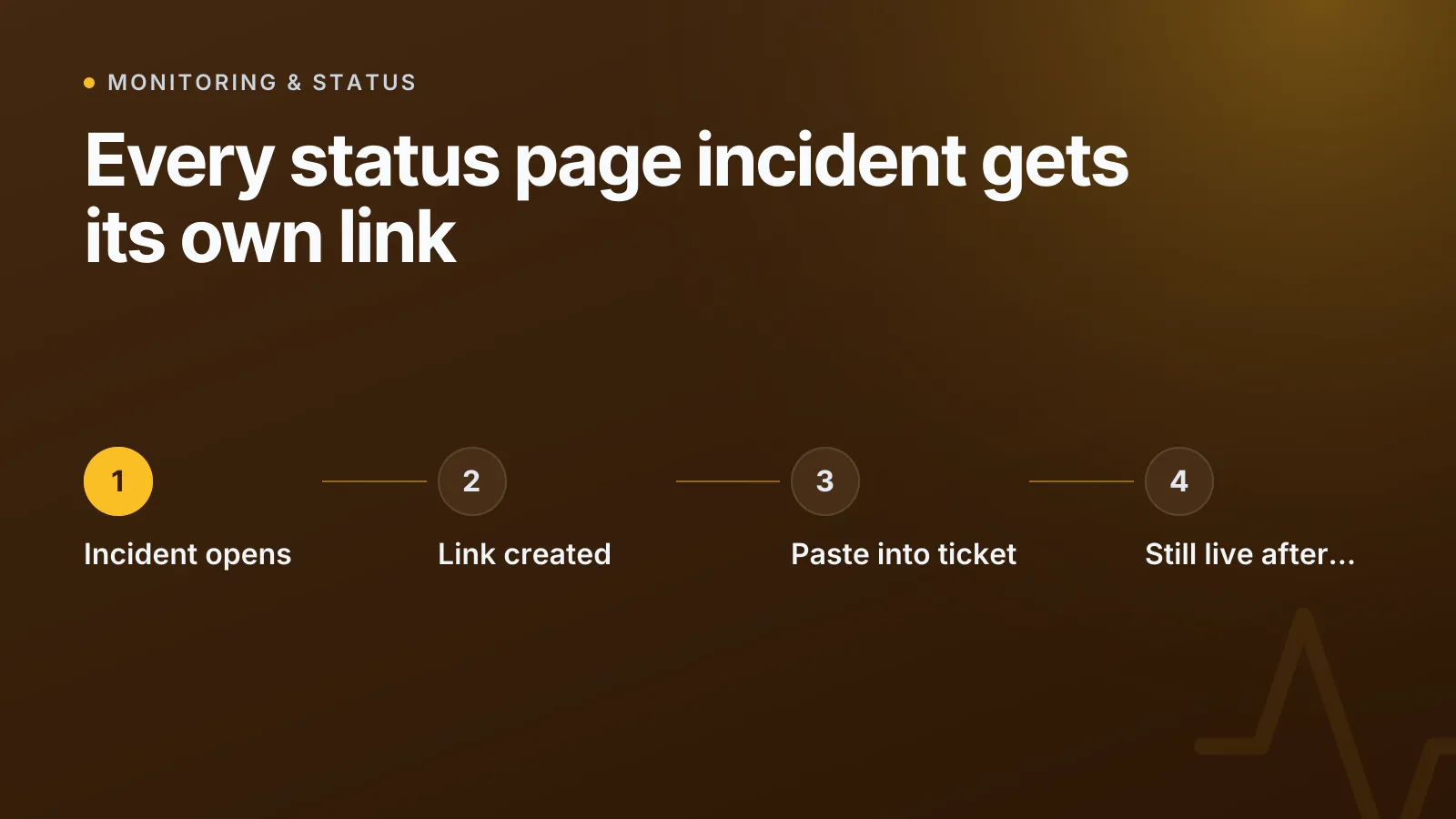
When a customer opens a support ticket about an outage, the first thing an agent needs is context: what broke, when, for how long, and what you already told the world about it. Pasting a single, permanent link to the status page incident gives the customer and the agent that entire history in one click, instead of making either of them scroll a timeline looking for the right entry. That link should keep working long after the outage is fixed, because the ticket usually outlives the incident.
This matters more than it sounds. Status pages are built to answer one question for the public — is something broken right now — and they're right to stay narrow. But a support ticket needs the opposite: a durable record that someone can refer back to days or weeks later, after the status page has already moved on to saying everything is fine.
Why "is it down" isn't enough for a ticket
A customer rarely opens a ticket while the outage is live. More often they notice something failed, file a ticket an hour or a day later, and ask what happened. By then your status page banner is green again, and if all you can offer is "yes, we had an issue earlier," the agent is reconstructing the story from memory or digging through old updates.
The fix is a link that survives the incident. Not a link to the front of the status page — that only tells the reader the current state — but a link to the specific incident record: its impact, its start time, its duration, and the sequence of updates you posted while it was happening.
What a good incident link should show
At minimum, an incident link that's actually useful in a support conversation needs to answer the questions a customer will ask without a follow-up message:
| Question | What the link should show |
|---|---|
| What was affected? | The specific service or component, not "something" |
| When did it start? | A timestamp, not a relative "2 hours ago" that goes stale |
| How long did it run? | Duration, calculated once the incident resolves |
| What did you say, and when? | Every update, in order — investigating, identified, monitoring, resolved |
| How was it caught? | Whether monitoring caught it, and how reliably |
That last row is easy to skip but worth having. A customer who asks "how do you even know when something's down" is really asking whether you'll notice the next one before they have to tell you. Saying the outage was confirmed by monitoring checks — and from how many independent regions — answers that in one line instead of a paragraph of reassurance.
How this works in InfraNest
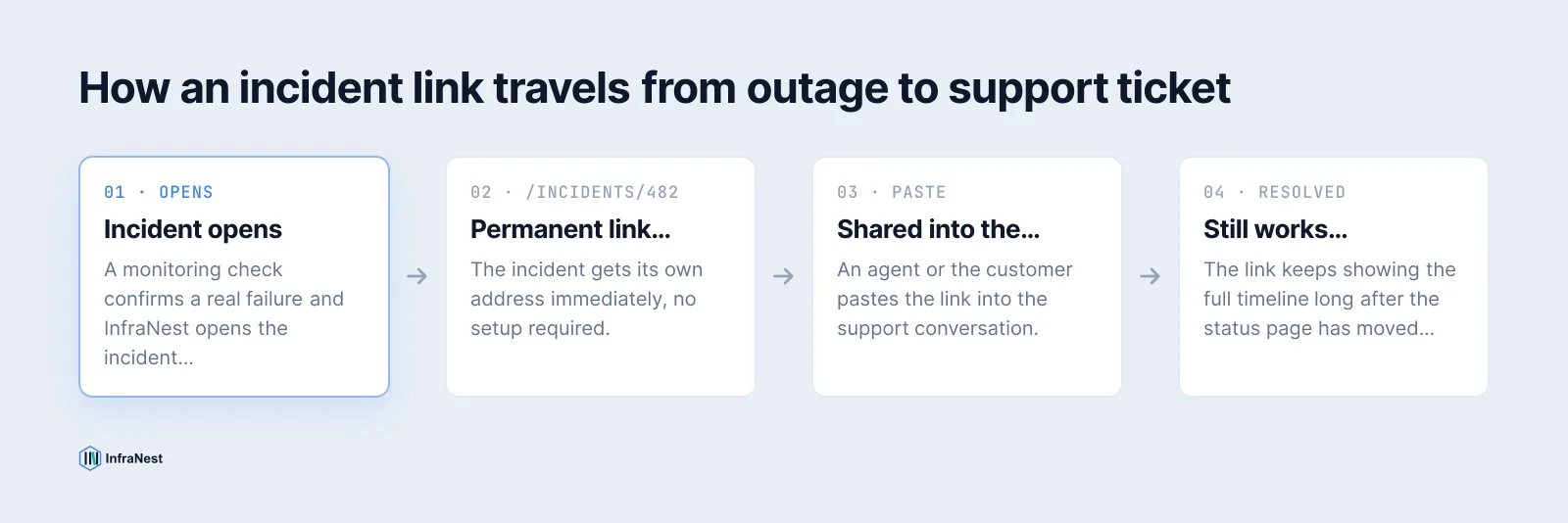
Infranest's status pages give every incident a permanent address of its own — something like status.yourcompany.com/incidents/482 — the moment it opens, with no setup required. Paste that URL into a ticket, a chat message or an email, and whoever opens it lands directly on that one incident: what it affects, when it started, how long it ran, and every update posted about it, in order. At the foot of the incident it also says how the problem was detected — usually that monitoring caught it, and from how many of the regions checked — read back from the probes that actually saw the failure, so an old incident whose probe data has since been pruned says less rather than guessing.
The part that actually makes this useful for support is simple: the link keeps working after the incident resolves. Your public status page stops talking about an outage the moment it's over, because that's what a status page is for — but the ticket referencing it usually stays open a lot longer than the outage did. The incident link also outlives your history window; a 30, 60 or 90-day window governs how long the incident list shows, not how long an individual link keeps resolving.
There's nothing to switch on. The link sits on the live incident itself, on every row of your incident history, and — just as importantly — in the notification emails your subscribers already receive, which point at the specific incident rather than the front of the page. That's the same link a customer might forward you unprompted, before your agent even asks for it.
NoteIf your status page is password-protected, the incident link asks for that password before revealing anything — including the incident's title. A link preview in a ticketing tool or a chat app won't leak what the outage was about to someone who doesn't have the password.
Using the link in your support tool
Most ticketing tools — Zendesk, Intercom, and similar — let you store an external reference or URL against a ticket, or simply paste a link into the conversation body where it renders as a clickable reference. There's no special integration required: an agent can paste the incident URL straight into the reply, and the customer clicks through to the same record the agent is looking at. If you run on-call through PagerDuty, the same incident link is worth attaching to the PagerDuty incident too, so anyone who picks up the page later has the public-facing write-up alongside the internal alert.
TipFor a repeat offender — a flaky dependency that opens incidents every few weeks — keep the incident link pattern consistent in your macros or canned responses, so agents paste the right thing without having to go find it each time.
What happens after the incident resolves
Once a check recovers, the incident resolves itself — no action needed from you — and the timeline is complete: investigating, identified, monitoring, resolved, with a timestamp on each step. That's exactly the record a support agent wants six days later when a customer asks "did you ever figure out what caused this." You don't need to write a separate post-mortem for every minor blip; the incident itself, with its update history, often is the answer.
If your team is the one fixing things rather than answering tickets, it's worth knowing the incident link that goes out to customers is deliberately narrower than what your own team sees. The team view behind your InfraNest sign-in adds on-call contact details and a runbook link per service — none of which appears on the public incident, enforced by a whitelist rather than a filter someone has to remember to apply.
Set up a branded status page with per-incident links at infranest.com/features/status-pages — there's nothing extra to configure; every incident gets its permanent link automatically.
Veelgestelde vragen
#Does the incident link still work after the status page shows everything is operational again?
Yes. The incident link is permanent and independent of the status page's current state — it keeps showing the full incident record, including its duration and update history, long after the page itself has stopped mentioning it.
#Can I use the incident link on a password-protected status page?
You can send it the same way, but the recipient will be asked for the page's password before seeing anything, including the incident's title. This stops the incident subject from leaking through a link preview.
#Will the incident link eventually expire or get removed?
No. The history window you set (30, 60 or 90 days) controls how long an incident appears in your public incident list, not whether its direct link keeps resolving — the link itself keeps working outside that window.
#Does this require any setup on my status page?
No. Every incident gets its own link automatically, it appears on the incident itself and on every row of the incident history, and subscriber notification emails already point to the incident rather than the front page.
Probeer het met een gratis tool
Was dit artikel nuttig?