If Cloudflare DNS isn't updating, the record has almost always changed correctly on Cloudflare's side already — the delay you're seeing is a downstream resolver still serving a cached answer, or you're looking at a proxied record and mistaking Cloudflare's edge behaviour for a stale DNS entry. Cloudflare's authoritative network pushes changes globally within seconds. What lags behind is everything between Cloudflare and your screen: your OS cache, your browser, your ISP's resolver, and any public resolver like 8.8.8.8 that cached the old TTL (time to live).
This post walks through the real causes, in order of likelihood, and gives you a fast way to confirm which one you're dealing with.
Why DNS changes appear delayed even when they aren't
Every DNS record carries a TTL — a number of seconds a resolver is allowed to cache the answer before re-checking with the authoritative server (RFC 1035). If a record had a TTL of 3600 seconds before you changed it, any resolver that already cached the old value can legally keep serving it for up to an hour, even though Cloudflare's edge already has the new answer.
This is standard DNS behaviour, not a Cloudflare bug. It applies to every DNS provider — Cloudflare is just the one most people notice it on, because its dashboard makes changes feel instant.
NoteNegative answers (like NXDOMAIN, when a record doesn't exist yet) are cached according to the zone's SOA MINIMUM value, not the record's own TTL — so a newly created record can sometimes take longer to appear than an edited one.
Cloudflare TTL: what "Auto" actually means
Cloudflare's DNS record editor gives you a TTL dropdown with an Auto option plus fixed values ranging from 1 minute up to a week. Auto hands TTL selection to Cloudflare, which typically applies a short TTL suited to fast failover — but it's still a cached value from the resolver's perspective.
If you're about to make a change you know will need to propagate fast (migrating an A record before a server cutover, for example), lower the TTL to something short — like 300 seconds — a day or two ahead of the change. That way, by the time you actually flip the record, resolvers are only holding a 5-minute-old cache instead of an hour-old one.
The proxy trap: orange cloud vs grey cloud
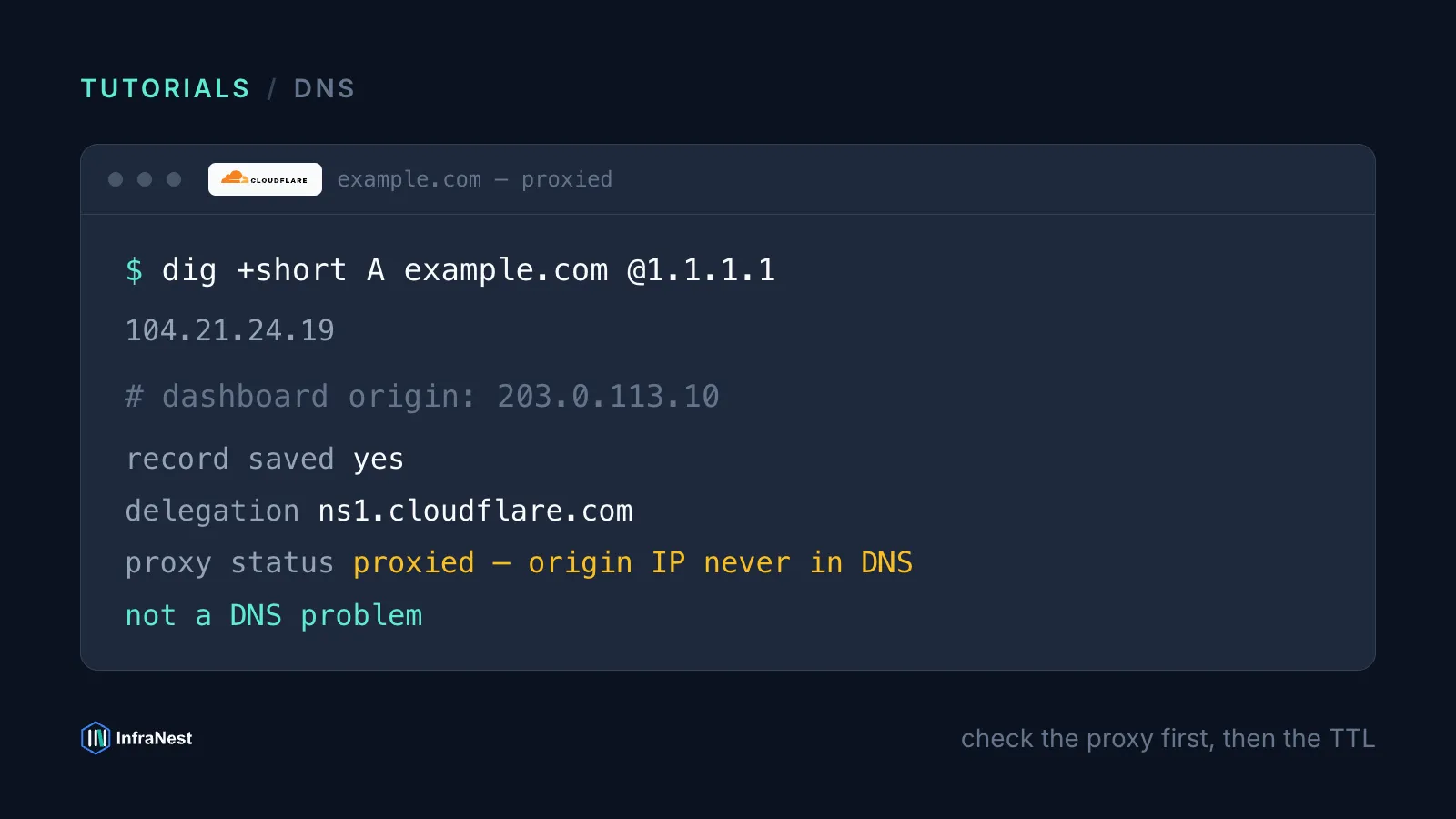
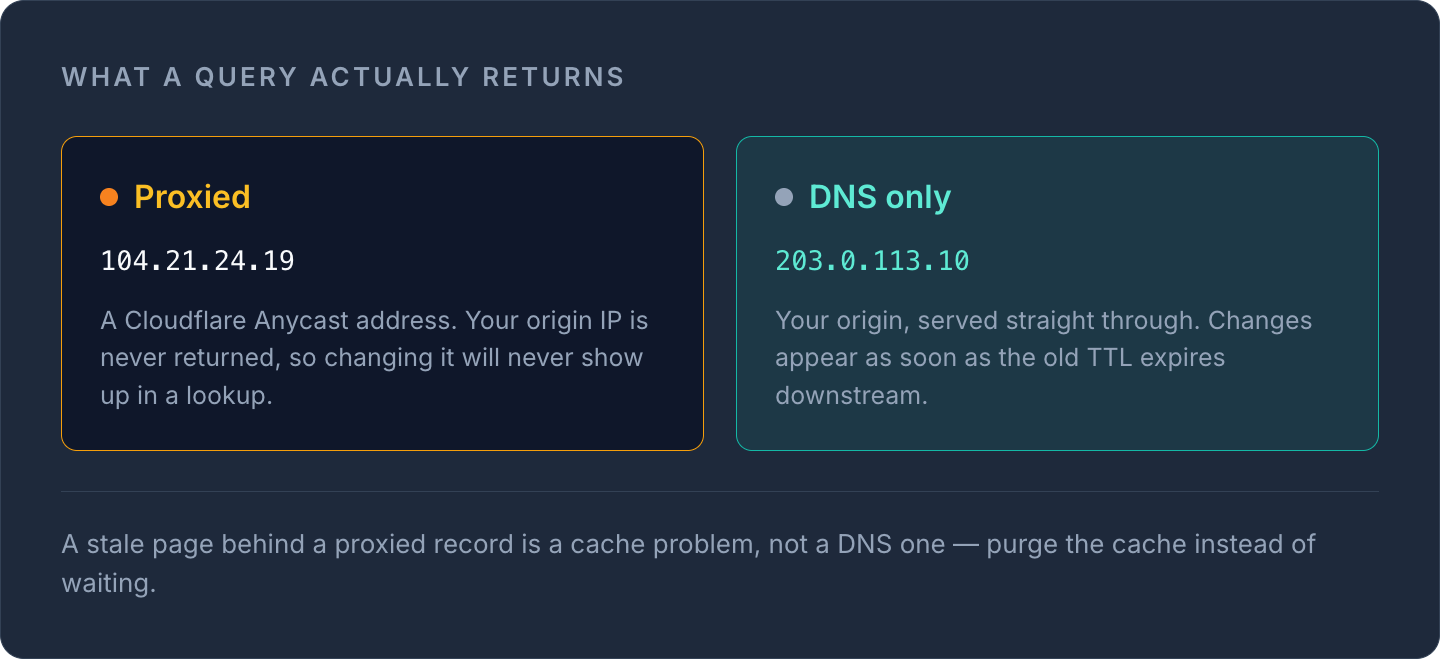
This is the single most common source of "Cloudflare DNS not updating" confusion. When a record is proxied (orange cloud), Cloudflare does not return your origin IP in DNS answers at all — it returns its own Anycast IPs. So if you update your origin's IP address on a proxied record and then check DNS, you'll never see the new IP, because Cloudflare was never showing it to begin with.
What you're often actually troubleshooting in that case isn't DNS — it's:
- Cloudflare not yet routing to the new origin (check the record's origin IP in the dashboard, not via DNS lookup)
- Cloudflare's CDN/cache layer serving an old cached page (needs a cache purge, not a DNS wait)
- A firewall or security rule blocking the new origin
Switching a record between Proxied and DNS-only (grey cloud) also changes what a DNS query actually returns, and that switch is subject to normal TTL caching downstream just like any other record change.
How to verify what's actually happening
Before assuming anything is broken, check the record directly against an authoritative or well-known public resolver rather than relying on your own machine, which may have a stale local cache.
Run our free DNS lookup tool against the domain and record type in question — it queries live and shows you exactly what's being returned right now, bypassing your own device's cache. Compare that to what the Cloudflare dashboard shows for the record.
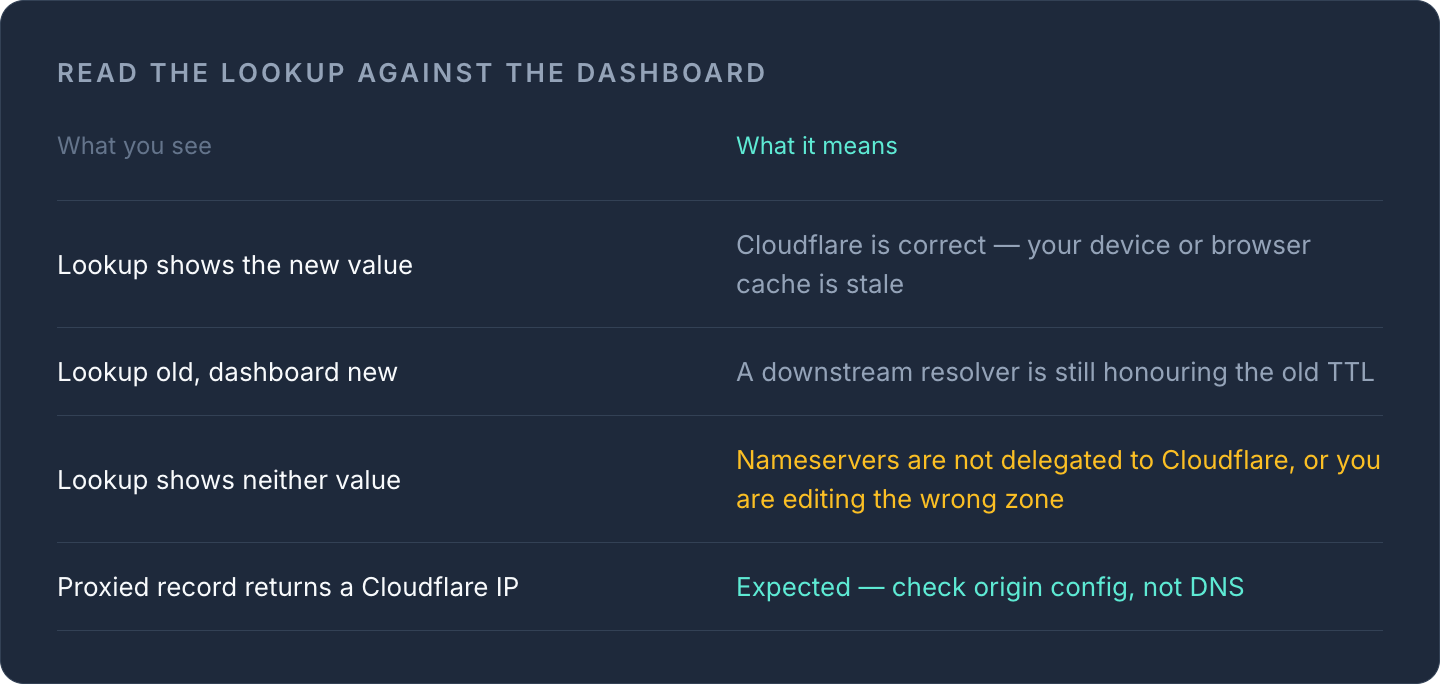
| What you see | What it means |
|---|---|
| Lookup tool shows new value | Cloudflare is correct; your local device/browser cache is stale |
| Lookup tool shows old value, dashboard shows new value | A downstream resolver is still honouring the old TTL |
| Lookup tool shows neither value | Nameservers aren't actually delegated to Cloudflare, or you're editing the wrong zone |
| Record is proxied and shows a Cloudflare IP | Expected behaviour — check origin config, not DNS |
If the lookup tool matches the dashboard, the fix is entirely local: flush your OS DNS cache, clear the browser's cache, or just wait out the TTL — it isn't a Cloudflare problem.
When it's a delegation problem, not a caching one
If a change genuinely never appears anywhere, no matter how long you wait, check that the domain's nameservers at the registrar actually point to Cloudflare. It's common to edit records in a Cloudflare zone that was set up correctly but never fully activated — the domain's registrar-level NS records still point elsewhere, so Cloudflare's edge is never consulted at all.
Also double-check you're editing the zone you think you are. If you manage multiple Cloudflare accounts, or the domain was added twice, it's easy to update a paused or inactive zone by mistake.
TipIf you manage DNS across Cloudflare and other providers for different domains, keeping everything visible in one dashboard makes zone-mismatch mistakes far less likely. Our DNS management feature and Cloudflare integration let you view and edit records across providers without hunting through separate logins.
Quick checklist before you assume Cloudflare is broken
- Confirm the record actually saved correctly in the Cloudflare dashboard
- Check the domain's nameservers are delegated to Cloudflare at the registrar
- Query a public resolver directly with a DNS lookup tool, not just your browser
- Remember proxied records never expose your origin IP via DNS
- If it's a CDN/page caching issue, purge Cloudflare's cache — don't wait on DNS
- Lower TTL in advance of planned cutovers so future changes propagate faster
For background on how records and resolvers interact more generally, see our guide on how DNS resolution works and the full DNS record types reference.
If you're juggling DNS changes across Cloudflare and several other providers, our DNS management dashboard gives you one place to check, edit and verify records without switching tools.
Frequently asked questions
#How long does it take for Cloudflare DNS changes to take effect?
Cloudflare's authoritative servers update almost immediately, usually within seconds. What takes longer is downstream resolvers refreshing their cache, which can take up to the record's previous TTL — commonly a few minutes to an hour.
#Why does my DNS lookup tool show a different result than the Cloudflare dashboard?
This almost always means a resolver somewhere between you and Cloudflare is still serving a cached answer from before your change, based on the record's TTL at the time it was cached.
#Does purging Cloudflare's cache fix a DNS record that isn't updating?
No — cache purging clears Cloudflare's CDN/content cache, which is separate from DNS. If a DNS record itself isn't reflecting a change, the fix is TTL-related or a delegation issue, not a cache purge.
#Can a proxied record ever show my server's real IP address?
No. Proxied (orange cloud) records always return Cloudflare's Anycast IPs in DNS answers, regardless of TTL. To see or change your origin IP, check the record's configuration in the Cloudflare dashboard directly.
Cet article vous a-t-il été utile ?