

If you've saved a DNS change but it doesn't seem to be working yet, this article helps you figure out whether the change actually went through, and if so, why you might still be seeing the old result. It's for anyone managing DNS records in InfraNest.
Overview
- Most of the time, your change is already live — something nearby (your browser, your network, or a public DNS server) is just still remembering the old answer for a while.
- This article shows you how to watch a change spread, how to tell if it actually reached your provider, and what to do if the internet is still answering with the old value.
Check whether the change reached your provider
- When you select Save in a record's window, InfraNest sends the change to your DNS provider immediately, before the window closes.
- If the provider refuses the change, the window stays open and shows the provider's reason. Nothing changes on either side in this case.
- If the window closes without an error, your provider already has the new value — the delay you're seeing is happening somewhere else.
Watch the change land
- Right after you save, a panel appears above the records showing the change travelling. You don't need a separate lookup tool.
- The panel opens with a summary, such as "www.example.com now points to web-02", along with when and where you saved it.
- Check Your provider's nameservers, shown as one row. New address means every nameserver has the change. 1 of 2 still old means it's still publishing — usually fine after waiting a minute.
- Check Public resolvers (Cloudflare, Google and others), shown one row each. Each shows New address, or Old address, for up to N more minutes — based on the record's previous TTL.
- If a monitor watches that name, check its result: the first check after your change, plus whether the new server's certificate is valid. A moved site with no certificate for the name is a common cause of a broken move. Select Check now to test immediately.
- The panel keeps checking by itself, more slowly over time, until everyone agrees on the value. Close it whenever you like.
- Changed your mind? Select Undo in the same panel. This also works after deleting a record — it shows who still answers the old value.
TipPlanning a change ahead of time? Lower the record's TTL a day before, make the change, then raise the TTL again afterwards.
Wait for the old answer to expire
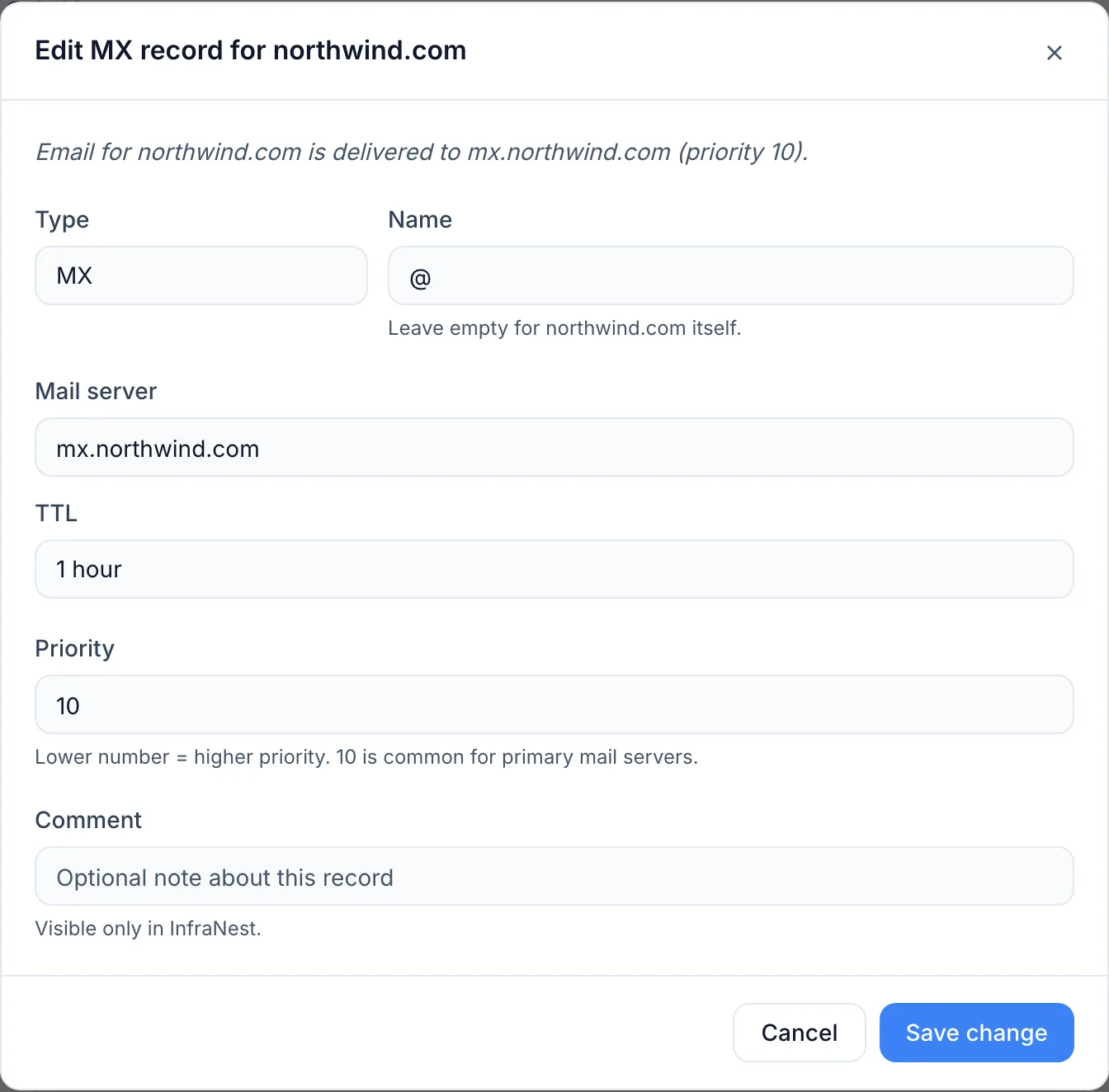
- Every record has a TTL ("time to live"), shown in the records table and in the Edit record window. This controls how long others may remember the old answer.
- A record with a TTL of 5 min can take up to five minutes to update everywhere. One with 1 hour can take up to an hour. The clock restarts each time someone looks the name up.
- Your own computer and browser also remember answers separately. If others already see the change and you don't, try another network (like your phone's mobile data) or restart your browser.
Check what the internet is actually answering
- Open the zone under DNS.
- If everything matches, there's nothing to fix — the old answer is just still cached somewhere (see above).
- If a banner says … record(s) don't match what the internet answers, select See the difference. This shows Stored here vs answered live, record by record, with a likely reason:
- Changed at the provider, or still spreading — either the TTL hasn't expired yet, or someone changed the record directly at the provider. Wait, then check again.
- Never reached the provider — the record only exists in InfraNest. Select Send mine to the provider to push it live.
- Nameservers point elsewhere — see the next section.
- If you see We can't say whether these records are live, the check hasn't run yet, or no public DNS server answered. Give it a minute and check again.
Fix it when the internet is asking a different provider
- If a banner says The internet isn't asking this provider for …, your domain's nameservers (set at the company you bought the domain from) point somewhere else entirely.
- In this case, records you edit in InfraNest aren't the ones visitors actually get, so changes here won't show up no matter what you do.
- Either update the nameservers at your registrar to point to this provider, or edit the zone at the provider the domain actually uses. See Add a DNS zone for details.
NoteNameserver changes spread more slowly than record changes — often a few hours, and sometimes up to two days.
Fix it when someone changed the record at the provider directly
- InfraNest reads each zone from your provider about once an hour. If someone edits a record in the provider's own dashboard, InfraNest only picks it up on the next read.
- To read the latest values immediately, open the zone and select Sync from its actions menu.
- If a zone hasn't been read in over a day, the DNS page marks it Not synced and lists it near the top. Select Sync now there to refresh all of them at once.
- If zones stay stuck on that list, the connection to your provider may need attention. See When a connection stops working.
Troubleshooting
- Not synced means InfraNest hasn't read the zone from your provider recently — it may simply be out of date.
- Out of sync means something different: the internet is answering differently from what InfraNest holds, either because a record differs or because the domain's nameservers point elsewhere. The DNS page lists these zones too — open one to see exactly which records differ.
Was this article helpful?
Related articles
You're asked to change your passwordIf InfraNest asks you to set a new password before letting you continue, nothing is wrong with your account — a policy in your organization has asked for it.A monitor says my site is down, but it loads for meYour browser opens the site fine, but InfraNest says it's down. Both are usually telling the truth: our check visits from somewhere else, in a different way…TroubleshootingCommon "it's not working" situations and how to resolve them.A certificate check fails although the certificate is validThe padlock in your browser looks fine, but InfraNest flags the certificate, or an SSL monitor says it's down.