

If InfraNest is asking you to verify your email address before letting you continue, this article walks you through it, and what to do if the message never shows up.
Overview
- Verifying confirms InfraNest can reach you at the address on file.
- It only takes a minute: open the email, select the link, and you're back in.
- Some areas of InfraNest stay locked until your address is confirmed.
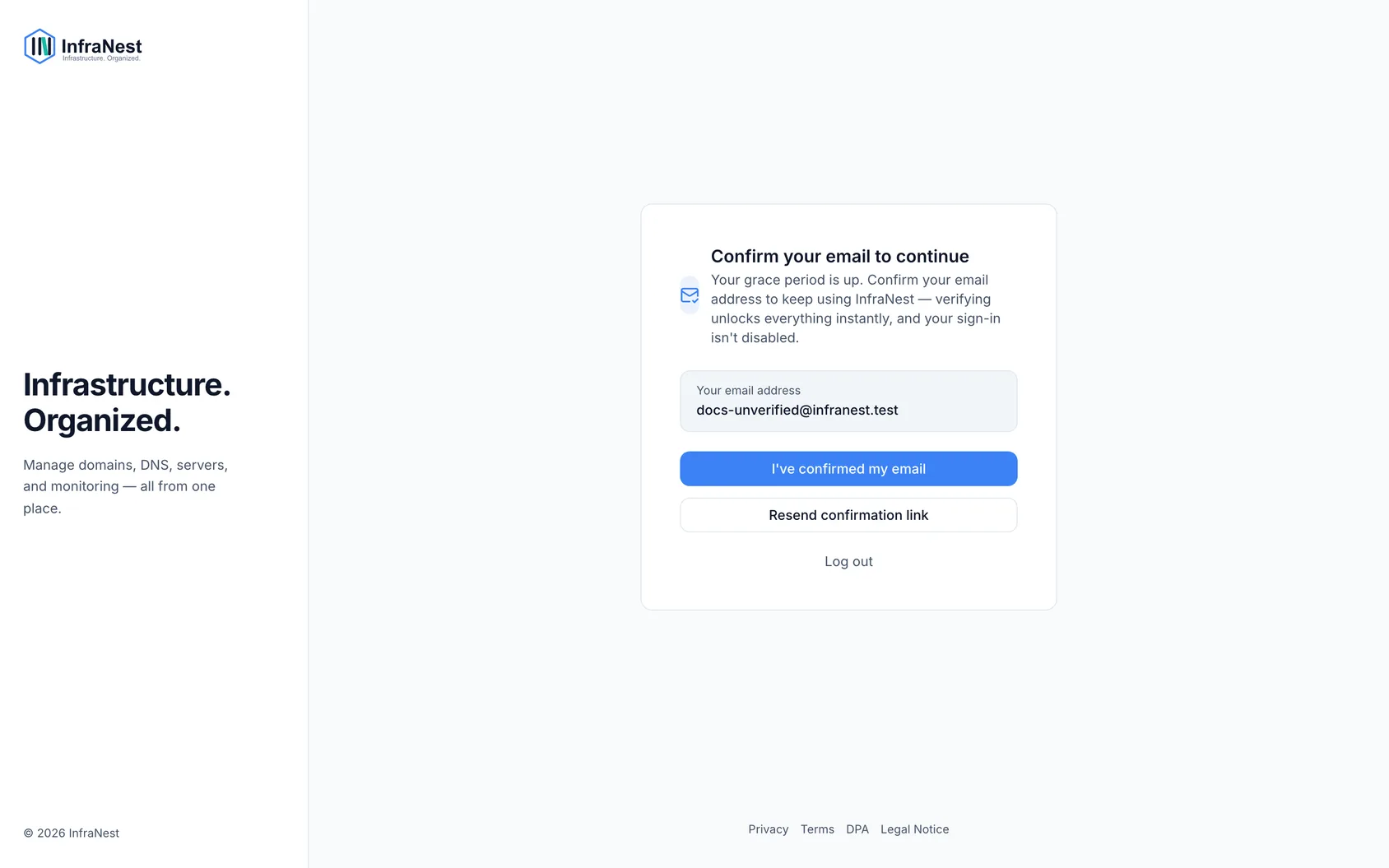
Verify your email address
- Check your inbox for the message from InfraNest. It looks like this:
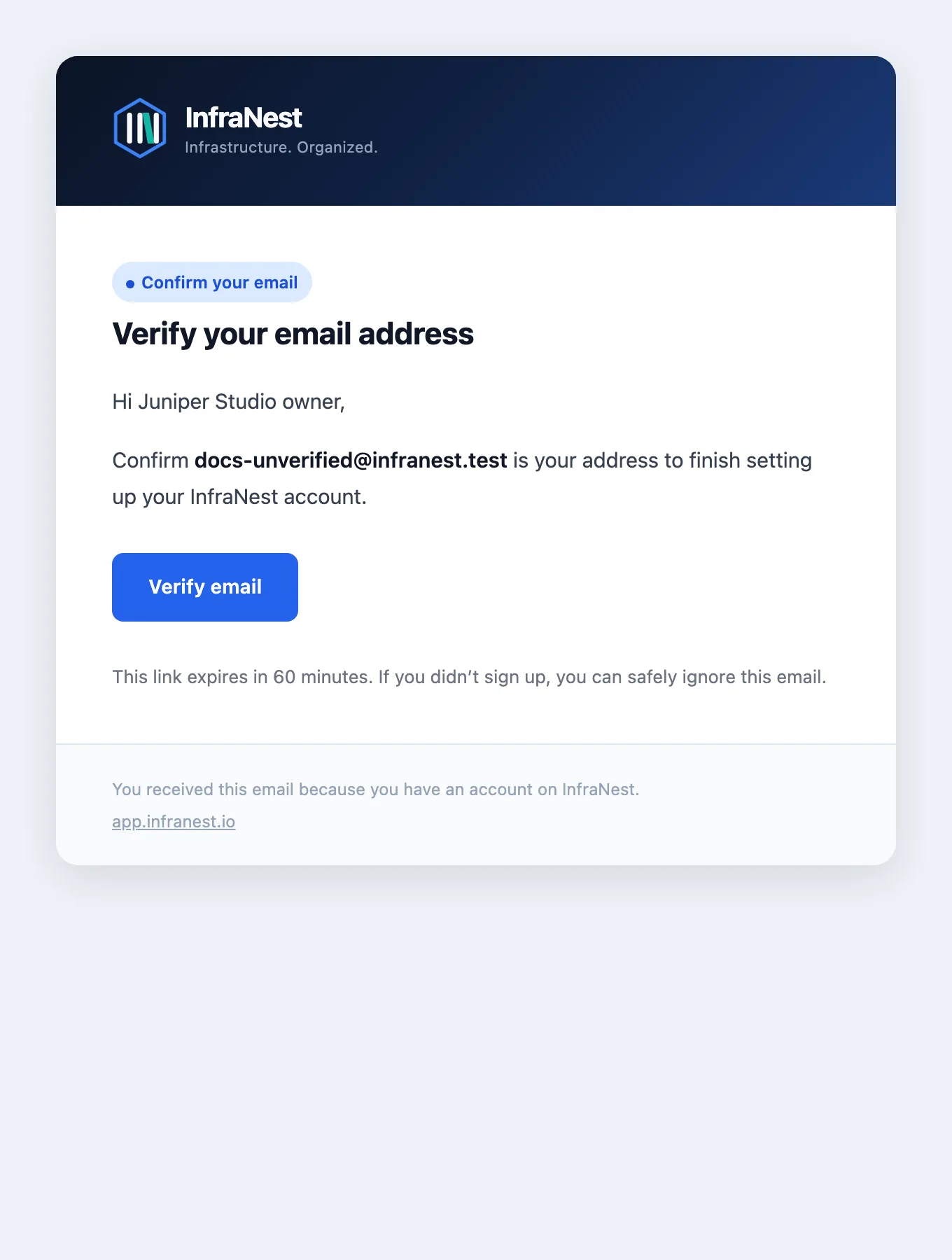
- Select the verification link in it.
- You're returned to InfraNest, verified.
If you're already on the verification screen, use Resend to get a fresh message.
Troubleshoot a missing email
Work through these in order — the first two explain almost every case:
- Check spam and junk. Verification mail is automated and sometimes filtered there.
- Check the address is right. A typo at sign-up sends the mail somewhere real but not yours. You can correct your address in My account → Sign-in & security and send a new one.
- Wait a minute, then resend. Repeated requests are rate-limited, so hammering the button can slow things down rather than speed them up.
- Ask about filtering. On a work address, a mail gateway may be holding it. Your IT team can check for it and allow our sending domain.
NoteAn unverified address means outage alerts, expiry warnings, and password resets can't reach you — that's why some parts of InfraNest stay closed until it's confirmed.
Fix an expired link
Verification links are time-limited. Request a new one from the verification screen and use it promptly.
TipSelect the link as soon as the email arrives — waiting too long is the most common reason it expires.
Was this article helpful?
Related articles
You're asked to change your passwordIf InfraNest asks you to set a new password before letting you continue, nothing is wrong with your account — a policy in your organization has asked for it.A monitor says my site is down, but it loads for meYour browser opens the site fine, but InfraNest says it's down. Both are usually telling the truth: our check visits from somewhere else, in a different way…TroubleshootingCommon "it's not working" situations and how to resolve them.A certificate check fails although the certificate is validThe padlock in your browser looks fine, but InfraNest flags the certificate, or an SSL monitor says it's down.