

Once you connect your first provider — a cloud account, a registrar, or a DNS provider — InfraNest looks at what's there and offers to set the rest up for you, so you don't have to configure anything by hand. This is for anyone setting up InfraNest for the first time.
Overview
- InfraNest reads your connected account and suggests monitors, alerts and other setup based on what it finds.
- Nothing is created without your say-so — you always see the list first and can untick anything.
- You can come back to this anytime from Setup as you connect more providers.
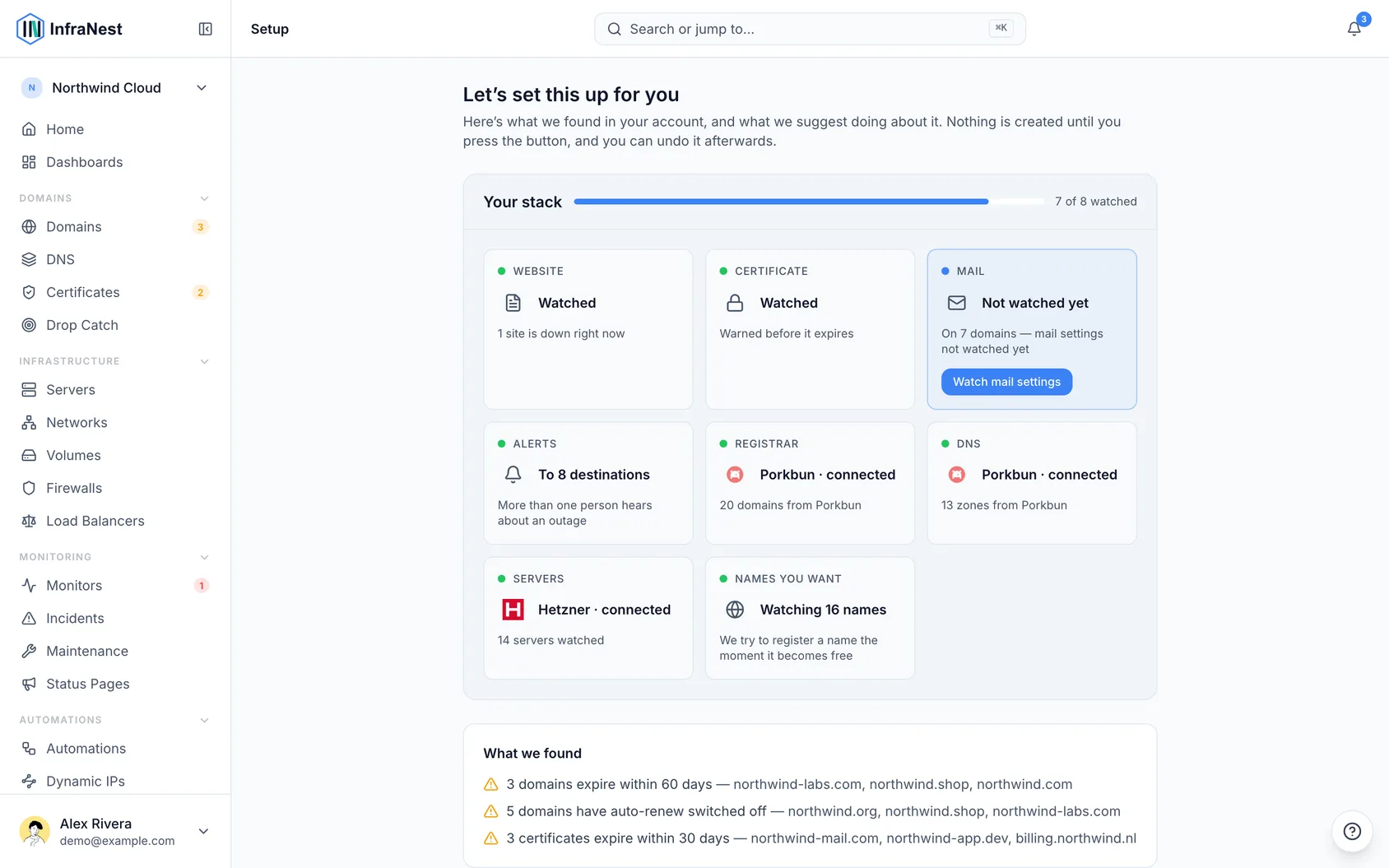
Start by connecting one thing
- If you haven't connected anything yet, the page asks you to connect one provider first — there's nothing to look at otherwise.
- If your email address's domain already uses a supported provider like Cloudflare, that's suggested first: select Connect Cloudflare to bring in your domains and records right away.
- Otherwise, pick one of the suggested provider types that match what you told us you manage, and select Connect.
- Come back to the page afterwards — everything else happens automatically from there.
What you'll see while we read your account
- As soon as you connect, the page fills in live, for example "Found 38 domains, 12 DNS zones so far," and shows what's still being read.
- Suggestions appear as soon as there's something to suggest — you don't need to wait for everything to finish.
- If part of your account can't be read (for example, your access doesn't cover certificates), the page explains why. You can fix this later from Integrations.
- You can leave and come back any time; nothing is lost.
What we found
This section lists facts about your own infrastructure, worth reading even if you don't set anything up:
- Domains expiring soon
- Domains with auto-renew switched off
- Certificates about to run out
- Domains that receive email but have no SPF or DMARC record
What we suggest
A short list of things InfraNest would create, each with a plain explanation: watching the websites you already have, pinging your servers every minute, watching the email records of domains that receive mail, and Send alerts to your email.
Three suggestions are left unticked on purpose:
- Draft a status page — this is about what you tell your customers, so it's your call. Even if you accept it, the page stays unpublished until you publish it yourself.
- Turn auto-renew on — your registrar then renews those domains before they expire and charges you as usual, so it's left for you to decide. The line shows roughly what that costs per year, where known.
- Domains we couldn't check — if a domain's DNS is managed somewhere you haven't connected, InfraNest can't tell if it hosts a website, so these are listed separately. Tick the ones that are websites. If one isn't, mark it Not a website on its domain page so it stops being suggested.
When InfraNest can see a domain's DNS, it only suggests watching it if it actually points at a web server.
Email records
For domains that receive mail, InfraNest watches the records that keep mail working: MX, plus SPF and DMARC if you have them. Only existing records are watched — if a domain has no DMARC record, that's shown under What we found instead of adding a check that would fail immediately. Each record counts as one monitor, so a domain can use one to three.
If you told us you mainly manage something other than domains or DNS, this suggestion still appears, just unticked, so it won't use up your monitors unless you choose it.
Install the agent on your servers
Pinging a server only tells you it's up. The agent tells you what's happening inside it — a disk filling up, memory running out. Since only you can install it, this appears as a card with a command rather than a checkbox.
- With one server, select Show command to open the install command for it.
- With several servers, select Show {n} commands to open one list with a line per server. Run each line on the server it names.
- Copy each server's install token when you open the list — it's created at that point and shown only once.
- Watch the card update itself: each server shows Reporting ✓ once its agent checks in, usually within a minute of running the command.
Auto-renew and renewals
For domains with auto-renew off, InfraNest can turn it on for you at the registrar, if that registrar allows it. If something fails for one domain, the others still go ahead, and the page explains which domain didn't change and why. Undo turns auto-renew back off.
If InfraNest can't turn it on directly, it tells you where to do it instead — for example, "TransIP only lets us turn auto-renew off, so turn it on in TransIP for these 2 domains." If the registrar isn't connected, it's named with a link to connect it.
A domain expiring soon with nothing set to renew it gets its own line, like "acme.com expires in 9 days — Renew…". Renewing charges you immediately, so it's never bundled into Set this up — the link opens that domain's renewal with the price, for you to confirm.
We'll tell you what else you use
Your domains' settings reveal where the rest of your setup lives. For example, if 23 of your domains use Cloudflare for DNS and you haven't connected it yet, a short note appears on Setup, Integrations and Domains, such as "23 of your domains use Cloudflare DNS. Connect Cloudflare." Connecting it brings in the records or renewal dates for those domains.
- It's a note, not a pop-up. Scroll past it, or close it with the ×. Closing it hides that provider for everyone in your organization, on every page.
- Only providers you can connect are suggested. If a provider isn't supported yet, it's not mentioned, though it's counted to help decide what to build next.
- Only sure things are shown. If a domain's nameservers point at two providers at once (for example, while moving it), InfraNest won't guess.
Nothing happens until you say so
- The list always shows exactly what will be created before anything is created.
- Untick anything you don't want.
- Nothing that costs money, registers a domain, or becomes publicly visible is ever created automatically — except turning auto-renew on, which is always left for you to tick since it can lead to future charges.
NoteWhile InfraNest is still reading your account, the button reads Set up what's found so far. It only sets up what you currently see — anything that arrives afterwards appears as a new suggestion.
- Each time you select the setup button, the page lists what was created, each with its own Undo button, available for 24 hours. If you set things up twice, you can undo either one independently.
We'll prove the alerts work
If email alerts are set up for you, a test message is sent immediately. Check that it arrived — that's how you know warnings will actually reach you when something goes wrong.
Lots of websites or servers
If you have more than ten websites (or servers) and your plan has room for all of them, InfraNest offers to watch them all and any you add later. This also turns on a small automation — New domain → monitor its website (or New server → monitor it) — that sets up a monitor whenever a new one arrives.
You'll find this automation under Automations, where you can pause or delete it. The Undo button on the setup page removes it together with the monitors it created. This option is only offered when your plan can hold everything you have today; if it can't fit another automation, the monitors are still offered on their own.
If your plan has limits
InfraNest never suggests more than your plan allows. For example, with twelve websites and room for ten monitors, it offers the ten that look most in use, and explains which two were left out and why — for example, "the domain you signed up with first, then the ones with the most DNS records."
When choosing websites, InfraNest looks at:
- The domain you signed up with
- Domains you've marked as websites
- Domains with a working certificate
- How many DNS records a domain has
Running servers come before stopped ones. Websites that can be confirmed and servers get priority, then websites that can only be guessed at, then email records. Anything left out can be added later from Monitoring, or you can upgrade to watch everything.
Doing it again later
Open Setup any time. Anything already in place disappears from the suggestions, so connecting a second provider later only offers the new things — you won't end up with duplicates.
TipKeep an eye on the Setup page after connecting new providers — it only ever shows what's new, so it's safe to check back often.
Was this article helpful?