

Home is the first page you see when you sign in, and it's for anyone who wants a quick answer to one question: does anything need me right now?
Overview
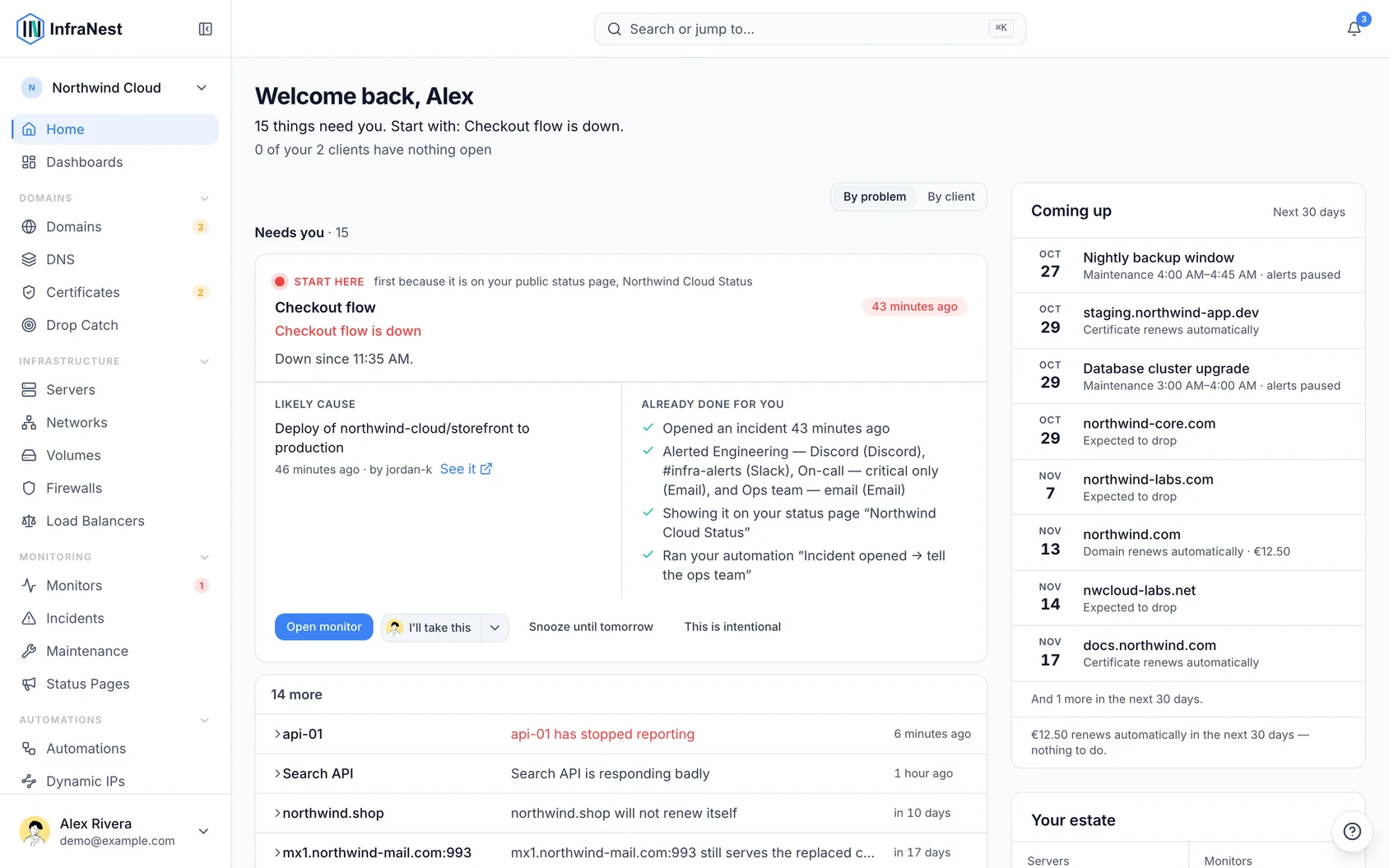
- Home shows a one-sentence status at the top — what's wrong and what's fine.
- If something needs your attention, it's shown as a card, with the most important one marked Start here.
- If nothing needs you, Home says Nothing needs you right now and shows helpful extras instead, like suggestions and a summary of what happened while you were away.
See what needs you
- Sign in, or click Home in the menu.
- Read the status line at the top of the page — it tells you in one sentence whether anything needs attention.
- If something does, the most important item is shown as a card marked Start here. Everything else appears as single lines below it — click one to open its card.
- If a line is marked New, it arrived while you had the page open.
Deal with the most important thing
- Open the card marked Start here.
- Check Already done for you to see what InfraNest already handled — for example an incident it opened, who it alerted, or who already acknowledged it — so you don't repeat the work.
- If it's an outage and you use PagerDuty, look for who is On call to know who to expect or hand it to.
- Check Likely cause, if shown, to see what changed just before the problem started.
- Use the button on the card to go straight to where you can fix it.
- For some problems, Home offers the fix right there — for example Send a test, Reconnect, or Recheck now. Review the sentence describing what will happen, then click Do it. If it worked, the item moves to Fixed today. If not, click Open the page instead.
Set something aside or hand it off
- On any card, click Snooze until tomorrow to hide it until 09:00 the next day, or This is intentional to hide it until the situation changes.
- To tell your team you're handling something, open the item and click I'll take this.
- To hand an item to a teammate instead, click the arrow next to I'll take this and pick someone from the list. If they're not in the workspace yet, click Invite someone….
- Click Give back to return an item you took to the shared list.
- Click Manage under the snoozed items line to see who set something aside and undo it if needed.
Look at things by client
- If you manage infrastructure for several clients, switch the list from By problem to By client above the list.
- Click a client to see what's open for them. The client with the most urgent problem is shown first.
- This option appears once you've defined what a client is in Settings → Tags.
Catch up on what you missed
- Scroll to Since your last visit to see what happened while you were away — outages resolved, domains renewed, integrations reconnected, and more.
- Click See all activity to see the full list in the Audit Log.
Review suggestions
- When nothing needs you, check Suggestions for quick wins — like watching a site, turning on DNSSEC, or linking a deploy to a monitor.
- Read what each suggestion costs, if anything, and confirm it before it runs.
- If a suggestion isn't useful to you, select × to stop seeing it for your whole organization.
Change what InfraNest opens on sign-in
- Go to My account → Preferences → What InfraNest opens on.
- Pick a dashboard if you'd rather land somewhere else, such as for a wall screen or a custom layout.
- Clicking Home in the menu will always still take you to Home.
Tips
TipWhile something urgent is happening, everything else folds away under a line like "2 things, nothing urgent." Click Show to see them without losing focus on the outage.
NoteHome only says everything is fine once every check has actually answered. If a provider isn't responding, Home will say We couldn't check … instead of guessing.
Troubleshooting
- A domain or certificate shows on Home even though it renews automatically? It shouldn't — items that renew themselves appear under Coming up, not in the needs-you list. If one appears in the list, it likely isn't set to renew automatically yet.
- Can't rearrange Home? That's expected — Home is the same for everyone on purpose. For a custom layout, use Dashboards in the menu instead.
- On a phone, Home shows only the status and what needs you; Coming up and Your estate are left out to save space.
Was this article helpful?
Related articles
Search and jump aroundInfraNest has a quick command menu so you can jump to any page or find help without clicking through the menus.Getting helpHelp is built into InfraNest — you can read guidance for whatever page you're on without leaving it.Getting started with InfraNestWelcome to InfraNest. When you sign up, a short setup wizard gets your workspace ready, and Home then guides you through the first few things to do.Keyboard shortcutsInfraNest works from the keyboard, so you can move around and act on things without reaching for the mouse.