

Dashboards let you see the information that matters most to you at a glance, and this guide shows anyone — no technical background needed — how to set one up.
Overview
- Choose which widgets appear on your dashboard and arrange them however you like.
- Start from a ready-made layout or build your own from scratch.
- Create multiple dashboards for different purposes, like one for domains and one for servers.
- Changes save automatically as you make them.
Customize your dashboard
- Go to your Dashboard.
- Select Customize to start editing.
- Add a widget from the list — there are charts, counts and status tiles for different parts of InfraNest.
- Drag a widget to move it, and drag its edges to make it bigger or smaller. On a phone, widgets stack into a single column automatically.
- When you're happy, turn off Customize. Your layout saves on its own — there's no separate save button.
Start from a preset
Not sure where to begin? Pick a ready-made layout when you create a dashboard:
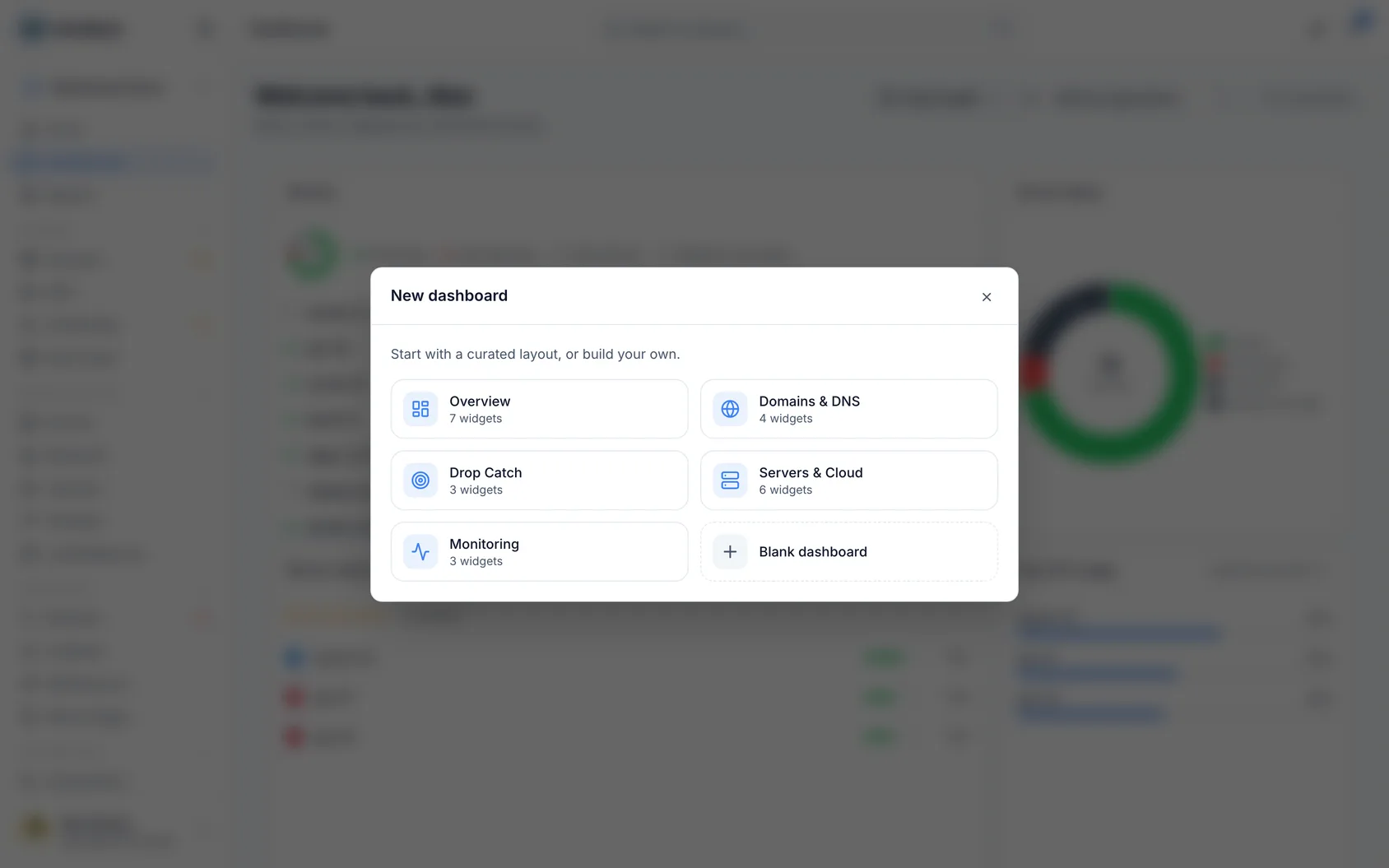
- Overview — a bit of everything.
- Domains & DNS, Drop Catch, Servers & Cloud, Monitoring — each focused on one area.
Then tweak it however you like.
Create another dashboard
You can have several dashboards — for example, one for domains and one for servers.
- Create a new dashboard and give it a name and an icon.
- Set one as your default so it opens first when you sign in.
NoteYou can create up to 20 dashboards.
Change the date range
Some widgets show trends over time. Use the date range at the top of the dashboard to switch between the last 7 days, 30 days, 90 days or 12 months. This control only appears when you have a time-based widget on the dashboard.
Tips
- Your changes save automatically as you go — no need to look for a save button.
- To let others use your dashboard, see Share a dashboard.
Was this article helpful?