

Get help without leaving InfraNest — questions, screenshots and error reports all land in one ongoing conversation, with replies you can follow right from your email too.
Overview
- Ask a question any time from the ? button and get an instant answer from the help centre, or a reply from a person if needed
- Attach screenshots or logs to speed up the answer
- Jump straight into a chat about an error you just hit, with the details already filled in
- Follow the whole conversation in InfraNest or by email
Start a conversation
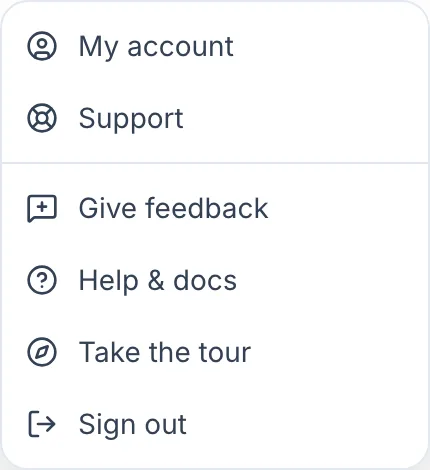
- Select the ? button in the bottom-right corner (on a phone, it's in the top bar), then select Ask us a question. Support in the profile menu and Contact support in the help panel open the same chat.
- Type your question and send it.
You'll often get an answer straight away: the chat can answer from our help centre itself, at any hour. If it can't, a person picks it up and you'll see the reply in the same conversation.
Attach a screenshot or a log
- Open the chat as described above.
- Select the paperclip to attach an image or file.
Images and files are welcome and usually get you a faster answer — a screenshot of the error, or the log lines around it, saves a round trip.
If an error message shows a Reference (a short code like k3x9q2m7ab), copy it into your message. It lets us find exactly what went wrong, without asking you when or where it happened.
Ask about an error straight from the message
- When something you just did fails, find the error message that appears in the corner.
- Select Ask us about this.
- The chat opens with a message already written: what went wrong, on which page, when, and the reference.
- Add anything you'd like to say, then send it.
NoteNothing is sent until you send it — the pre-filled message is just a starting point.
Follow the reply
- Open the chat any time to read earlier conversations and carry one on — your whole history is kept.
- When we reply while you're in InfraNest, a dot appears on the ? button.
- Open the menu and select Ask us a question to read the reply.
You'll also get an email when we reply, so you don't have to sit and watch it. Reply straight from your mail app if that's easier — it lands in the same conversation.
Email instead
Prefer email? Write to support@infranest.io and it reaches the same place. Use billing@infranest.io for invoices, payment methods and plan changes.
Tips
- If you emailed us before you had an account, that conversation is matched to you automatically once the email addresses agree.
- When you start a chat from the help panel, we also see which page you were on, the article you'd just read and anything you searched for without finding it — so you can skip straight to your question.
Troubleshooting
WarningDon't see the chat? It's hidden while a member of our team is signed in as you for troubleshooting — that's deliberate, so nothing gets filed under your name by mistake.
The chat also knows which organization you're working in, so you don't need to spell out your plan, your role or which account you mean.
Was this article helpful?