

Reverse DNS (a PTR record) points your server's IP address back to a hostname — it's commonly needed for mail servers and helps keep logs clean. This guide is for anyone who needs to set or update this on a server managed in InfraNest.
Overview
- A PTR record maps an IP address back to a hostname, the reverse of a normal DNS lookup.
- Mail servers often require this to be set correctly, or outgoing mail may be flagged as spam.
- You can view and edit this directly from your server, without needing a separate DNS setup.
Set reverse DNS
- Open the server and go to its Networking tab (or open the Primary IPs page).
- Set the PTR record value for the address:
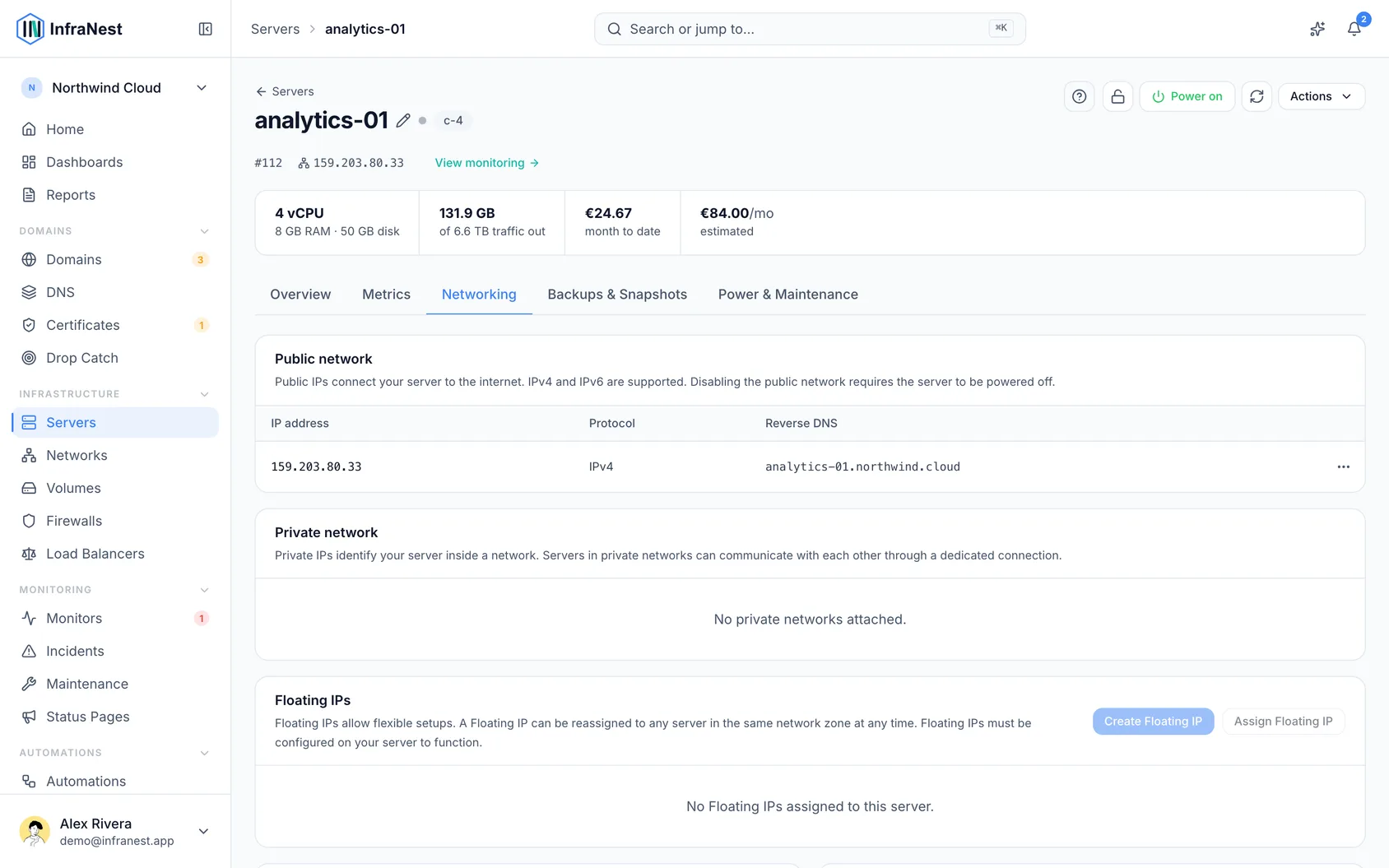
- Select Save changes. InfraNest checks that the address is within the server's assigned range and applies the change at the provider.
NoteChanges to reverse DNS are applied at the provider level and may take a little time to propagate.
Troubleshooting
- If Save failed appears, double check the address you entered is within the range assigned to your server — InfraNest will reject addresses outside that range.
- If the record doesn't seem to take effect, allow some time for the change to propagate before trying again.
Was this article helpful?
Related articles
Server backups and snapshotsProtect a server's data with provider backups and your own snapshots.IP addressesThe fixed IP addresses your provider has reserved for you, which server each one currently points at, and what you are paying for the ones pointing at nothing.Keep a server secureEvery server has a Security Advisor that turns "is this set up safely?" into a simple checklist, sorted by how important each issue is, with one-click fixes.Add a server you already haveNot every server lives in a cloud account. You might have your own hardware in an office or a rack, or a machine at a provider InfraNest does not connect to…