

This article is for anyone who wants InfraNest to warn them before a disk fills up or a server runs out of memory — the two things your cloud provider can't tell you about.
Overview
- Your provider can already report how busy a server is (CPU, network, disk read/write). It cannot tell us how much memory is free, how full the disk is, or what's eating the machine — those numbers only exist on the server itself.
- The InfraNest agent is a small script you install once on the server. It sends those numbers to InfraNest every minute.
- You don't need it for CPU, network or disk throughput — those already work with nothing installed. Install it if you want memory, disk space, load average, uptime, and an alert when the server stops reporting entirely.
Install the agent
- Choose Install the agent. You'll find it on the server's row in Monitors, in the server's actions menu, and beside any alert rule that's greyed out because it needs the agent — all three open the same window. There is nothing to fill in: a token is created as soon as the window opens.
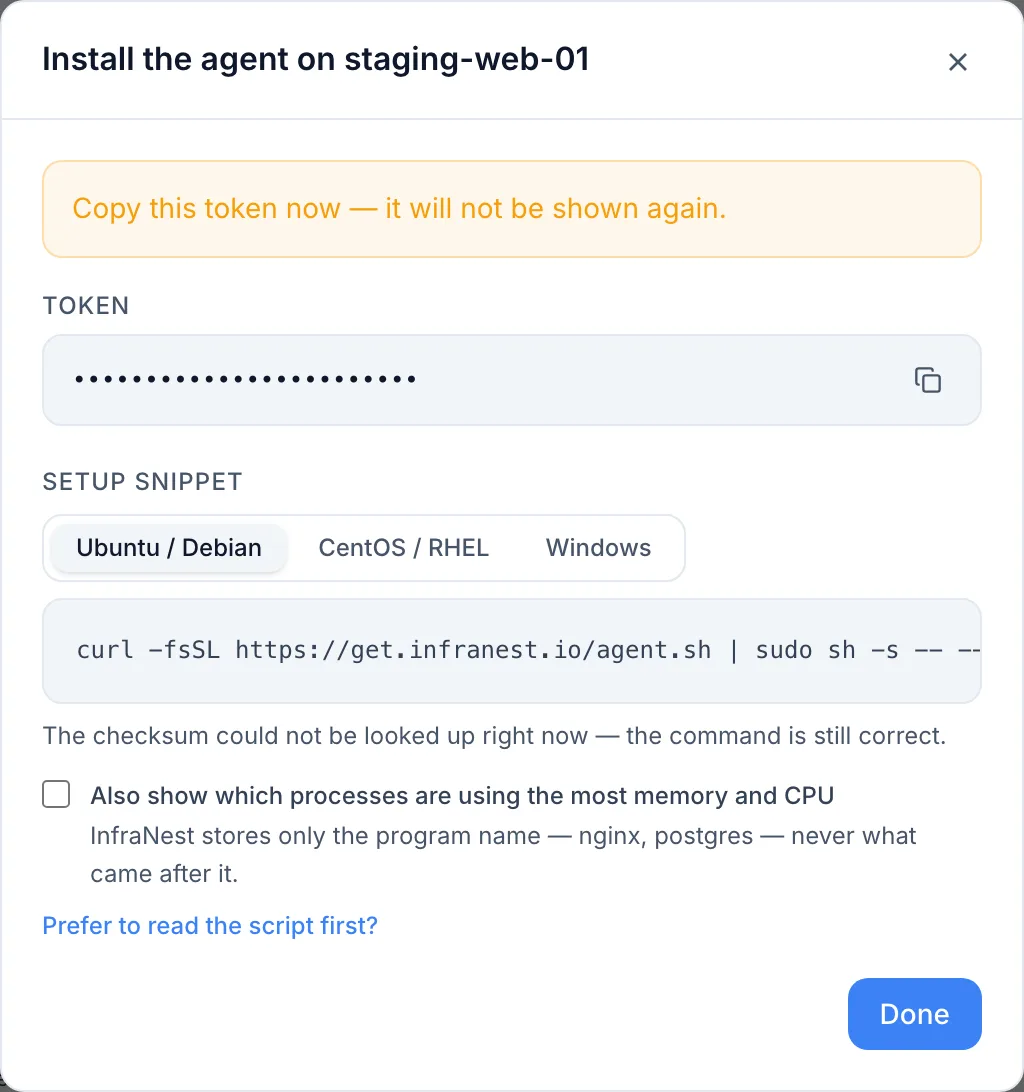
- The token is shown once. Below it is a ready-made install command with the token already filled in — pick the tab for your system (Ubuntu/Debian, CentOS/RHEL, or Windows) and select Copy.
- Optionally tick the option to also show which processes are using the most memory and CPU — the command updates as you tick it. It's off by default: InfraNest only ever stores the program name, never what came after it.
- Paste the command into a terminal on that server and run it. On Linux run it as root or with
sudo; on Windows run PowerShell as Administrator. - Wait about a minute, then reload the page. The greyed-out rules on Alert rules become available, and the Metrics tab starts showing memory, disk space and load.
To check it's working at any time, open the server and look at the Agent panel on its overview:
- Reporting (green) — readings are arriving.
- Waiting for its first report — give it a minute.
- Readings refused — the agent is reaching InfraNest, but the server's clock is wrong; the panel shows the command that fixes it.
- Not reporting, with last heard from {time} — the agent used to report and has stopped.
The Servers list shows the same status for every server at once, so you don't have to open them one by one. An amber band above the list tells you how many agents have stopped across all your servers; select Review, or filter the list by Status to see only the ones not reporting.
NoteFor the full walkthrough — Ubuntu, Debian, RHEL-family and Windows, the checksum path, and troubleshooting — see the detailed step-by-step install guide. The steps above are the short version.
Is it safe to run on my servers?
- It only ever sends data out. It opens no port and listens for nothing.
- It cannot be told to do anything — it's a one-way report, not a remote command tool.
- It sends numbers, not contents: how full a disk is, not what's on it. Process names only, never full command lines.
- The token only works for one server, only to send readings for that server. It cannot read or change anything else.
- It runs with its own limited account, not as an administrator.
- It's a short, plain script — you can read it before running it.
Understand "Not accounted for" on the disk breakdown
The disk card lists the biggest folders on your fullest disk. Sometimes it adds a line like "15.9 GB not accounted for" — this isn't an error.
Because the agent runs with a limited account, some folders are closed to it — /var/lib/docker on a Docker host is the usual one, /root is another. It can see they exist, but not what's inside, so InfraNest tells you:
- How much space is unaccounted for — the gap between what the disk reports as full and what the agent could actually count.
- Which folders it couldn't read, by name, so you know where to look.
Should you grant it access?
Usually not. Most refusals are small, sensitive folders (/etc/ssl/private, /etc/sudoers.d, /lost+found) — leave those alone.
If a real data folder is the one being missed and you want it counted, give the agent's user read and execute access to that folder; the next scan (within an hour) will include it. Note that Docker protects folders inside /var/lib/docker too, so opening the top-level folder alone usually isn't enough.
TipFor Docker specifically, run
sudo docker system dfon the server to see the same space broken down into images, containers, volumes and build cache, andsudo docker system pruneto reclaim what's unused. That's almost always a better move than changing permissions.
How often it reports
The agent takes a reading every 60 seconds. How often those readings are kept depends on your plan — lower plans store one every few minutes, higher plans keep every reading. You don't configure this: InfraNest tells the agent the rate, and the agent matches it. Extra readings aren't lost in a way that matters — they're simply not stored.
Your alert rules need a window long enough to hold a few readings. If your plan only stores one reading every five minutes, a rule needs a longer duration to ever have enough data to fire — InfraNest tells you the minimum when you try to save a shorter one.
What happens if the server can't reach us?
Nothing is lost. The agent keeps readings on the server and sends them once the connection returns, holding about eight hours' worth before discarding the oldest.
To check from the server itself, run:
infranest-agent status
This works even when nothing else does, since it doesn't contact InfraNest. Two answers worth knowing:
- "InfraNest rejected this token." The token was deleted in InfraNest — create a new one and re-run the installer.
- "This machine is about 8m ahead of InfraNest." The clock is wrong, so readings are being refused. Turn on time sync with
sudo timedatectl set-ntp true.
It never prints your token, so it's safe to paste into a support ticket.
Turn it off
Delete the agent token in the Agent panel on the server's monitoring overview. The server goes straight back to provider metrics, and the memory, disk-space and load rules stop being measured.
To remove the script from the machine as well:
- Linux —
sudo sh install.sh --uninstall - Windows — in PowerShell as Administrator:
.\install.ps1 -Uninstall
Get alerted when a server goes quiet
- Go to Alerts (either the organisation-wide alert defaults, or a single server's Alert rules tab).
- Switch on the rule for when a server has gone quiet, under the section about whether anything is broken.
- Choose how long the silence has to last before you're alerted.
TipGive it a few minutes rather than one. The agent checks in about once a minute, so a one-minute deadline can trigger falsely. The shortest you can set is five minutes (fifteen on plans where the agent reports every five minutes) — ten minutes is a comfortable choice on most plans.
Troubleshooting
- Stuck on "Waiting for its first report" — give it a minute; if it doesn't change, check the server can reach InfraNest and that the install command ran without errors.
- "Readings refused" — the server's clock is out of sync; run the time-sync command shown in the panel.
- "Not reporting" — the agent was working and has stopped; check the server is powered on and has network access, then use
infranest-agent statuson the server for details.
Was this article helpful?