

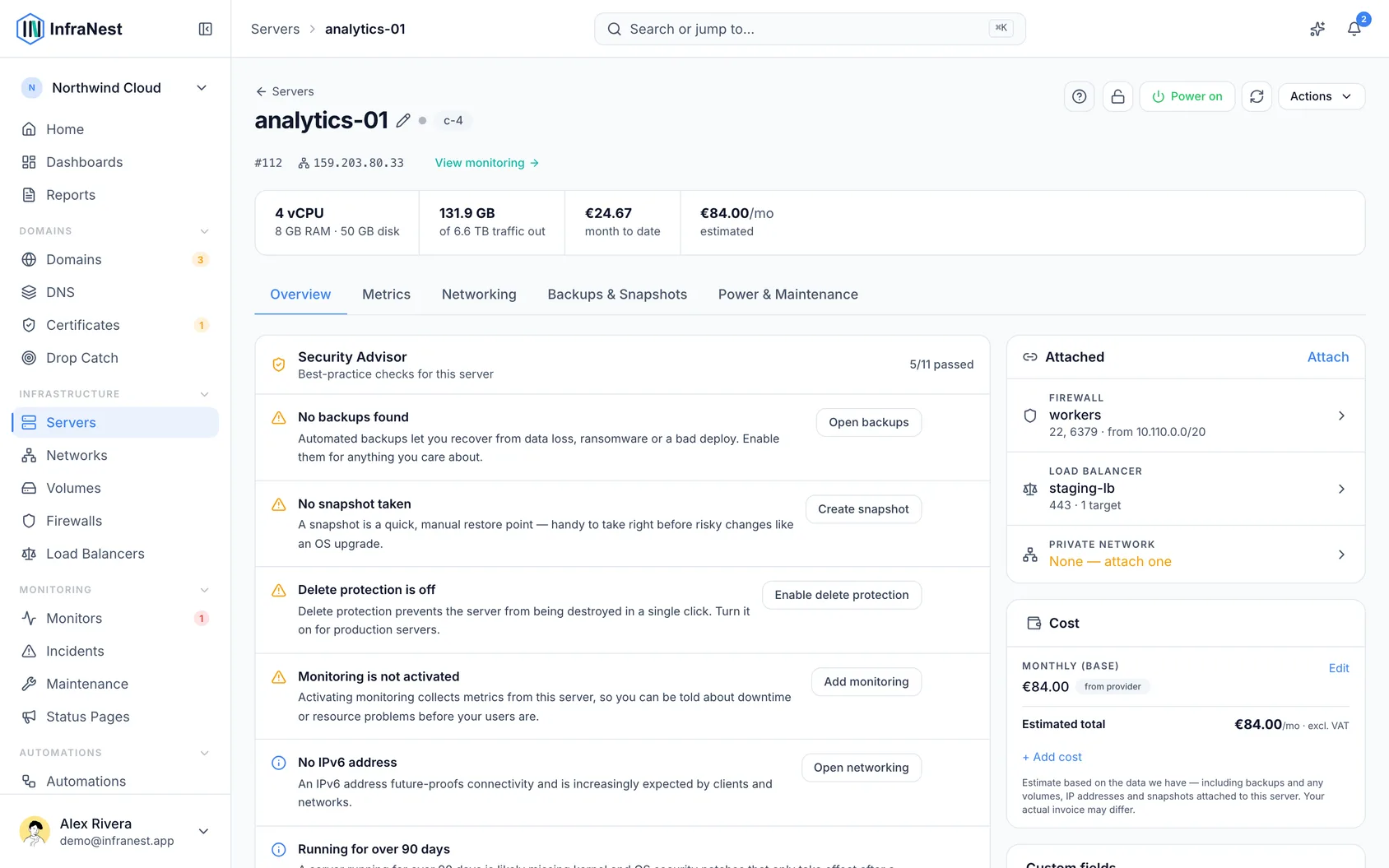
A server's page is where you control everything about that machine, from powering it on and off to rebuilding, recovering, networking and tracking what it costs. This is for anyone managing servers in InfraNest, no technical background required.
Overview
- Control the server's power state and run deep recovery actions like Rescue or a password reset.
- Protect important servers from accidental deletion.
- Manage how the server connects to the internet and to your private networks.
- See a complete breakdown of everything the server is costing you, not just the plan price.
Control power and lifecycle
- Open the server you want to manage.
- Go to Power & Maintenance to reboot, Shutdown, Power on, Power off, or do a Power Reset.
- To reinstall the server from an image, use Rebuild.
- If the server won't start, use Rescue to boot into a recovery environment.
- Use Reset root password if you've lost access, or mount/unmount an ISO image under ISO Images.
- To get a live view of the screen, open Console for a web-based (VNC) connection.
WarningRebuild reinstalls the server from scratch and erases its current contents. Take a Snapshot first if you might need the data.
Protect a server from deletion
- Open the server.
- Turn on delete protection so the server can't be removed by accident — you'll see Delete protection enabled once it's active.
Manage networking
- Open the server and go to Networking.
- From here you can manage the server's public network, join or leave Private networks, configure IPv6 address, and set reverse DNS (see Edit reverse DNS).
Check what this server costs
- Open the server and find the Cost panel.
- Review the Monthly price — read from your provider where possible, or set yourself with Edit.
- Check whether Automatic backups are switched on, since these add to the cost.
- Review any attached Attached volumes, IP addresses and Snapshots — each is listed separately so you can tell what's what at a glance.
- Add any cost InfraNest can't see itself, such as a licence or support contract.
NoteA server's public IPv4 is usually billed separately by your provider, so it's listed on its own rather than folded into the plan price. Nothing here is counted twice — a volume shown in this panel is the same volume counted once in your Reports, not an extra charge.
Prices are stored and shown excluding VAT. Everything here is an estimate from what InfraNest can read; your provider's invoice is the final word.
Tips
TipEvery action you take on a server is recorded in your Audit Log, so you can always see who did what and when.
Was this article helpful?