

Install the InfraNest agent on a server to start collecting memory, disk space and load average, and to unlock alert rules that need it. This article is for anyone setting up a server they already added to InfraNest.
Overview
- Takes about two minutes per server.
- You need administrator access to the server once, just to install — the agent does not run as an administrator afterwards.
- The server only needs outbound access on port 443. Nothing needs to be opened to it, and no firewall rule has to change.
If you want to understand what the agent collects and why before installing it, read Get memory, disk space and load with the agent first. This article assumes you're ready to go.
Before you start
You need three things:
- A server in InfraNest. If it isn't there yet, add it under Infrastructure → Servers.
- Administrator access to that server —
sudoon Linux, an Administrator PowerShell on Windows. - The server can reach the internet on port 443, outbound only.
You do not need to open a port, install a package manager repository, or give InfraNest any access to the machine.
Get the install command
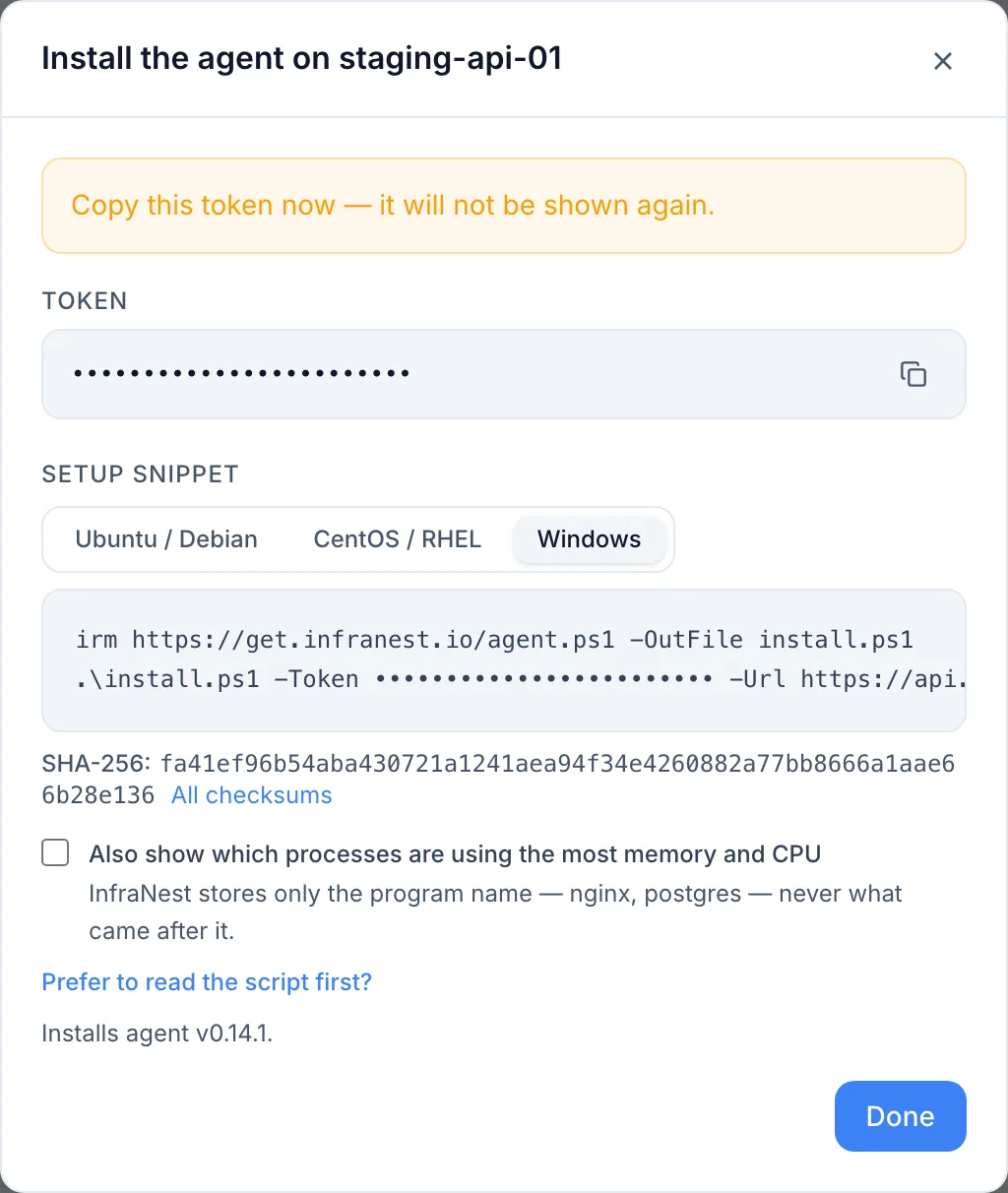
- Choose Install the agent — you'll find this from the server's row in Monitoring → Servers, from the server's Actions menu, or beside an alert rule that's greyed out because it needs the agent. All three open the same window.
- Nothing is asked for: the token is created straight away. Afterwards, the token list shows who added each one, when, and when it was last used.
- The token is shown once. Below it is a ready-made install command with the token already filled in.
- Pick the tab for your system and copy the command.
WarningKeep the token to one server. It identifies which server is reporting. If two machines share a token, their readings blend into one set of graphs and nothing detects it — the "server has gone quiet" alert can never fire, because whichever machine is still up keeps checking in for both.
Run the install command
Ubuntu and Debian
Paste the command into a terminal on the server:
curl -fsSL https://get.infranest.io/agent.sh | sudo sh -s -- --token sat_YOUR_TOKEN
Tested on Ubuntu 20.04, 22.04 and 24.04, and Debian 11 and 12.
RHEL, Rocky, AlmaLinux, CentOS Stream, Fedora
Exactly the same command. The installer downloads a single binary and sets up a service for it, so the distribution doesn't matter. If curl is missing, install it first with sudo dnf install curl.
Windows Server
Open PowerShell as Administrator and run:
irm https://get.infranest.io/agent.ps1 -OutFile install.ps1
.\install.ps1 -Token sat_YOUR_TOKEN
Tested on Windows Server 2019 and 2022. It installs to C:\Program Files\InfraNest and runs as a scheduled task named InfraNest agent.
A server without systemd
Alpine, Gentoo and Artix (OpenRC) and Void (runit) are set up automatically with agent version 0.14 or newer — the installer adds the agent as a service that starts at boot and restarts if it stops. On Alpine its log is in /var/log/infranest-agent.log.
For anything else — a container, or a system using s6 — the installer places the binary and the config file, then tells you it couldn't set up a service. Run infranest-agent run as the infranest-agent user under whatever supervisor that system uses.
Check it worked
- In InfraNest, wait about a minute and reload the server's page. Memory, disk space and load average start filling in, the coverage badge changes to Agent, and the greyed-out alert rules become available.
- On the server, if you'd rather check locally, run:
sudo infranest-agent status
& "C:\Program Files\InfraNest\infranest-agent.exe" status
This tells you whether readings are being delivered and, if not, why. It only reads from the machine and contacts nothing else.
Note
sudois needed because the config file holds a credential and is readable only by the agent's own user. Without it you'll get an error about a missing token rather than about permissions.
Prefer to read the script before running it?
That's a reasonable approach, and the install panel offers it with the same prominence as the one-liner.
curl -fsSL -o install.sh https://get.infranest.io/agent.sh
sha256sum install.sh        # compare with the checksum shown in InfraNest
less install.sh             # about 200 lines
sudo sh install.sh --token sat_YOUR_TOKEN
The checksum shown next to the command in InfraNest is the one published with the release, so comparing them is a real check. The script itself isn't the agent — it downloads a versioned binary and verifies that against its own published checksum before installing it.
Checking who built it
A checksum proves the download arrived intact, not that it came from InfraNest. Every release also carries a signed record of which build produced it. If the server already has the GitHub CLI (gh) or cosign installed, the installer checks that record automatically — it prints built by …/release.yml when it matches, and refuses to install anything that doesn't. If neither tool is installed, it says so and carries on.
To check a downloaded binary by hand, with no GitHub account needed:
V=$(curl -fsSL https://get.infranest.io/releases/latest)
curl -fsSLO https://get.infranest.io/releases/download/$V/infranest-agent_linux_amd64
curl -fsSLO https://get.infranest.io/releases/download/$V/infranest-agent.sigstore.json
gh attestation verify infranest-agent_linux_amd64 \
  --repo InfraNest-Infrastructure-Organized/infranest-agent \
  --signer-workflow InfraNest-Infrastructure-Organized/infranest-agent/.github/workflows/release.yml \
  --bundle infranest-agent.sigstore.json
Change linux_amd64 to match your server (linux_arm64 for ARM). Releases before this was added don't include the signed record file.
Keep the token out of your shell history
A command line ends up in ~/.bash_history and is visible while it runs. On a shared machine, use a file instead:
printf '%s' 'sat_YOUR_TOKEN' | sudo tee /root/token >/dev/null
sudo sh install.sh --token-file /root/token && sudo shred -u /root/token
Update the agent
InfraNest tells you when an update is available: the server's System card shows the agent version, and the fleet table marks servers running an older one with an update badge. Click either one and InfraNest shows the command to run, ready to copy.
On Linux:
curl -fsSL https://get.infranest.io/agent.sh | sudo sh -s -- --upgrade
On Windows, in an Administrator PowerShell:
irm https://get.infranest.io/agent.ps1 -OutFile install.ps1
.\install.ps1 -Upgrade
This downloads the new version, checks it, and restarts the agent. It doesn't need a token, and it leaves your settings exactly as they are — if you turned on process reporting, it stays on.
A badge that says security instead of update means the version on that server is older than the oldest one still supported. The command is the same; do it soon.
WarningDon't update by running your original install command again. That's a fresh install: it needs the token, and it resets the agent's settings to their defaults.
Remove the agent
sudo sh install.sh --uninstall
.\install.ps1 -Uninstall
This removes the service, the user, the binary, the config and the stored readings. Deleting the token in InfraNest does not uninstall anything — it just stops the readings being accepted, and the agent keeps running and retrying until it's removed from the machine.
Troubleshooting
| What you see | What it means |
|---|---|
curl: (60) SSL certificate problem |
The server's CA certificates are out of date. sudo apt install ca-certificates (or dnf), then retry. |
| Install finishes, but nothing appears in InfraNest | Give it 90 seconds. Then run sudo infranest-agent status — it names the reason. |
status says the token was rejected |
The token was deleted in InfraNest, or was copied from a different server. Create a new one on the right server and reinstall. |
status says monitoring is switched off |
Monitoring is deactivated for that server in InfraNest. Turn it back on there — nothing needs doing on the machine. |
status says the clock is off |
The server's time is wrong, so readings from the future are refused. sudo timedatectl set-ntp true fixes it on most systems. |
| Memory and disk arrive, processes do not | Process reporting is off by default, on purpose — command lines can contain passwords. See the note on the server's Processes & services tab for how to turn it on. |
Nothing at all, and status can't read the config |
Run it with sudo. The config is readable only by the agent's user. |
If none of those fit, run:
sudo infranest-agent flare
This prints everything a support conversation needs — version, configuration, state, what couldn't be read — with the token removed. Paste that into a ticket rather than your config file.
If the agent was working and has since gone quiet, see A server stopped reporting.
Tips
TipRun
sudo infranest-agent statusany time you're unsure whether the agent is reporting — it answers locally and contacts nothing.
Was this article helpful?