

This article is for anyone who needs to spot overloaded servers across their whole fleet before they become a problem.
Overview
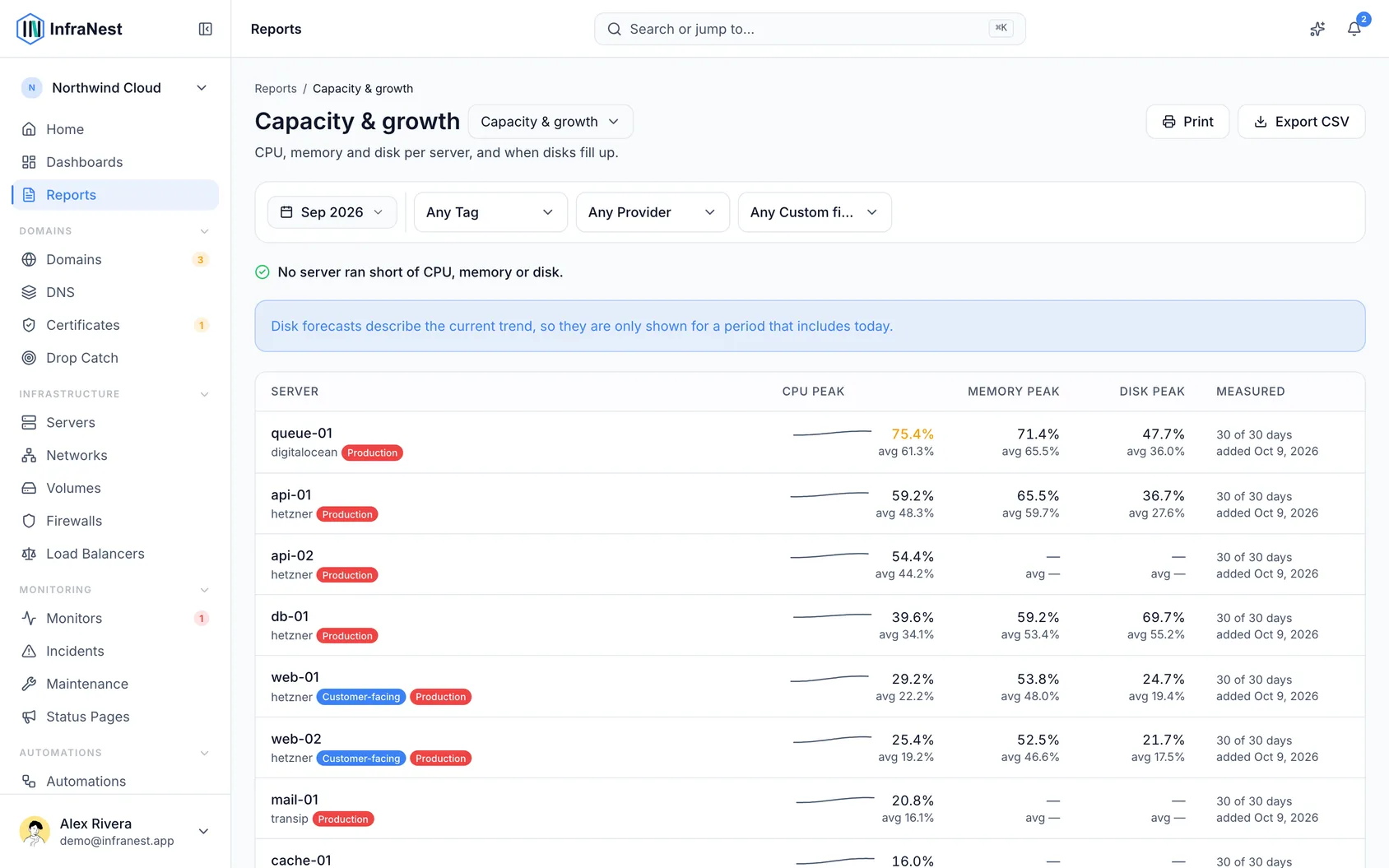
- The Capacity & growth report shows CPU, memory and disk usage for every server over a month you choose, plus which disks are filling up.
- A single server's own page shows this same data just for that server — use the Capacity & growth report instead when you're deciding what needs resizing across your whole Infrastructure.
Read a row
- Look at the peak figure for the month — this is shown first, with the average underneath it.
- Check the small line next to the numbers, which shows the shape of the month at a glance.
- Compare peak and average together: a server that sits at a steady 60% and a server that had one bad afternoon can show the same average, but only the peak tells them apart.
- Watch the colour of the numbers — they turn amber above 75% and red above 90%.
Understand "12 of 31 days"
- Check the days-measured text on each row, such as "12 of 31 days" — this tells you how much of the month the figures are based on.
- Treat a server measured on fewer days with caution — it isn't directly comparable to one measured every day of the month.
- Look for a note about when the server was added if it only has a short measurement window — this means it's new, not that monitoring is broken.
- Watch for rows that say "No readings" — this means the server didn't report in at all, not that it used zero resources.
Check disk forecasts
- Look for a line like "full in ~9d" on a disk that's filling on a steady trend.
- Remember forecasts only appear on a period that includes Today — they're based on the last week of readings, so they describe right now, not a past month.
- Don't expect a forecast on every disk — one-off dumps or a build cache that fills and empties aren't on a steady trend, so no forecast is shown rather than a misleading one.
NoteA missing forecast isn't an error — it means the disk's usage pattern isn't steady enough to predict reliably.
Export the report
- Select Download to export the month as shown, laid out as a CSV file.
- Check the exported file for the days-measured columns, included so the figures can be double-checked.
TipEvery export is recorded in your Audit Log, so you can always confirm who downloaded a report and when.
Troubleshooting
- A server shows "No readings" instead of numbers — this means InfraNest didn't receive any data from that server for the month, not that it was idle. Check the server's monitoring setup.
- No forecast shown for a disk that's clearly filling up — this is expected if the usage isn't on a steady trend, or if you're viewing a past month rather than one that includes Today.
Was this article helpful?
Related articles
Switch on monitoring for a serverMonitoring is something you switch on for each server you want watched. A server that is not switched on still appears in your inventory and still works…Choose what you get alerted aboutAlert defaults is the list of everything InfraNest can warn you about, with a switch beside each one.Install the server agent, step by stepThis walks through installing the InfraNest agent on one server, from getting a token to seeing the numbers arrive. It takes about two minutes per server.Get memory, disk space and load with the agentYour provider can tell us how busy a server is. It cannot tell us how much memory is left, how full the disk is, or which process is eating the machine…