

Backups and snapshots protect the data on your server, so you can recover quickly if something goes wrong. This article is for anyone managing servers in InfraNest who wants a safety net before making changes.
Overview
- Backups are scheduled images that your provider takes of your server automatically.
- Snapshots are point-in-time images that you create yourself, typically right before a risky change.
- Both let you restore your server to an earlier state if something breaks.
Enable and manage backups
- Open the server, then go to Backups.
- Select Enable backups, or select trigger a backup to run one right away.
- From the list, you can restore a backup or delete one you no longer need.
Create and manage snapshots
- Open the server, then go to Snapshots.
- Select Create a snapshot.
- Later, you can restore the snapshot, rename it, protect it so it can't be deleted by accident, or delete it when you no longer need it.
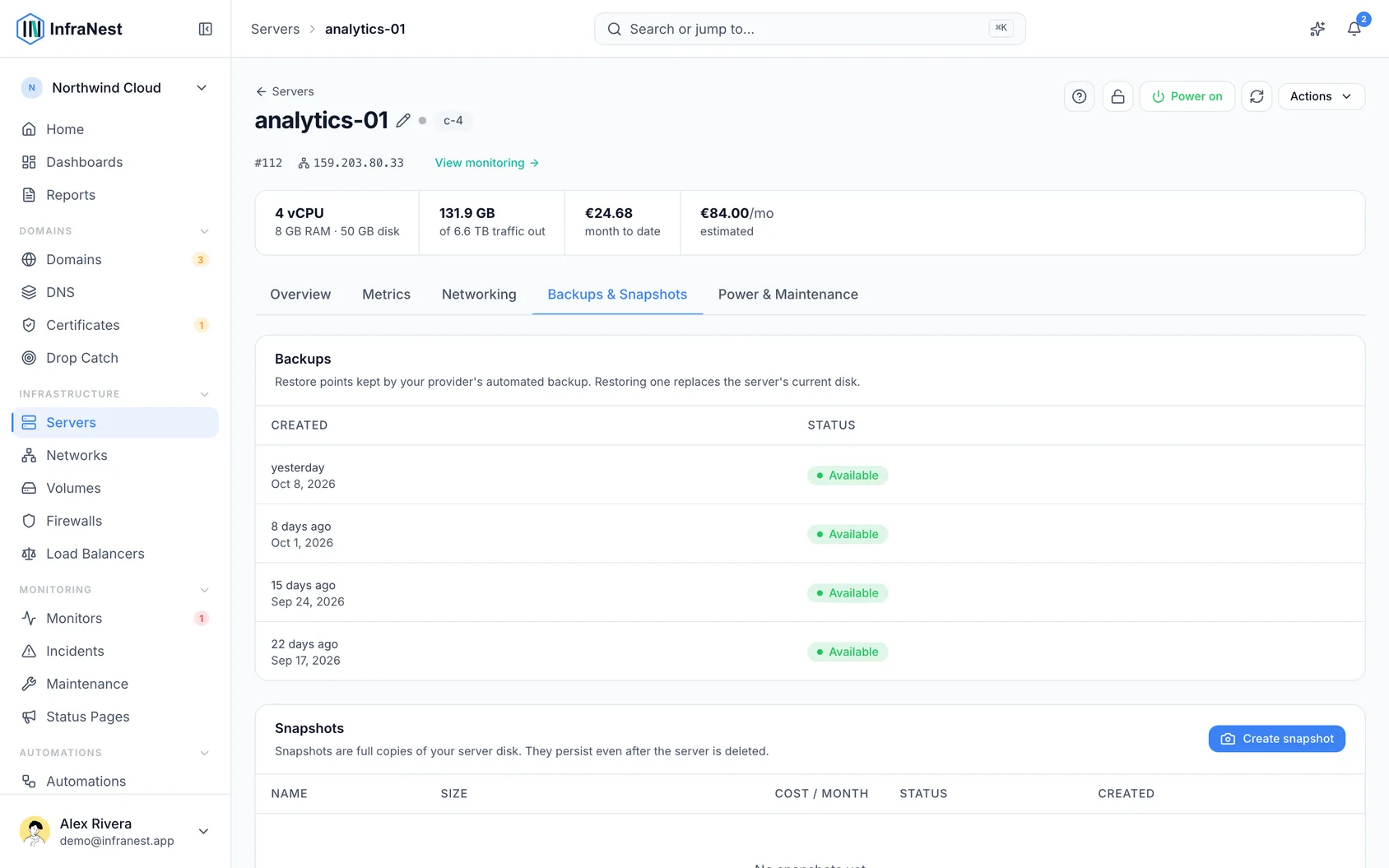
Understand what a snapshot costs
- Check the Cost / month column on the Snapshots list to see what each kept snapshot is costing you.
- If your provider publishes a rate (for example, Hetzner), the price is calculated automatically based on the snapshot's compressed size — usually far smaller than the original disk.
- If your provider doesn't publish pricing, select set price in the Cost / month column and enter what you're actually charged.
- Check your Spend report to see snapshot costs across your servers — this is where snapshot sprawl becomes a visible number instead of a hunch.
TipTake a snapshot before a Rebuild or any big change — it's the quickest way back if something goes wrong.
Troubleshooting
- Backup restored or Snapshot created confirmations should appear after those actions complete — if you don't see one, check your connection and try again.
- If a snapshot won't delete, check whether it's protected first, since protected snapshots can't be removed by accident.
Was this article helpful?
Related articles
Set reverse DNS (PTR)Reverse DNS (a PTR record) maps a server's IP address back to a hostname — useful for mail servers and clean logs.IP addressesThe fixed IP addresses your provider has reserved for you, which server each one currently points at, and what you are paying for the ones pointing at nothing.Keep a server secureEvery server has a Security Advisor that turns "is this set up safely?" into a simple checklist, sorted by how important each issue is, with one-click fixes.Add a server you already haveNot every server lives in a cloud account. You might have your own hardware in an office or a rack, or a machine at a provider InfraNest does not connect to…