

Cloud servers are the machines that power your apps and sites. This article is for anyone who manages servers in InfraNest, whether they're new to infrastructure or just new to this dashboard.
Overview
- See every server across your connected providers — status, type, IPs, datacenter and Tags — in one list.
- Run the full lifecycle: create, power on/off, reboot, rebuild, rescue, open a console, back up, snapshot and delete.
- Keep servers secure with a per-server Security Advisor that flags risky settings and fixes them in one click.
- Watch server health with CPU, network and disk metrics, and get alerted on sustained problems.
- Manage Firewalls, Volumes, Networks and Load Balancers alongside your servers.
Rename a server
- Click the server's name at the top of its page.
- Type the new name.
- Press Enter to save it.
The change is made at your provider first, so it's a real rename rather than a label that only exists in InfraNest. It shows up in your provider's own panel too, and the next sync won't put the old name back.
A few provider differences worth knowing:
- TransIP and OVHcloud keep their own fixed identifier for a machine and offer a description beside it. That description is the name InfraNest shows and the one you edit, so renaming does what you expect.
- On DigitalOcean, a droplet's name is also its hostname, so renaming changes both.
- Servers you added yourself have no provider to ask, so they simply rename.
If your provider refuses the name — each has its own rules about what a name may contain — the old name stays on screen rather than showing a change that didn't happen. Every rename is recorded in the Audit Log with what the server was called before.
The Servers page
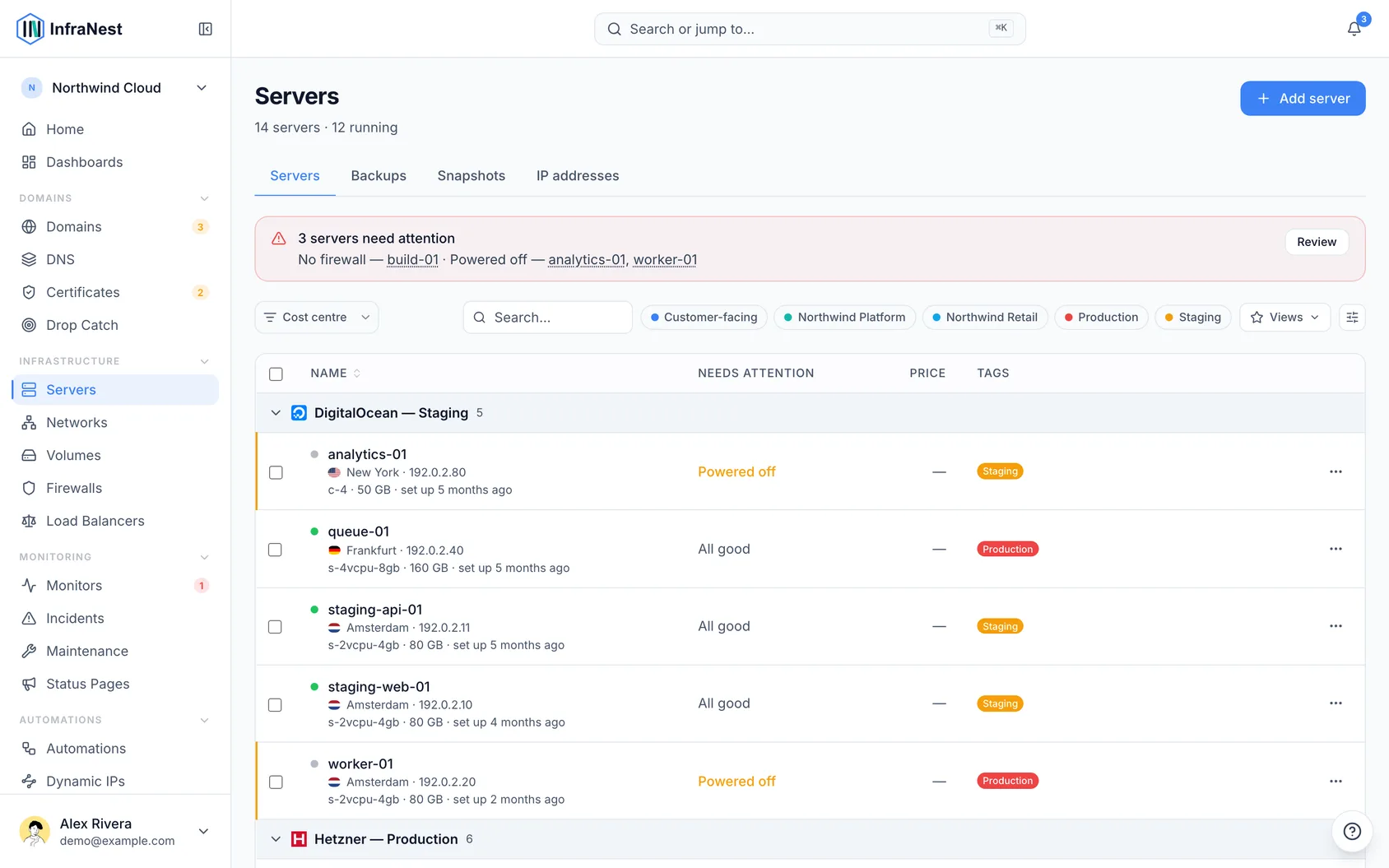
The Servers page is a single list of all your servers — search, filter and tag them, and open one to manage it. Use Add server to provision a new one.
Supported providers: Hetzner Cloud, DigitalOcean, TransIP and OVHcloud.
What you can do differs by provider, and InfraNest reads that from a declared capability rather than assuming it — rescue mode, a web console, ISO mounting, placement groups and the provider's own delete protection aren't available everywhere. A control your provider can't back is greyed out with the reason instead of failing after you press it.
NoteOVHcloud is the exception worth knowing about: a VPS there is ordered through OVHcloud's own process rather than created directly in InfraNest, and removing one cancels a subscription with a notice period. Both are done in the OVHcloud panel, and the server appears here on the next sync.
What the coloured dot means
Every server has a small dot next to its name. It means the same thing on every page — the server list, the server's own page, Monitors and the Dashboard.
- Green — running. The server is on. If it has the agent installed, the agent has checked in recently.
- Red — needs a look. Either the agent has stopped checking in (Not reporting), or your provider reports an error.
- Amber — on its way. The server is being created, starting, shutting down, rebuilt or moved. This ends by itself.
- Grey — nothing wrong. The server is switched off, the agent is set up but hasn't checked in yet, or nothing has told us its state yet.
When you switch a server off at your provider, the dot goes grey, not red — a server you turned off on purpose isn't a problem. Hover over a dot to see what it means in words.
TipIf a server has the agent installed, the dot listens to the agent: a server your provider says is running, but whose agent has gone quiet, shows red. A server without a cloud account, like one you added yourself, turns green as soon as its agent checks in.
Was this article helpful?