

Learn how InfraNest tracks a server's CPU, network and disk activity, and how to get notified when something stays over a limit for too long. This is for anyone keeping an eye on server health, no technical background needed.
Overview
- InfraNest collects each server's CPU, network and disk metrics, shows them as graphs, and can alert you when a reading stays too high for too long.
- A server must have monitoring switched on before anything is collected about it.
- Memory, disk space and load average need the agent installed, since your provider's systems don't report them.
See the metrics
- Go to Monitors and open Servers to see every server at a glance.
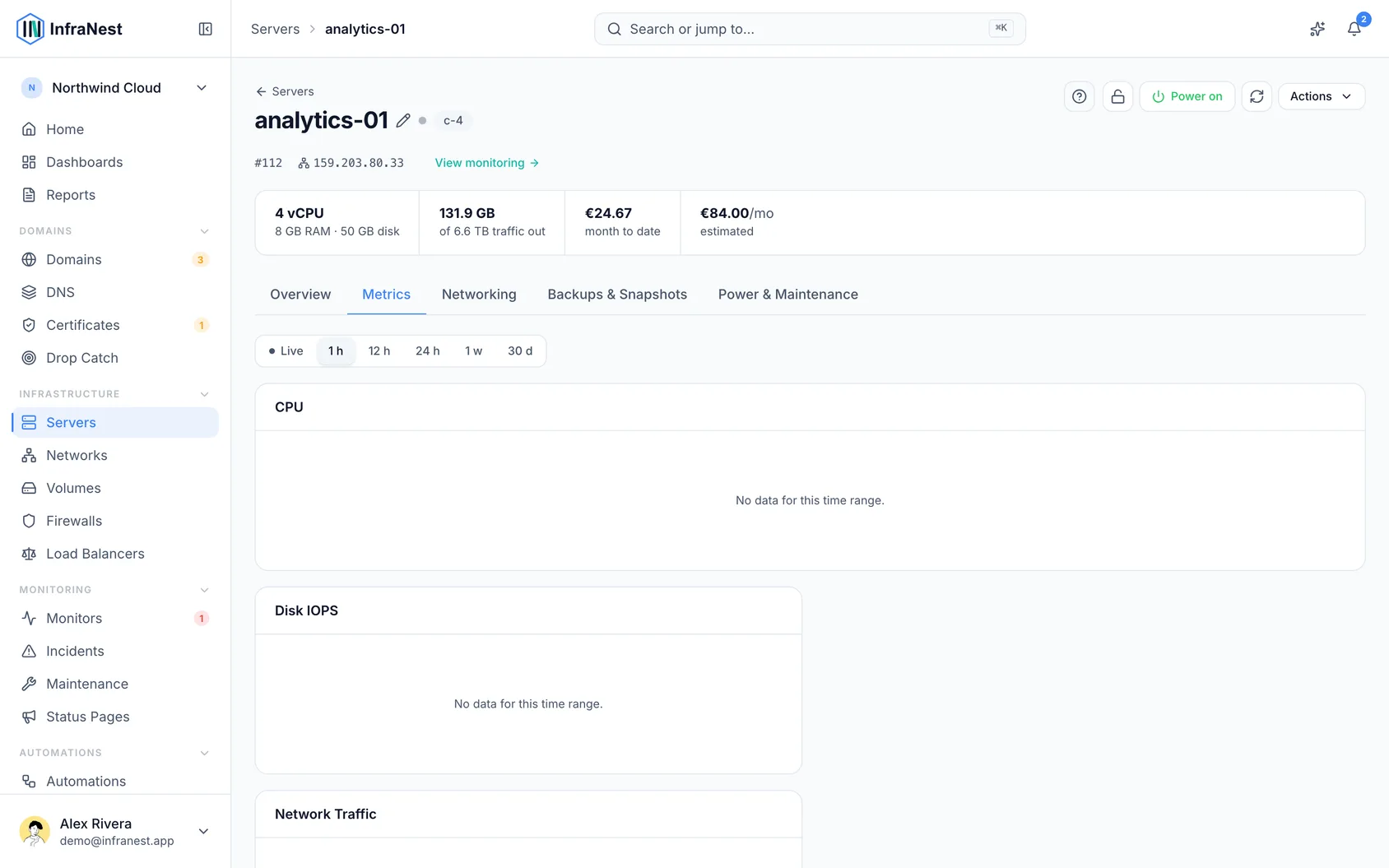
- Open one server to see its own monitoring page: live CPU, network in/out, and disk read/write graphs, plus disk space and what is running.
NoteA server has to have monitoring switched on first. Until it is, it's listed but nothing is collected about it.
Understand the line above the tabs
A server's monitoring page sometimes shows a sentence at the top — for example, "Up 18d 4h, but CPU reaches its 90% alert line in about 6 days" — along with the current value, how fast it's moving, and a button to the relevant chart.
This is not an alert — nothing has fired, nobody has been messaged. It just gives a number on the page some context. A few things to know:
- It's a rate, not a prediction, based on the last seven days.
- Most servers never show it — if a reading is flat or inconsistent, nothing is said.
- For disk, it counts down to full. For everything else, it counts down to your alert threshold.
You can click Snooze 1h from this same banner to silence the server temporarily.
Silence a server while you work on it
- Open the server from Monitors → Servers.
- Click Snooze 1h. For longer work, open the ⋯ menu beside it and choose 4 hours or 24 hours.
You can do the same from the ⋯ menu on the server's row in the list.
The silence ends by itself — there's no switch to turn back on, and no way to silence a server indefinitely.
While it's silenced:
- It's shown wherever the server appears, with time left and who silenced it.
- Rules are still checked — only notifications are held.
- If it's still over a limit when the silence ends, you're told then.
- An all-clear for an alert already sent still arrives.
To stop early, click End silence on the server's page, or choose it from the row's ⋯ menu.
NoteA silence is for work already under way. For planned work, schedule a maintenance window instead.
Where alert rules come from
Most rules are set once for your whole organisation under Alert defaults, and every server inherits them. On a server's alert list, those show as Org default.
If one server needs different numbers, change the rule there and it becomes Changed here, affecting only that server. Click Reset to put it back on the organisation's rule.
Switching an organisation rule off switches it off everywhere, including on servers that had customised it.
Set up an alert
There's nothing to create — every alert InfraNest can send is already in the list, with a sensible number filled in.
- Go to Alerts and open Alert rules, then switch on the alert you want. It saves straight away, and every monitored server follows it.
- To give one server different numbers, open it from Monitors → Servers and go to its Alert rules section. Click the threshold or the minutes in the sentence under the alert, type a new value, and press Enter or click away.
The duration is the window we average over, not a stopwatch — we alert only if the average across those minutes is past your limit, so a short spike from a backup job won't wake anyone.
Once an alert has fired, the metric has to come back clearly below your limit (about 10% under it) before it's called recovered. This prevents repeated firing from a value hovering right on the line.
What you'll be sent
You get at most two messages per alert:
- When it fires — the value now, the limit you set, and how long it's been over it.
- When it comes back to normal — an all-clear with how long the value stayed over the limit.
If a spike is too short to trigger the alert, you hear nothing at all. The incident resolves automatically when the metric recovers.
NoteThese incidents live alongside your uptime-monitoring incidents, so server health and service uptime are in one place.
Get more with the agent
Nothing on this page changes once you install the agent — thresholds, durations, incidents and notifications all work the same way. You simply get more metrics to write rules about, a reading every minute instead of every five, and the option of an alert for a server that stops reporting at all.
The agent also reports whether a server is sitting on security updates or needs a restart to finish installing them, and tells us how big the server really is (CPUs, memory and disk), so the size shown updates within a minute of an upgrade.
Removing the last agent token puts the server straight back on provider metrics, and we say so when it happens.
See why a service failed
If you have installed the agent, the Services tab lists what is set up to run on the machine, with anything that has failed at the top. A failed service shows why it failed, in plain language:
| What you see | What happened |
|---|---|
| Ran out of memory | The system killed it to free memory. |
| Stopped with an error | It exited on an error of its own. |
| Took too long and was stopped | It did not finish starting or stopping in time. |
| Failed too often to keep retrying | It kept restarting and gave up. |
| Stopped responding | It stopped checking in, so it was restarted. |
| Crashed | It stopped unexpectedly and left a crash file. |
| Could not get what it needed to start | Something it depends on was missing. |
If you have switched on A watched service has failed, you'll get an email, Slack or Telegram message naming the service and the server. When every watched service is running again, the same destinations get a message saying so.
Ignore a service you do not care about
- Open the server's monitoring page and go to the Services tab.
- Find the service and click Ignore.
That service no longer triggers A watched service has failed or A watched service keeps restarting. Every other service on the server is still watched as before.
Ignored services stay visible, with who ignored them and when. Click Stop ignoring to start alerting on it again.
See the containers on a server
If a server runs Docker or Podman, the Services tab also lists its containers, with how long ago each one started, how many times it has restarted and how much memory it is using.
Containers are listed by their short ID rather than their name, since the agent never connects to Docker itself. A container that is between restarts, or has just been removed, stays listed for half an hour.
To be told when a container keeps restarting, switch on A container keeps restarting under Alert rules.
Troubleshooting
Why isn't the service log shown? InfraNest deliberately doesn't send your services' log output anywhere, because logs routinely contain passwords and access keys that shouldn't leave your server. The plain-language failure reason answers the same question without exposing that data.
To read the log yourself, log in over SSH and run:
journalctl -u name-of-the-service --since "1 hour ago"
The service name shown in the Services tab is exactly what goes after -u.
Was this article helpful?