

Single sign-on lets everyone in your organization sign in with Google, GitHub or Microsoft instead of a password. This article is for organization owners and admins setting up or managing how members sign in.
Overview
- A sign-in connection is your organization's policy for one provider — which email domains it accepts and what happens when someone new signs in with it.
- You can require everyone to sign in through your connections, with an owner's passkey kept as an emergency way in.
- Everything here is recorded in your Audit Log.
Add a sign-in connection
- Go to Settings → Sign-in.
- Under Sign-in connections, choose a provider to add.
- The connection is on straight away. Anyone in your organization can now use that provider.
NoteIf a provider isn't offered, it hasn't been set up for the platform yet — ask your InfraNest administrator.
Limit sign-in to your own email domains
By default a connection accepts any address. To narrow it:
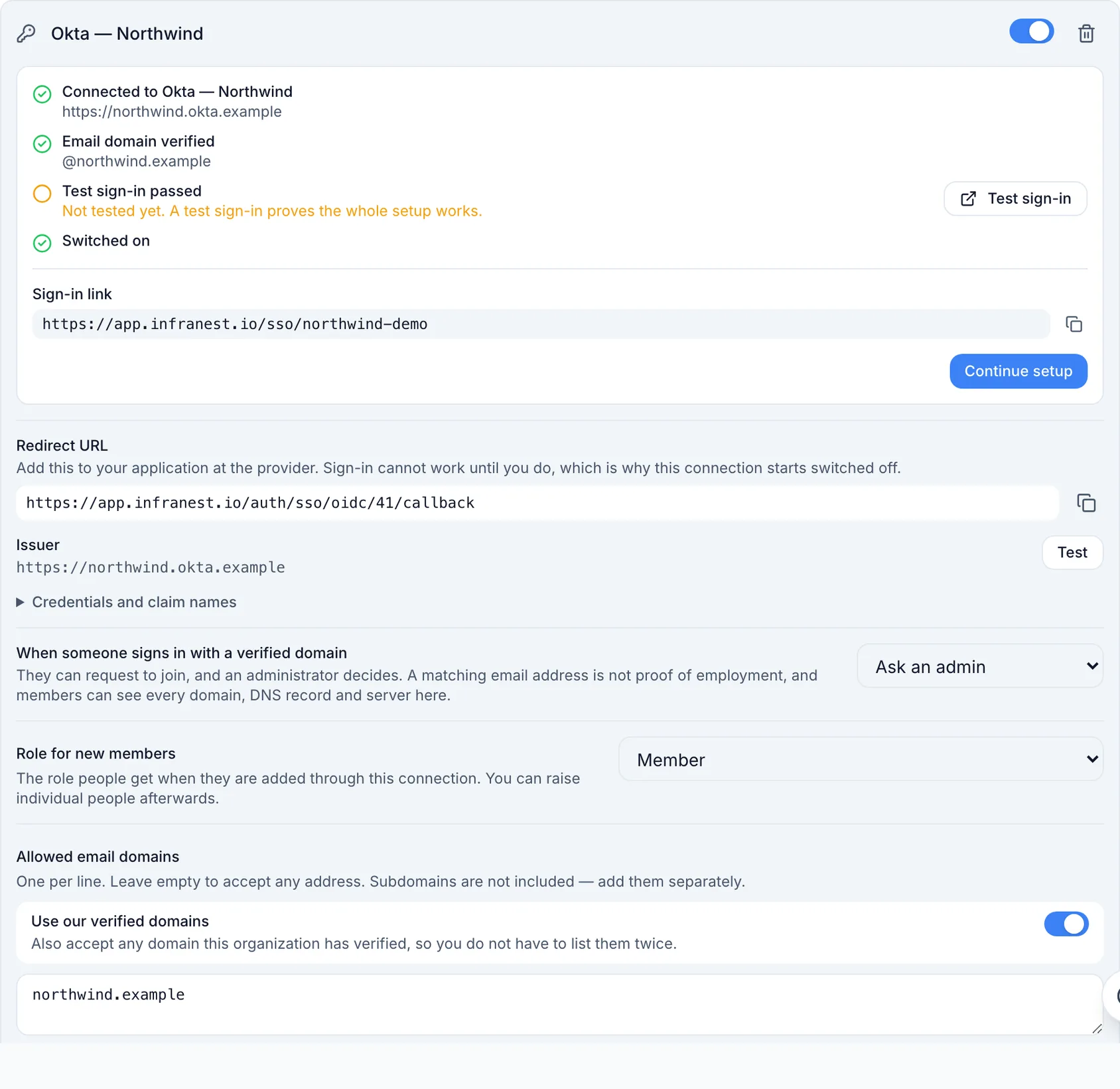
- Type the domains in Allowed email domains, one per line, or
- Switch on Use our verified domains so the connection follows the domains you've already verified — no need to list them twice.
The row always shows what the restriction currently accepts.
- Subdomains are not included. Allowing
acme.comdoes not allowmail.acme.com. Add it separately if you need it. - Turning on "Use our verified domains" before you've verified any accepts everything. The row says so when that happens.
Members who can't use any of your connections are protected: if a restriction would lock somebody out while single sign-on is required, InfraNest refuses to save it and names the people affected.
Require single sign-on
Switching on Require single sign-on means your organization only opens for people who signed in through one of its connections. An owner can also get in with a passkey, as the emergency way in. Other members' passkeys do not count, so removing someone in your identity provider really does end their access.
Under the switch, InfraNest lists exactly what will get people in: each connection that is switched on, owners' passkeys, and external members. If you connected your own identity provider but Google, GitHub or Microsoft sign-in is still on for your organization, those still count too — one click turns them off.
It applies to your organization, not to the whole account of everyone in it. Somebody who also belongs to another organization can still sign in with a password to reach that one. When they then open yours, InfraNest asks them to sign in with your single sign-on, and they stay signed in to both. Until they do, they see nothing of yours: your notifications are left out of their bell, and your organization shows in their organization list by name only, with a key beside it. Someone who belongs only to organizations that require single sign-on cannot use a password at all.
For those people, their My account → Sign-in & security page says which provider signs them in, and does not offer a password, two-step verification or passkeys: none of them would get them into your organization. InfraNest also refuses creating them some other way, such as through a password-reset email, and does not link a Google or GitHub account your organization does not accept. Owners keep their passkeys, because that is the emergency way in. People who also belong to another organization keep everything, with a line explaining that it is for their other organizations.
Because no password opens your organization any more, your password rules stop applying while single sign-on is required: minimum length, required symbols and maximum password age. They are shown greyed out, so they no longer shape passwords your members keep for their other organizations. They are kept as you set them and apply again if you turn the requirement off. Require two-factor authentication stays on: members who sign in through your own identity provider already meet it with that provider's own two-factor check, but it still applies to an owner signing in with a passkey and to Google, GitHub or Microsoft sign-ins.
Before you can enable it, InfraNest checks that nobody gets stranded:
- every member must be able to use one of your connections, and
- at least one owner must have a passkey registered.
That passkey is your way back in. If your identity provider ever breaks, an owner's passkey keeps working when passwords don't. Register one in My account → Sign-in & security first.
WarningLocked out anyway — the passkey owner has left, or the device is gone? Contact InfraNest support. An administrator can restore password sign-in for you. It's recorded in your Audit Log and your owners are notified, so you'll always see that it happened.
People from outside your organization
An MSP's engineer, an auditor or a contractor is usually not in your identity provider, so your single sign-on could never let them in. Mark them as External under Settings → Members (the ⋯ menu on their row). An external member signs in the way their own organization requires, and your organization lets them in however they did. It is recorded in your Audit Log. An owner can never be external.
Turn a connection off
- Find the connection under Settings → Sign-in.
- Use the switch on the connection to stop people signing in with it, or choose Remove to delete it entirely.
- If single sign-on is required and it's your only connection, InfraNest refuses — turn off Require single sign-on first.
TipThe switch is almost always what you want. Turning a connection off stops sign-ins straight away, keeps everyone's accounts linked to it, and can be switched back on. Removing a connection also unlinks everyone who signs in through it, and someone who has only ever signed in this way has no password to fall back on.
So once anybody is signing in through a connection, InfraNest stops you from deleting it and greys out the Delete button. The row tells you how many people that is. Turn it off instead.
Good to know
- Signing in with a provider never changes anybody's role or permissions.
- Every change here is written to your Audit Log.
- While single sign-on is required, only owners' passkeys get in. That's deliberate: it is the emergency way in, and a member who leaves your company must not keep one that bypasses your identity provider.
- Turning on the requirement also ends sessions that were started some other way before it: people are asked to sign in through your provider the next time they open the organization.
Was this article helpful?