

Change how much InfraNest you're paying for, move between the free and paid tiers, and understand what a switch costs and what happens to anything over your new limits. This article is for anyone who manages billing for their organisation.
Overview
- Switch plans at any time from Settings → Subscription.
- Switching mid-cycle is prorated, and the exact amount is always shown before you confirm.
- Upgrades apply immediately; downgrades lock anything over the new limit instead of deleting it.
- Every paid plan includes one 14-day free trial per organisation, and discount codes can be applied before or after you sign up.
Choose a plan
- Go to Settings → Subscription, or select Upgrade your plan wherever you've hit a limit.
- Compare the plans — each shows what's included and what your usage is now.
- Pick monthly or yearly billing.
- Select the plan and confirm.
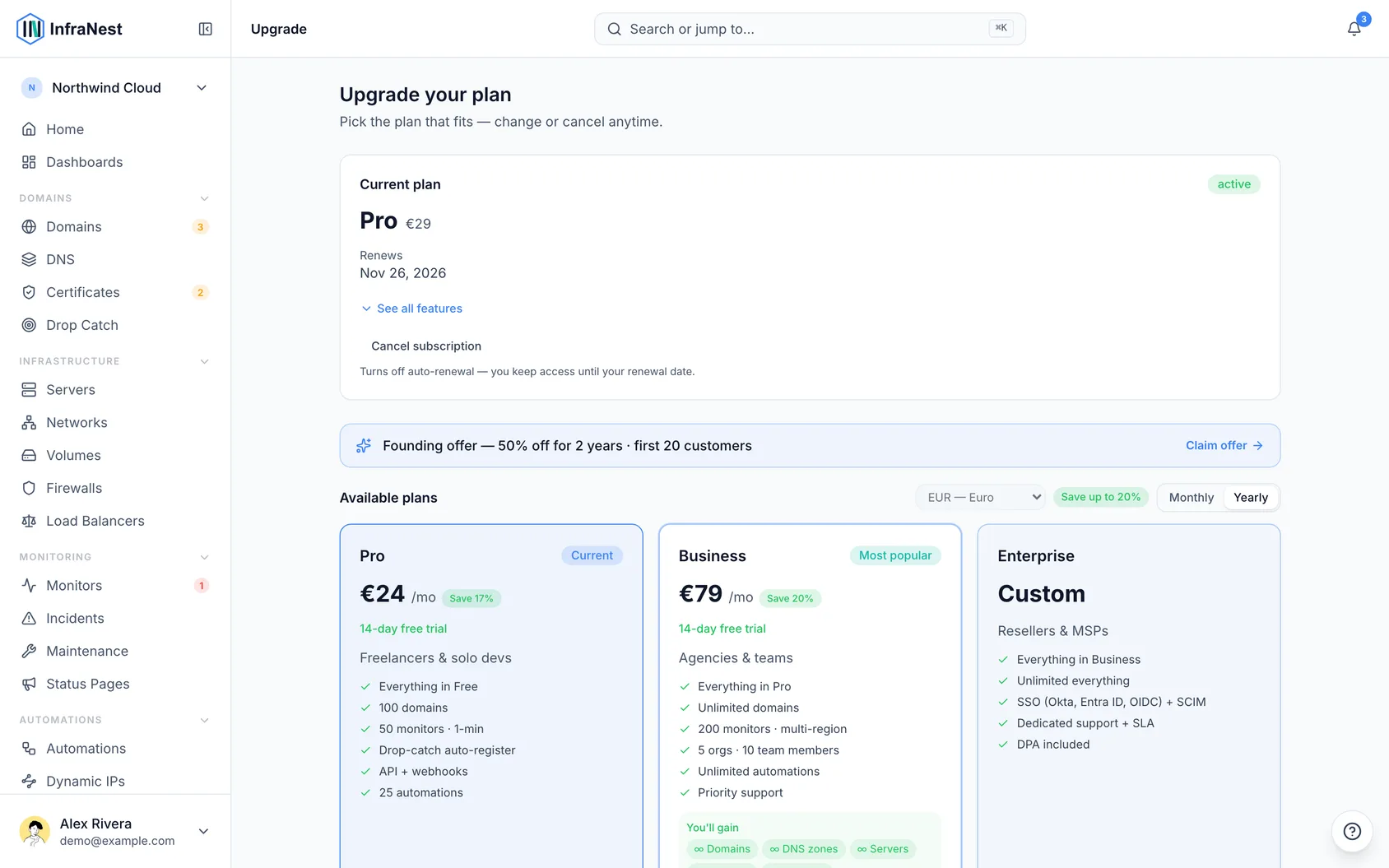
If you reached this from a locked feature, you'll come back to what you were doing once the change goes through.
Use your free trial
- Choose a plan you haven't tried before — if your trial is still unused, the confirmation screen says so.
- Check the dates shown: the trial starts today and is free until the date listed.
- Add a card when asked, so the plan can continue automatically after the trial.
- Decide what to do before the trial ends — do nothing and you move to the free plan, or confirm to keep the paid plan.
NoteNothing is charged during the trial. Cancel before the date shown and you pay nothing at all. If you've already used your trial once, the plans no longer advertise one, and the confirmation tells you plainly what you'll pay and when.
Three days before a trial ends, you'll get an email covering what the plan did for your organisation, what keeping it costs, and exactly what would change on the free plan — for example, which connections would pause. Doing nothing is fine: you move to the free plan, and anything paused starts again the moment you pick a plan.
Apply a discount code
- Select Have a discount code? — either on the first step when you sign up, or below the plans when choosing one.
- Type in your code.
- Select Apply (when entering it on the plans screen).
- Check the plan cards or the last signup step — they update to show what you'll actually be charged.
If you entered a code at signup, it's already filled in for you when you reach the plans screen — including on a different device, and however many times you come back.
Some codes only work on certain plans. When that's the case, the code tells you which ones — for example "Only on Business" — and other plans keep showing their normal price. If you pick a plan your code doesn't cover, you're told so rather than being charged full price.
A code doesn't change anything until you subscribe. Since nothing is charged during a free trial, the discount comes off your first invoice, not before. You can always see what's applied above the plan cards before you confirm.
A code can also expire, run out of uses, or be meant for new customers only. If yours isn't accepted, the message under the box tells you which of these it is. Where a standing offer applies instead, it's put on automatically and you're told before you confirm. If you believe your code should work, get in touch and we'll sort it out.
If an offer is full, we'll often apply another one. Where a replacement offer is running, that's put on instead, named above the plans alongside the original code, so you can see what you're being charged before you confirm. If there's nothing to put on, the plans go back to their normal prices.
See the discount you're on
- Go to Settings → Subscription.
- Look at your current plan — it shows the offer, how much comes off, and when it stops.
When it stops is worth checking: a discount can run for as long as your subscription does, apply to a single invoice, or end on a set date. The line tells you which, so a price going back up is never a surprise.
If you were expecting a discount and don't see one here, it isn't applied. Enter the code at Settings → Subscription and select Apply.
Understand what you pay when you switch
- Changing plans mid-cycle is prorated: you're charged for the part of the period you'll spend on the new plan, minus what you already paid for the part you won't use on the old one.
- The actual amount is shown before you confirm — no surprise invoice.
- Moving from monthly to yearly billing works the same way, just over the longer period.
Upgrade your plan
- Go to Settings → Subscription.
- Select Upgrade your plan and choose the new plan.
- Confirm and complete payment.
New limits apply as soon as payment goes through, and anything that was locked or paused because of your old plan comes back on its own.
Downgrade your plan
- Go to Settings → Subscription.
- Select the smaller plan and confirm.
Nothing you created is deleted. If you end up over a limit on the smaller plan, the excess is locked rather than removed: it stays in your account, stops being synced or checked, and comes straight back if you upgrade again. The oldest items are kept; the newest are the ones locked.
Monitors above the new limit stop running, which also means they stop alerting — worth knowing before you downgrade.
NoteTeam seats are shared across the organizations on your billing account, not counted per organization. The same person in two organizations counts once.
Cancel your plan
- Go to Settings → Subscription.
- Select Cancel.
- Answer the optional question about your main reason for leaving, or select Skip.
Your plan stays active until the end of the period you've paid for, then drops to the free plan — it doesn't stop mid-cycle.
What changes for your organisation
The cancellation confirmation email, and the one sent on the day the plan ends, list exactly what changes for your organisation on the free plan — not a general feature list. For example:
- "Monitors: 6 in use, 3 included — the 3 newest pause until you resubscribe." The oldest keep running. The same applies to domains, DNS zones and servers.
- "Team members: 3 in use, 1 included — they all keep working, but you can't add more." Things like team members, status pages and connections are never switched off; you just can't add another until you're under the limit.
- "3 monitors check every 5 minutes instead of at their own faster interval."
- "No longer included: DNS drift alerts, Webhooks."
If everything you use fits within the free plan, the email says nothing pauses.
Nothing is deleted. Paused items stay where they are. If you change your mind before the end date, resume from Settings → Subscription; if you resubscribe later, everything that paused starts again and your monitors go back to their own intervals.
Troubleshooting
Payment failed and my limits dropped. If a payment fails, we retry it and email you. While that's unresolved your plan may be reduced, which looks like limits suddenly applying. Update your card at Settings → Subscription to restore your plan once the payment clears.
My discount code wasn't accepted. Check the message shown under the code box — it tells you if the offer has ended, been fully claimed, or is for new customers only. If you believe your code should work, get in touch.
TipBefore confirming any plan change, check the price shown on screen — it already reflects proration and any discount, so there's no guesswork about what you'll be charged.
Was this article helpful?