

Manage your InfraNest plan, keep an eye on your usage, and understand what shows up on your invoices — written for anyone handling billing, not just finance teams.
Overview
- See which features and limits (certificates, domains, DNS zones, servers, monitors, status pages, dynamic IPs, team members, webhooks and more) your plan includes.
- Track how close you are to each limit before it stops you from adding more.
- Control how your invoices are addressed, handle VAT, and keep refunds and credit notes organized.
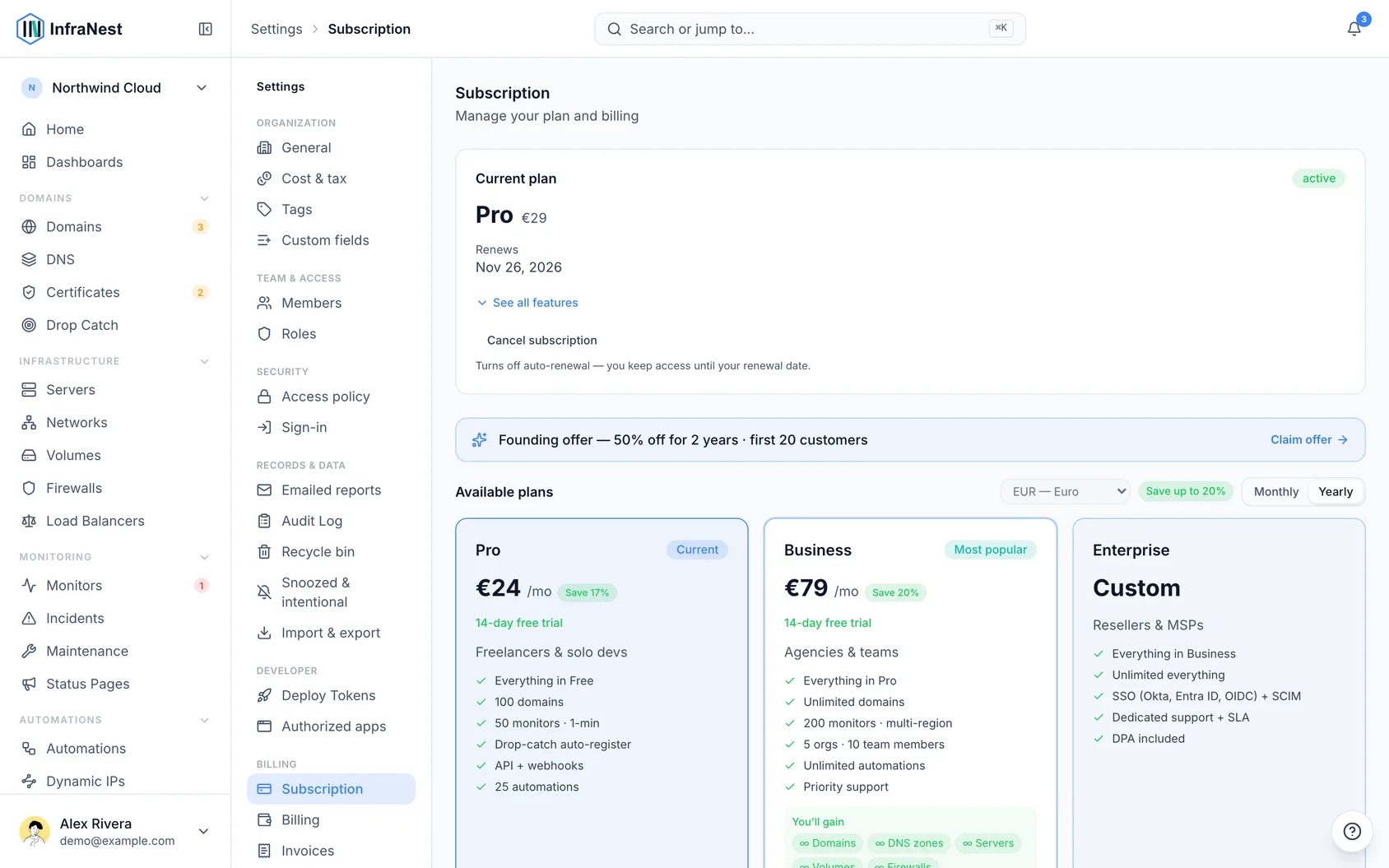
Change your plan
- Go to Billing.
- Choose a plan and confirm.
Changes apply straight away, and InfraNest prorates the difference, so you only pay for what you use.
Check your usage
Your usage meters in billing settings show how much of each limit you're using.
- Once you've used 80% of a limit, the page for that item shows how many are left next to its Add button, for example "2 DNS zones left · Upgrade".
- The form for adding a new item also tells you how many your plan has left.
- Small limits (under five) only mention this once you've actually reached them.
NoteYou'll also get an email when you hit 80% of a limit, and again when you reach it. It's sent to your organisation's owners and admins, and tells you what the next plan would add, its price, and how to try it free. You can turn these emails off under Notifications, but the in-app notice stays.
Reaching a limit never removes anything you already have — you just can't add more of that kind until you upgrade or remove some.
Update your billing details
- Go to Billing.
- Open Billing details.
- Fill in or update:
- Company name — who the invoice is made out to; use your own name if you're not a company.
- Address — two lines; use the second for a floor, suite, or an "Attn:" line.
- Postal code, city and country — the country also decides how VAT is handled.
- VAT ID — add it if you have one; see VAT on your invoices below.
- Reference / PO number — your own reference, printed on the invoice (up to 30 characters).
- Also send invoices to — up to five extra email addresses, such as your bookkeeper.
- Select Save.
Changes apply to your next invoice; anything already issued stays as it was.
VAT on your invoices
What your invoice shows depends on where you are and whether you've given us a VAT number.
| Your situation | What you pay |
|---|---|
| Business or private customer in Germany | German VAT |
| Business elsewhere in the EU, VAT number confirmed | No VAT — reverse-charged, and your invoice says so |
| Elsewhere in the EU without a confirmed VAT number | German VAT |
| Outside the EU | No VAT — outside its scope |
Add your VAT number and pay less
If you're a business in the EU outside Germany, adding your VAT ID under Billing details means your future invoices carry no VAT at all. Until you do, German VAT applies — a company name alone isn't enough, since the VAT number is what we can verify. Once added, it applies to your next invoice.
"We couldn't verify your VAT number"
This means the EU's checking service didn't answer — not that your number is wrong. Nothing is lost: we keep trying in the background, and you can select Check yourself. While unverified, German VAT applies, which can be reclaimed or corrected once the check succeeds.
"That VAT number isn't recognised"
Here the check did answer, and didn't recognise the number. Worth checking:
- the country prefix is included (for example
DE123456789, not123456789), - there are no typos, and
- the number is actually registered for EU cross-border trade.
Already-issued invoices don't change
If your VAT number is confirmed after an invoice has gone out, that invoice stays as it is — VAT applies from your next one. Contact us if an issued invoice needs correcting.
Keep your plan after a free trial
- During your trial, go to Settings → Plan.
- Select Continue after the trial.
- Add a card, and your country if we don't already have it.
Nothing is charged that day. You keep the rest of the trial, and the first payment happens on the date the trial was going to end — shown before you confirm, and emailed afterwards. Cancel any time before that date and nothing is charged.
You can also pick a different plan than the one you're trialling — the rest of your trial still applies.
Understand refunds and credit notes
When money is refunded — all or part of an invoice — you get a credit note: a numbered document that cancels that part of the original invoice. It's emailed to you with the PDF attached, sent to your billing address and its CCs too.
WarningKeep the PDF. If you reclaimed VAT on the original invoice, the credit note is the document your accountant needs to reverse it — a bank refund alone isn't enough.
The email tells you how the money comes back:
- Back to your card — usually visible within 5–10 days.
- As account credit — comes off your next invoice automatically.
- Paid back another way — for transfers arranged outside our payment provider.
The original invoice isn't cancelled or re-sent and keeps its own number. Both the invoice and credit note stay available under Settings → Invoices, where the credit note shows its issue date, the invoice it credits, a negative amount, how the money came back, and a Download button.
Use account credit
If a refund was given as account credit, it sits on your account and comes off your next invoice automatically — nothing to claim or do.
You'll see a note under Settings → Invoices while there's a balance, for example "You have €12.00 in account credit". Once it's used up, it disappears and your next invoice shows the reduced amount.
What happens when you reach a limit
- A feature that's not in your plan explains what it would do for your workspace, and what the next plan adds — with a free trial if you haven't had one, and a Compare plans option.
- Not something you need? Choose Hide from menu to remove it from your menu only. Bring it back under My account → Preferences → Hidden from your menu; it also returns automatically if your plan comes to include it.
- At a count limit, you'll see an "at limit" note. Existing items keep working — you just can't add more until you upgrade.
- Some actions are rate-limited; going too fast means you'll be asked to try again shortly.
Tips
TipAlready connected to PagerDuty, GitHub, Jira, Linear or Notion before 14 October 2026? It keeps working on the Free plan. You just can't add a new connection of that kind without upgrading.
Was this article helpful?