

API tokens let you use InfraNest's full REST API to automate anything you can normally do in the app. This is for anyone who wants to connect scripts, tools, or external services to their InfraNest account.
Overview
- A token stands in for you when a script or tool talks to InfraNest instead of you clicking around the app.
- Each token only has the abilities you give it, and only works in the organisation you create it in (unless you say otherwise).
- You can limit where a token works from, set it to expire, and revoke it at any time.
Create a token
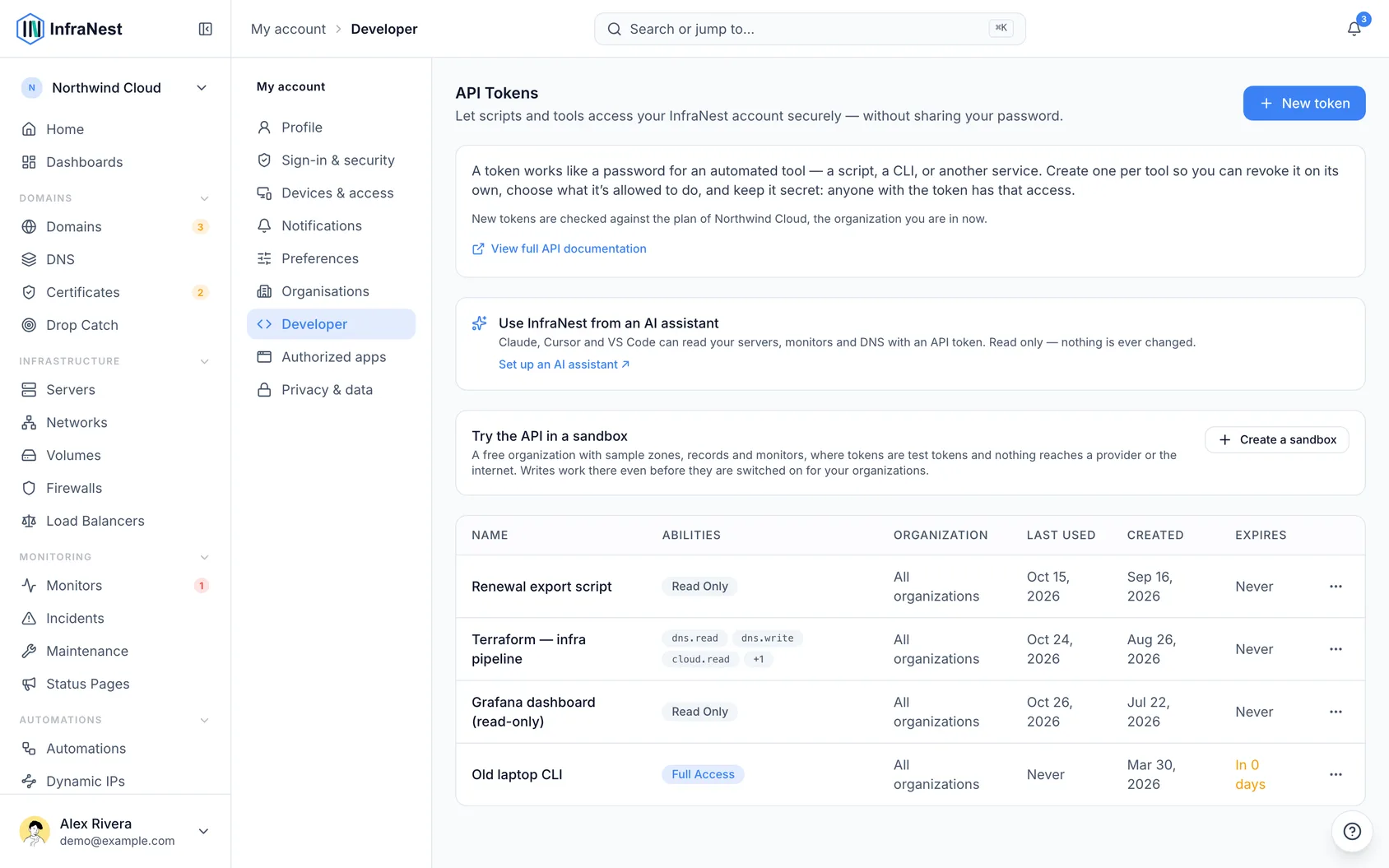
- Go to My account → Developer and choose New token. A token belongs to you, and works in the organisation you create it in.
- Give it a name and choose its abilities (what it can do). The token works only in the organisation you're in when you create it. Tick Works in all my organizations only if a tool really needs every organisation you belong to.
- Copy the token now — it's shown only once. Afterwards you'll only see a hint of the last few characters.
Abilities
Abilities are granular — read or write per area — plus a read-only preset and full access. Give a token only what it needs.
Each area covers more than its name alone suggests:
| Area | What the token can touch |
|---|---|
| Domains & Contacts | Domains, contacts, transfers, nameservers |
| DNS | Zones, records, templates |
| Cloud Infrastructure | Servers, volumes, snapshots, networks, firewalls, load balancers, cloud credentials |
| Monitoring | Uptime checks, incidents, maintenance, status pages, certificates, webhooks, automations, integrations, tags |
| Drop Catch | Watched domains and drop-catch attempts |
| Members & Teams | Members, invitations, roles, single sign-on |
| Billing | Subscription, invoices, payment methods, billing details — read only |
| Audit Log | Your organisation's audit log — read only |
| Data export & import | Exporting your data, and importing from CSV |
Certificates and webhooks are part of Monitoring rather than areas of their own — a token that needs either one needs Monitoring. Billing and the audit log are read-only over the API however the token is scoped: changing a subscription or paying an invoice is something only a person signed in to the app can do.
What a token can't do
A token works with your infrastructure. It can't change your account, even with full access, and it can't read settings that belong to people or that are themselves a key: single sign-on, notification settings, saved payment details, and webhook addresses. Creating or revoking tokens, changing your email or password, two-factor and passkeys, deleting your account, and connecting Telegram, Slack or browser notifications all need you signed in to the app. That way a token that leaks can't be used to lock you out or give someone a way back in.
A few names are reserved for InfraNest's own use, such as api. If you pick one, you'll be asked to choose another.
Limit a token to your addresses
- If a token is used from somewhere with a fixed address, like a CI runner or a server, you can make it work from there only. Under Allowed addresses, enter one IP address or range per line, such as
203.0.113.10or203.0.113.0/24. From any other address the token is refused, so a copy that leaks is useless. Leave it empty to allow any address. - To change the list later, open the token's menu and select Limit addresses. Clearing the list allows any address again.
Manage tokens
- See when each token was last used and when it expires, and revoke any token at any time.
- When you create a token, choose how long it lasts: 30, 90, 180 or 365 days (90 unless you pick another). We email you a week before it expires.
- To keep it working, open the token's menu and select Renew for 90 days. The token stays the same, so you don't have to update anything that uses it.
Tokens made before tokens had an expiry date show Never. Once one is six months old, we'll email you once to suggest renewing it, which gives it an expiry date.
TipThe full endpoint reference is in the app — select View full API documentation under My account → Developer.
Stay informed
- A new token is announced. When a token is created on your account, we email you, just as when a passkey is added. If it wasn't you, revoke it and change your password.
- Unusual activity is flagged. If a token suddenly makes far more changes than it usually does, your organisation's owners get a notification and it shows under Needs you on Home. That is usually a script gone wrong, or a token someone else has got hold of.
- See what a token did with View activity in the token's menu: the audit log, filtered to that token.
Try it in a sandbox
Select Create a sandbox under My account → Developer for a free practice organization with sample data, where tokens are test tokens and nothing reaches the outside world.
Use it from an AI assistant
Claude, ChatGPT, Cursor and VS Code can read your InfraNest account through our MCP server — ask "which monitors were down last night?" and they look it up. Claude and ChatGPT connect without a token. Cursor and VS Code use an API token; give it read access only to what the assistant should see. The assistant can only read, never change anything, and never sees secrets such as domain transfer codes.
Tips
WarningFull access tokens are powerful. Only grant the abilities a tool actually needs, and set Allowed addresses if the token runs from a fixed location.
Troubleshooting
- Requests are being refused with a "try again shortly" message: each token can make up to 300 requests a minute, with up to 60 of those being changes (creating, editing or deleting something). Changes are also limited to 1,000 an hour. Wait for the number of seconds given in the response before retrying. Reads keep working even if only the changes limit is reached, and one token's limit never affects another token.
- Some actions still fail even under the limit: a few actions, like manual syncs and "check now", have their own separate limit per organisation to protect the platform.
Was this article helpful?