

This page controls what InfraNest tells you about, and how — it's for anyone who wants to fine-tune their own alerts, pop-ups, emails, and chat notifications.
Overview
- Decide what reaches you, and whether it comes as an email, a pop-up, a push notification, or a message in your own Telegram or Slack.
- This is about your personal notifications only. Where your organisation's alerts go (team Slack channel, on-call phone, PagerDuty) is set separately under Alerts.
- Open this page from My account → Notifications, or from the gear icon at the top of the bell.
Review your current set-up
- Open My account → Notifications (or the gear icon at the top of the bell).
- At the top, check How you hear about things now — it sums up your whole set-up in four lines, each with a link to where you change it.
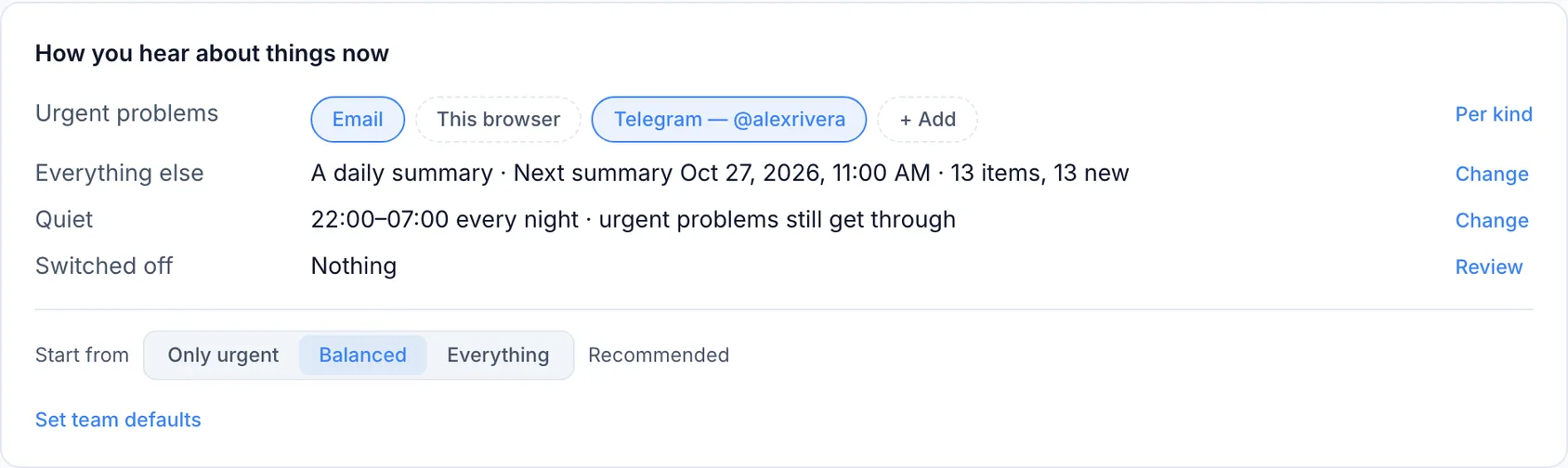
- Review the four lines:
- Urgent problems — where things like a site going down, a domain about to lapse, or a broken integration reach you. Each place is a chip you can click on or off: Email, This browser (only shown where supported), your own named chats, and + Add to connect a new one.
- Everything else — how routine updates arrive: A daily summary, A weekly summary, on Monday, Each one by email, as it happens, or Only in the app.
- Quiet — your quiet hours, do not disturb, or away settings.
- Switched off — how many things are currently muted, with a Review link.
NoteIf your organisation's admins have set team defaults, the summary will say so, and anything you haven't chosen yourself will follow those defaults.
Start from a preset
- Under the four summary lines, find Start from.
- Choose one of the three presets:
- Only urgent — urgent problems emailed straight away; everything else only in the app; your own chats get urgent only.
- Balanced (recommended) — urgent problems emailed straight away; everything else as one daily summary; your own chats get urgent only.
- Everything — urgent problems emailed straight away; everything else emailed as it happens; your own chats get everything, for every kind.
- Change anything afterwards as you like — the label then switches to Custom.
TipA preset never touches your quiet hours, away status, or muted items, so it's safe to try one and adjust from there.
Choose where each kind of notification reaches you
- Open the Where tab.
- Find the table of notification kinds — Monitoring, Domains, DNS, Servers, Billing, Account, and System — each as a row.
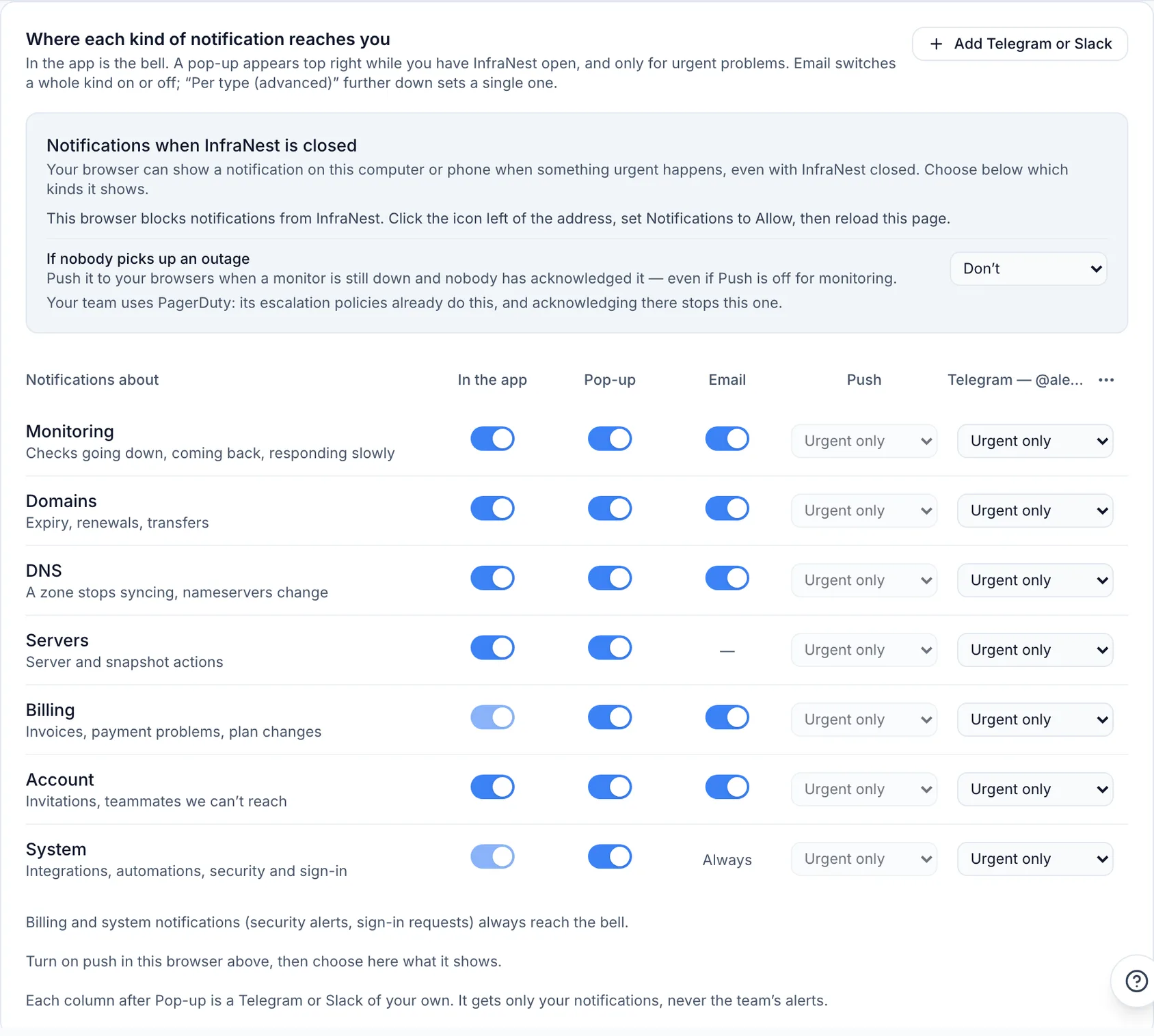
- For each row, set the columns that apply:
- In the app — whether it shows up in the bell at all.
- Pop-up — whether an urgent item pops up in the top-right corner while InfraNest is open.
- Email — whether that kind is emailed to you. If only some emails of that kind are on, the switch shows half on; click it to turn them all on, or use Advanced to set them one at a time.
- Push — what your browsers show while InfraNest is closed: Everything, Urgent only (default), or Off.
- Your own chats — each connected Telegram or Slack is its own column, set to Everything, Urgent only (default), or Off per row.
NoteBilling and System always reach the bell, including security alerts and payment problems, so those switches are locked on and can't be turned off.
Add a Telegram or Slack of your own
- On the Where tab, click Add Telegram or Slack (or + Add in the summary).
- Choose Telegram, Slack, or Microsoft Teams.
- Telegram opens the InfraNest bot — press Start and it's linked, nothing to copy.
- Slack asks for an incoming-webhook link from your Slack.
- Microsoft Teams asks for a Workflows link from your Teams.
- The chat appears as a new column in the table, set to Urgent only by default.
A chat you add this way gets your notifications only — never the team's alerts — and you can have up to three of your own per organisation.
Fine-tune with Advanced settings
- On the Where tab, open Advanced.
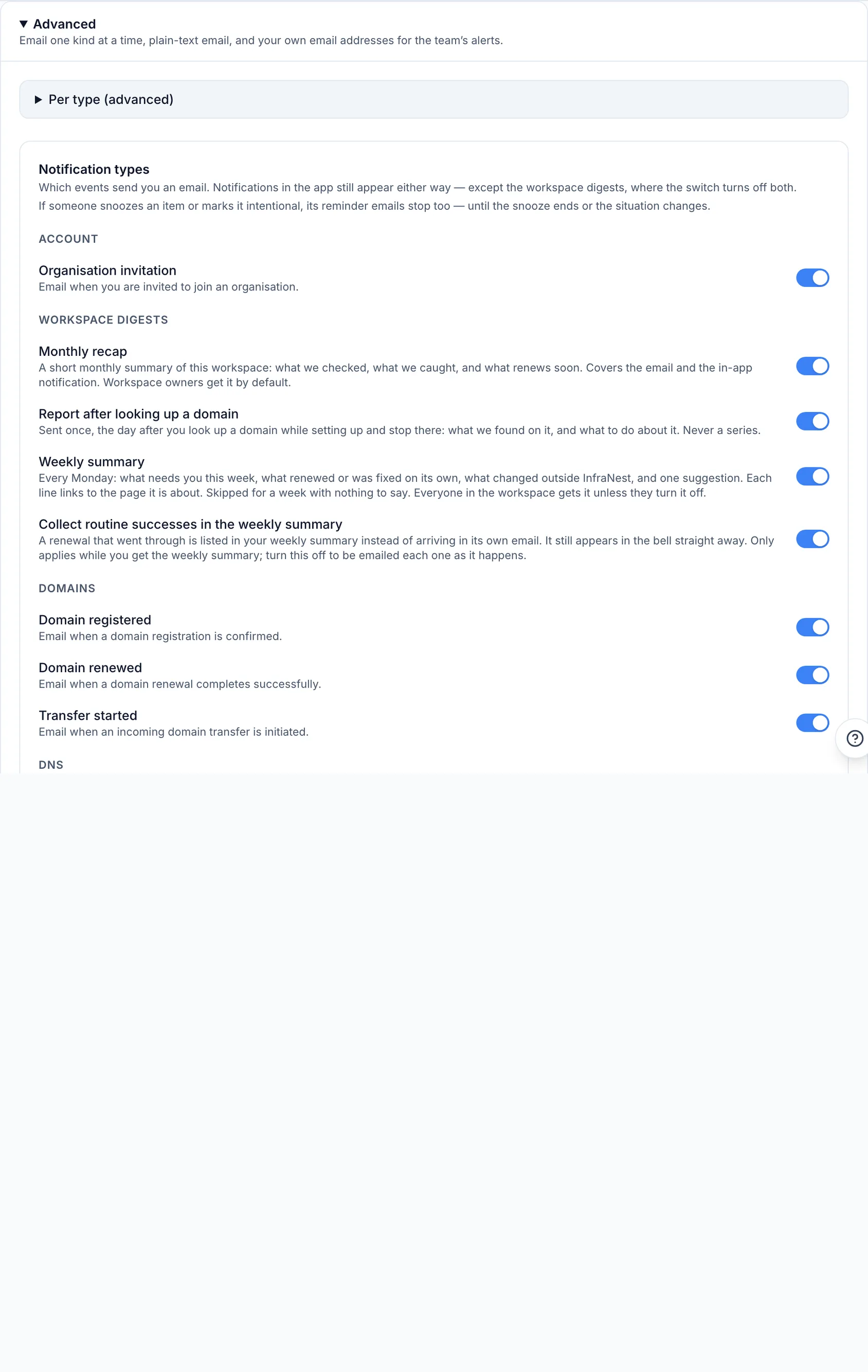
- Adjust any of the following:
- Per type (advanced) — force one kind of email to Always immediately or Off, overriding the When tab rules.
- Notification types — a switch per individual email (for example Domain registered, DNS sync failed, Monthly recap, Product news & tips).
- Email format — choose HTML or Plain text.
- Your own email addresses — add an extra address of yours that receives your organisation's alerts, each with an unsubscribe link.
Find out why you received a notification
- Open the bell and find the notification in question.
- Click its ⋯ menu.
- Select Why did I get this?
- This opens the Where tab on the exact row responsible, so you can adjust it in one step.
Tips
- Your notification choices are per organisation — if you belong to several, switch organisation in the sidebar to set each one separately. Your Telegram connection, quiet hours, and summary hour carry over everywhere.
- The bell always shows everything unless you've switched a kind off under In the app. Email, push, and chats are extra places to be notified — not the only record.
- A registration or transfer you place yourself will always notify you straight away about how it went.
TipIf you're an owner or admin and don't want occasional plan-related tips in your summary emails, use Don't show plan tips — also available under Billing on this page.
Was this article helpful?