

Learn how domains get into InfraNest so you can start managing DNS, certificates, and more — no technical setup required.
Overview
- Domains aren't added one by one — they come in automatically once you connect the registrar they're managed at.
- If a domain lives at a registrar you haven't connected yet, connecting that registrar brings it in, along with all its siblings.
- You can also move a domain into InfraNest by transferring it from another registrar.
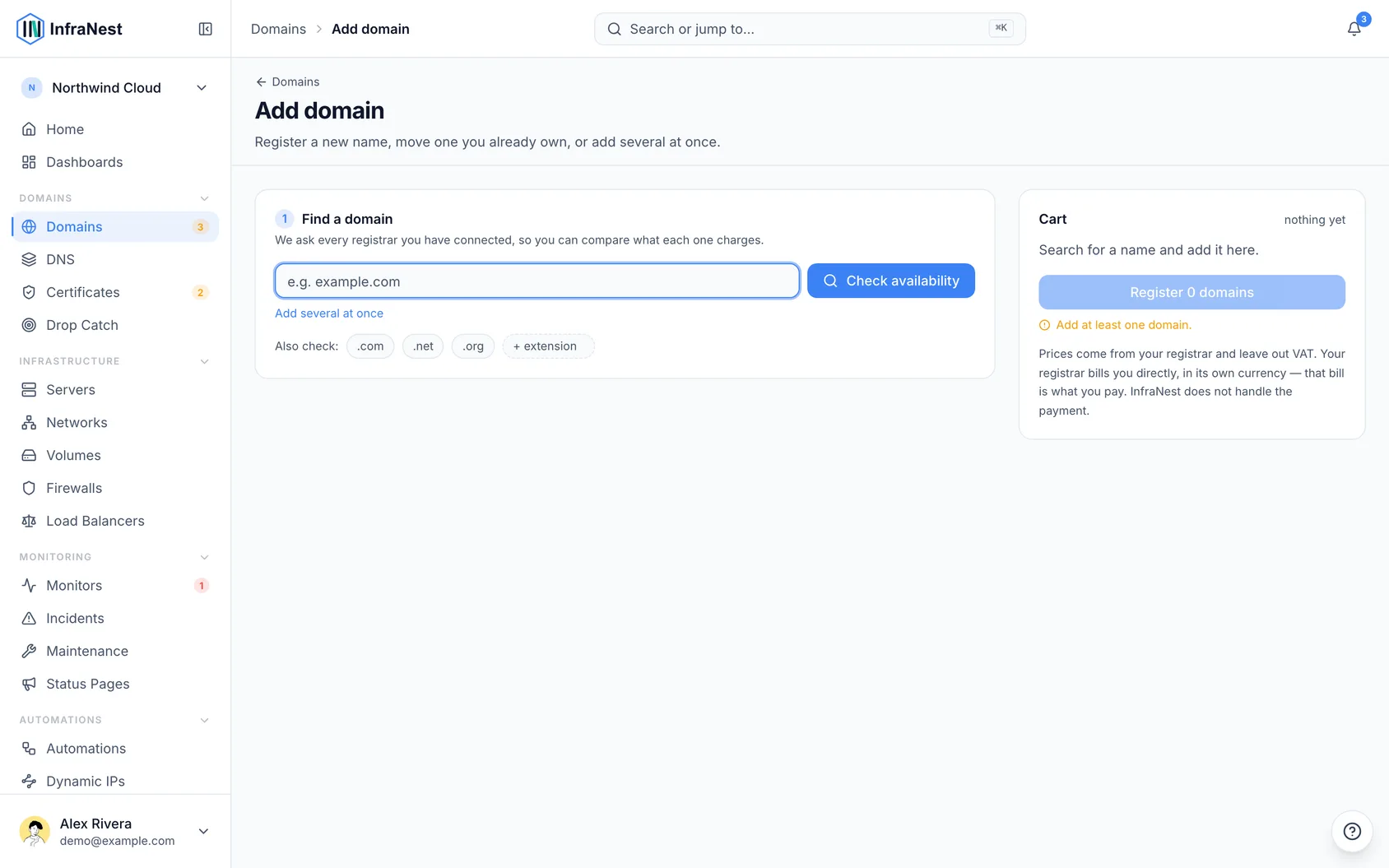
Import domains automatically
- Go to Integrations.
- Find the registrar your domain is managed at and select Connect an account.
- Once connected, InfraNest imports all domains you own there into your Domains list.
- From then on, those domains are kept up to date on a schedule — no need to re-import or refresh manually.
NoteDomains are always managed through a connected registrar. To add a domain, connect the registrar it's at — you can't add one directly without doing this first.
Transfer a domain in
- Make sure the registrar you want to transfer the domain to is already connected (see Integrations).
- Go to Domains and start the transfer for the domain you want to move.
- InfraNest automatically checks for the common reasons a transfer might fail, including:
- The domain being Locked
- The 60-day rule (domains transferred or registered recently often can't transfer again yet)
- A close expiry date
- A hidden approval address for confirming the transfer
- Review any issues InfraNest flags and resolve them before continuing.
- Select Continue to proceed with the transfer once checks pass.
TipRunning these checks upfront means you find out about a blocked transfer right away, instead of waiting a week for it to fail on the registrar's end.
Troubleshooting
- A domain isn't showing up in InfraNest. Confirm the registrar it's registered with is connected under Integrations. If it was just connected, give it a moment — imports run on a schedule.
- A transfer won't start. Check the transfer checks InfraNest ran — a domain lock, a recent registration or transfer, or a missing approval address are the most common blockers.
Was this article helpful?
Related articles
See what happened to your domainsThe Domain lifecycle report shows what happened to your domains in a month, quarter or year you choose — registrations, renewals, transfers in and out…About domainsInfraNest brings all your domains — from every registrar you connect — into one list, so you can see what you own, when each renews, and manage them without…Archive a domain you no longer ownTidy a finished domain out of your list without losing its history — and understand why archiving is not the same as cancelling.Choose who may issue certificates for your domain (CAA)A CAA record names the certificate authorities that may issue certificates for your domain.