

About Domains is for anyone who owns or manages websites and wants one place to see every domain, no matter which registrar it's with.
Overview
- Pulls in domains from every registrar you connect — GoDaddy, Cloudflare, IONOS, TransIP, Namecheap, AWS and more — and keeps them up to date automatically.
- Lets you manage domains directly: change nameservers, renew, turn on transfer lock, WHOIS privacy, auto-renew and DNSSEC, edit contacts, and get the transfer code.
- Only shows actions your registrar and domain ending actually support, so you never hit an error.
- Warns you ahead of expiry, and flags domains that are costing you money without being used.
- Checks each domain's security with the Security Advisor and can fix issues in one click.
- Lets you register, transfer and backorder domains, reusing your saved contact details.
Understand the Domains page
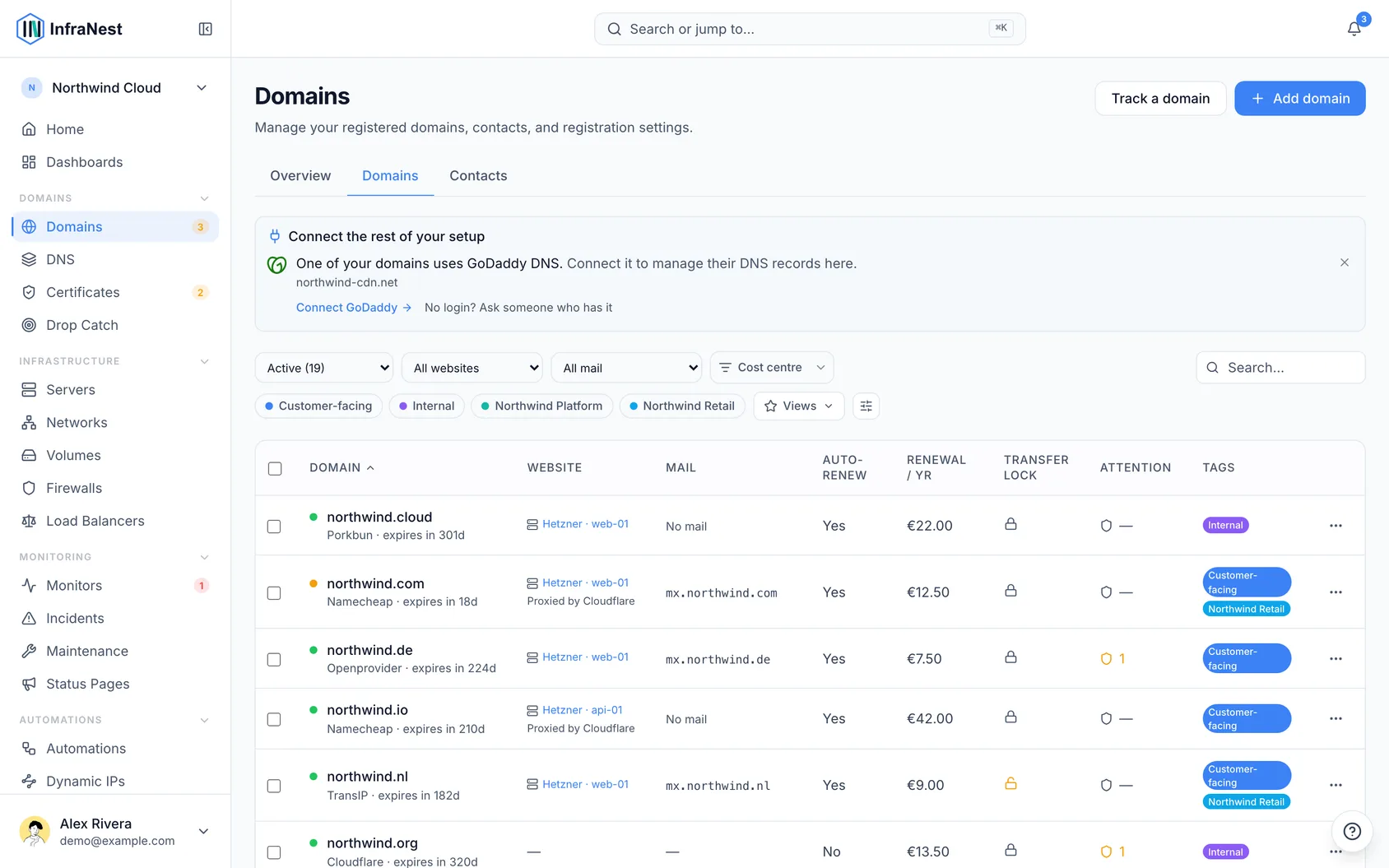
- Click Domains in the sidebar. This always opens the Overview tab.
- Read the summary line — it tells you how many domains are fine and how many Needs your attention, how many renew automatically, and when InfraNest last synced with your registrars.
- Check What needs me? — cards show problems with a deadline, like a domain about to expire or DNSSEC that stopped working. Each card offers the fix right there, such as Let it lapse, Keep it, Turn on auto-renew or Renew now.
- Check What will renewals cost? — a 12-month view of upcoming renewals. Click Add to calendar to put renewal dates in your calendar.
- Check the savings suggestion, if shown — click Review the moves to see which domains could move to a cheaper registrar you already use.
- Check How well are my domains protected? — one line per setting (auto-renew, transfer lock, WHOIS privacy, DNSSEC, CAA records, email protection) with a link to fix what's missing.
NoteDomains where a setting doesn't exist for that extension — like transfer lock on a
.nl— aren't counted against you.
Track a domain you don't manage here
- From the Domains page, click Track a domain.
- Type the domain's name.
- InfraNest reads its registrar, dates, transfer lock and nameservers from the registry and refreshes them daily — nothing to configure.
- Open the domain later: if InfraNest supports its registrar, click Connect [registrar] to turn it, and your other domains there, into managed domains. If not, click Ask us to support [registrar].
TipTracked domains still count toward your plan's domain limit and show a Tracked label in the list.
View and manage a single domain
- From Domains, click into any domain.
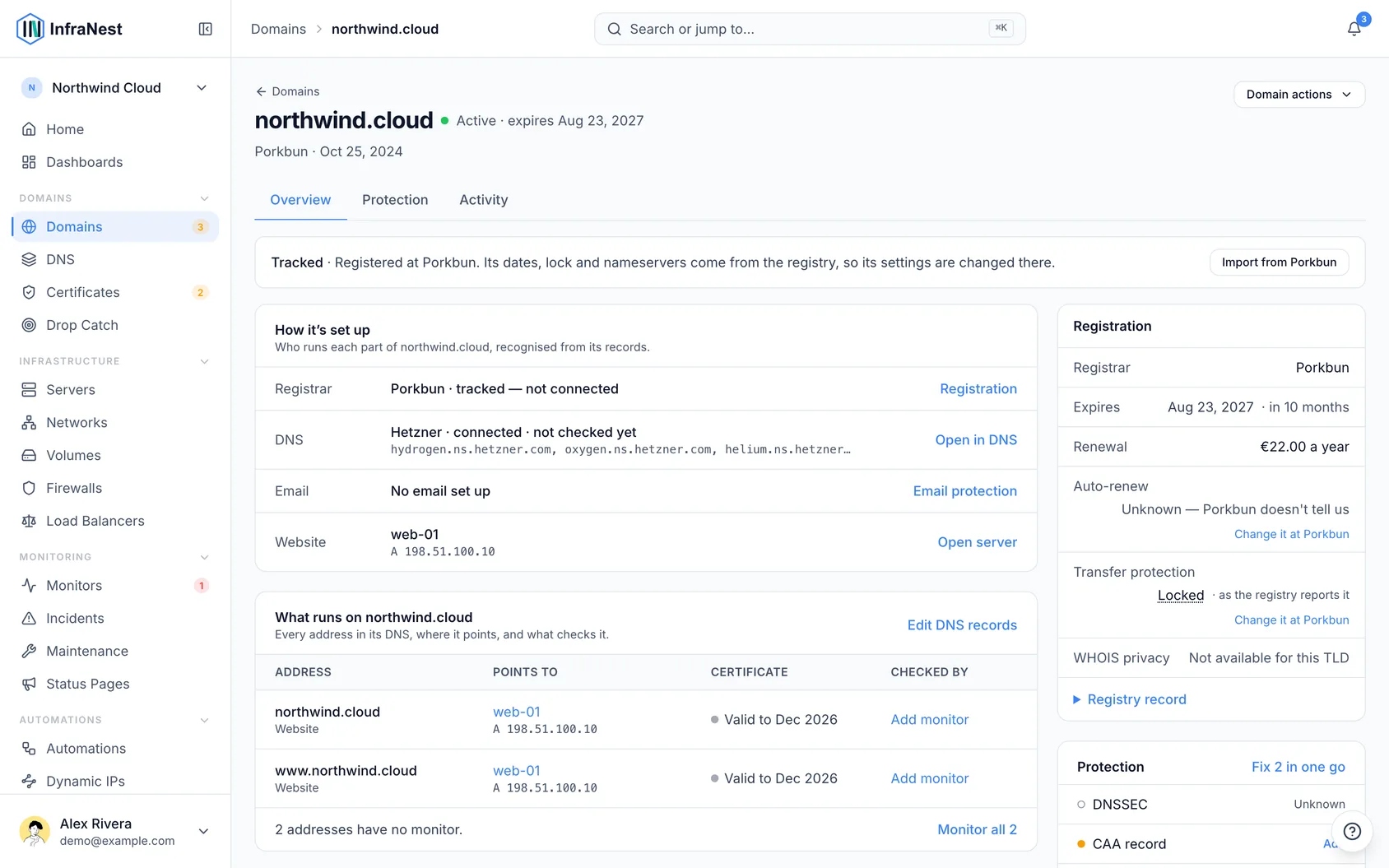
- Read the status line at the top, e.g. Active · renews itself on 14 March 2027.
- Use the Overview tab to see How it's set up, What runs on the domain, plus the Registration, Protection and Owner cards.
- Open the Protection tab to see advisor checks, mail and certificate monitoring, alert routing, and expected certificate issuers.
- Open the Activity tab to see the domain's full history.
- In What runs on [your domain], click any value to jump straight to that record, server, certificate or monitor. If some addresses have no monitor, click Monitor all to add one for each at once.
Tips
TipWhen a registrar's connection won't let InfraNest change a setting, you'll see Turn it on at [registrar] — click it to open that registrar's own dashboard, make the change there, and InfraNest will pick it up on the next daily check.
Troubleshooting
- A setting shows Unknown — this means the registry doesn't publish that information (auto-renew, for tracked domains, is a common example). If the expiry date passes and the registry still shows the old date, check directly at the registrar.
- A registrar card appears under "What needs me?" — this means that registrar's connection stopped syncing, so its dates may be stale. Click Reconnect if it uses a sign-in, or Update the key if it uses an API key.
- A domain is missing from your list — check Found elsewhere in InfraNest, which lists domains used by your DNS zones, certificates, monitors or status pages but not yet in your domain list. Import or track them from there, or click Not mine if it belongs to someone else.
Was this article helpful?
Related articles
Add and import domainsThere are a few ways to get your domains into InfraNest — and most appear on their own once you connect a registrar.See what happened to your domainsThe Domain lifecycle report shows what happened to your domains in a month, quarter or year you choose — registrations, renewals, transfers in and out…Archive a domain you no longer ownTidy a finished domain out of your list without losing its history — and understand why archiving is not the same as cancelling.Choose who may issue certificates for your domain (CAA)A CAA record names the certificate authorities that may issue certificates for your domain.