

Certificate health shows you, in plain language, whether a certificate is working correctly — so you catch problems before your visitors do. This is for anyone who wants a quick answer on whether a certificate is safe to trust, without reading the certificate itself.
Overview
- InfraNest checks every certificate it knows about and surfaces the verdict at the top of the certificate's page.
- Passing checks are tucked away so you only see what needs attention.
- Fix buttons take you straight to the relevant action or technical details.
See what's wrong with a certificate
- Go to Certificates.
- Select an address to inspect what it serves, or choose All certificates and open a certificate.
- Read the verdict at the top — it says what needs you and what to do. For example, a missing intermediate explains why some clients cannot trust a certificate that your browser accepts.
The page opens showing what needs your attention. Passing checks stay folded under checks passed — select Show to read them. A fix button takes you to the relevant action or technical details.
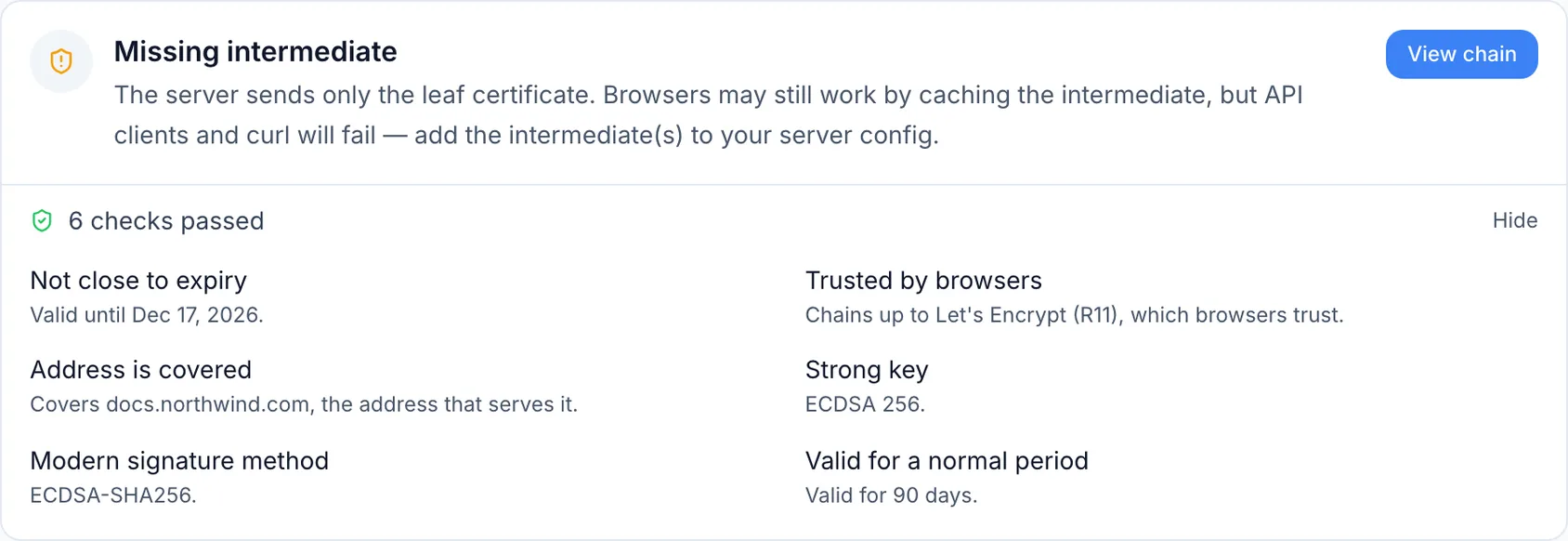
There are no tabs to go through — everything else described here is further down the same page.
What each check means
Renewal is the one that causes outages. The page says who renews the certificate and when. An expired or soon-expiring certificate nobody renews needs a replacement; an automatic renewal that is overdue needs a check of the renewal system, not just another reminder about its expiry.
The address and certificate details also show what monitors the certificate. Without a monitor, a break is only found by the next scan instead of the moment it happens.
Then the checks on the certificate itself:
- Key and Signature — is the certificate's encryption strong enough, and was it signed with a method still considered safe? These two are critical if they fail: the certificate is weak, not just untidy.
- Trust — is this a certificate browsers accept, or a self-signed one?
- Hostname — is the address you're monitoring actually listed on the certificate? If it isn't, browsers will warn about it.
- Lifespan — a certificate valid for longer than the 398 days now allowed. Browsers reject those.
- Chain — how the certificate was served. See below.
- CAA — you can publish a rule in DNS saying which companies are allowed to issue certificates for your domain. If this certificate's issuer isn't on that list, it's either a mistake to fix or a certificate somebody got that you didn't expect.
Chain and CAA only appear when InfraNest has something to say: a chain is recorded only where a live check or a scan actually saw the certificate being served, and CAA only where the domain publishes a policy to check against.
Is it installed correctly?
For certificates seen on a live address, the verdict includes the chain result:
- Installed correctly — the full chain up to a root browsers trust. Nothing to do.
- Missing intermediate — only the certificate itself was sent. This often works in browsers but breaks apps, curl and some phones, which is what makes it easy to miss.
- Untrusted root or Self-signed — the chain doesn't lead back to anything browsers trust.
When an intermediate is missing, expand Technical details. Its How to fix this panel explains what to add to your server, with a download link where the issuer publishes one.
NoteIf your browser shows the site as fine while a check here fails, see "A certificate check fails although the certificate is valid."
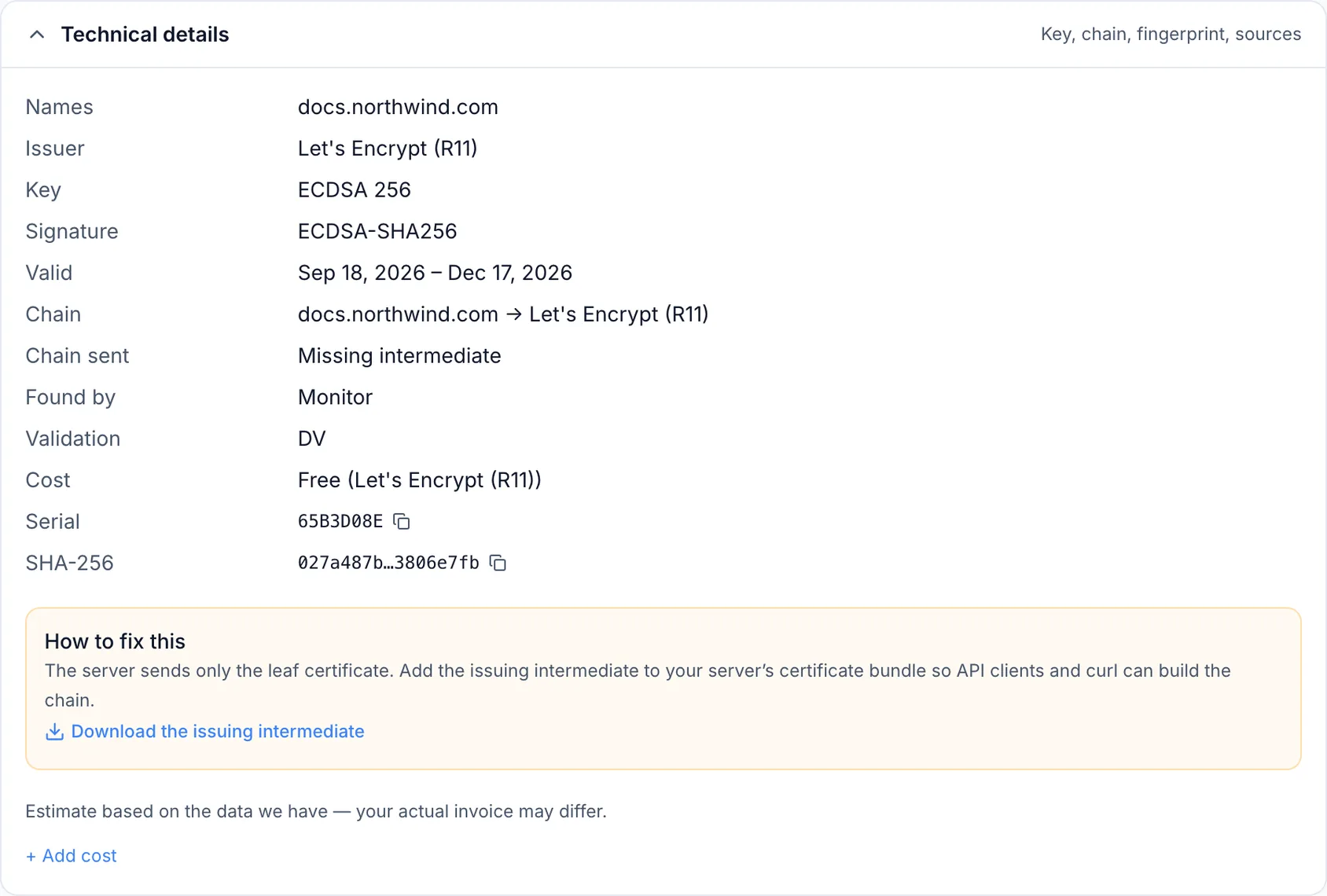
Correct what InfraNest worked out
InfraNest fills in a certificate's details from the certificate itself, and it can be wrong — a bought certificate that renews through your host looks the same as one nobody renews. To correct it, use the more-actions menu → Edit details at the top of the page:
- Set Validation — whether the issuer checked just the domain (DV), the company behind it (OV), or ran an extended check (EV).
- Set Owner — who in your team looks after this certificate.
- Tick Auto-renewing certificate if something renews it for you. Expiry alerts for it then stay informational instead of urgent.
- Add anything worth remembering in Notes.
Everything else — what the certificate covers, who issued it, when it expires, its serial and fingerprint — is read from the certificate and can't be edited, because changing it here wouldn't change the certificate.
When InfraNest tells you
You don't have to come and look. InfraNest alerts you when a certificate is expiring or has expired, when the certificate served on an address changes, when one is found to be weak, when it's been revoked, and when a certificate is issued for your domain that you weren't expecting. Your team already gets these in-app and by email.
TipTo send alerts somewhere else, and to choose which of them that destination receives, go to Alerts → Destinations.
Tips
- A renewal is not finished until every address serves it. If one still serves the previous certificate, the rollout section names that address and offers Check now; the previous certificate remains history.
- A certificate InfraNest only ever saw in a public certificate log, or in a provider's list, has no chain or monitoring information, because nobody watched it being served. That's why some of these sections aren't on every certificate.
Was this article helpful?