

SSL certificates can live on many servers, behind proxies, or with different providers — this guide explains how InfraNest brings them all together into one place so nothing quietly breaks, and who it's for: anyone responsible for keeping their sites and services running securely.
Overview
- InfraNest keeps a single, deduplicated inventory of every certificate it finds — from your Monitors, scans, pasted certificates and connected providers.
- It tracks expiry dates and only alerts you when something actually needs attention — a healthy, auto-renewing certificate stays quiet.
- It checks that certificates are installed correctly, flags weak or misconfigured setups, and shows you any domains that aren't covered.
- It also catches unexpected certificates issued for your domains that you didn't request.
Check your certificate costs
- Open a certificate and look at its Cost panel — this shows the Yearly price.
- Certificates from issuers that don't sell them (Let's Encrypt, Cloudflare, Amazon and Google Trust Services) are automatically marked free from this issuer and recorded as free.
- For any other certificate, select Edit price and enter what you actually pay — InfraNest never guesses, since issuers like ZeroSSL, Sectigo and DigiCert sell both free and paid certificates.
- A price you enter yourself always takes priority and is never overwritten automatically.
NoteLeaving the price blank means the question is still open; entering a wrong zero answers it incorrectly — so only fill it in when you know the real cost.
Review the Overview tab
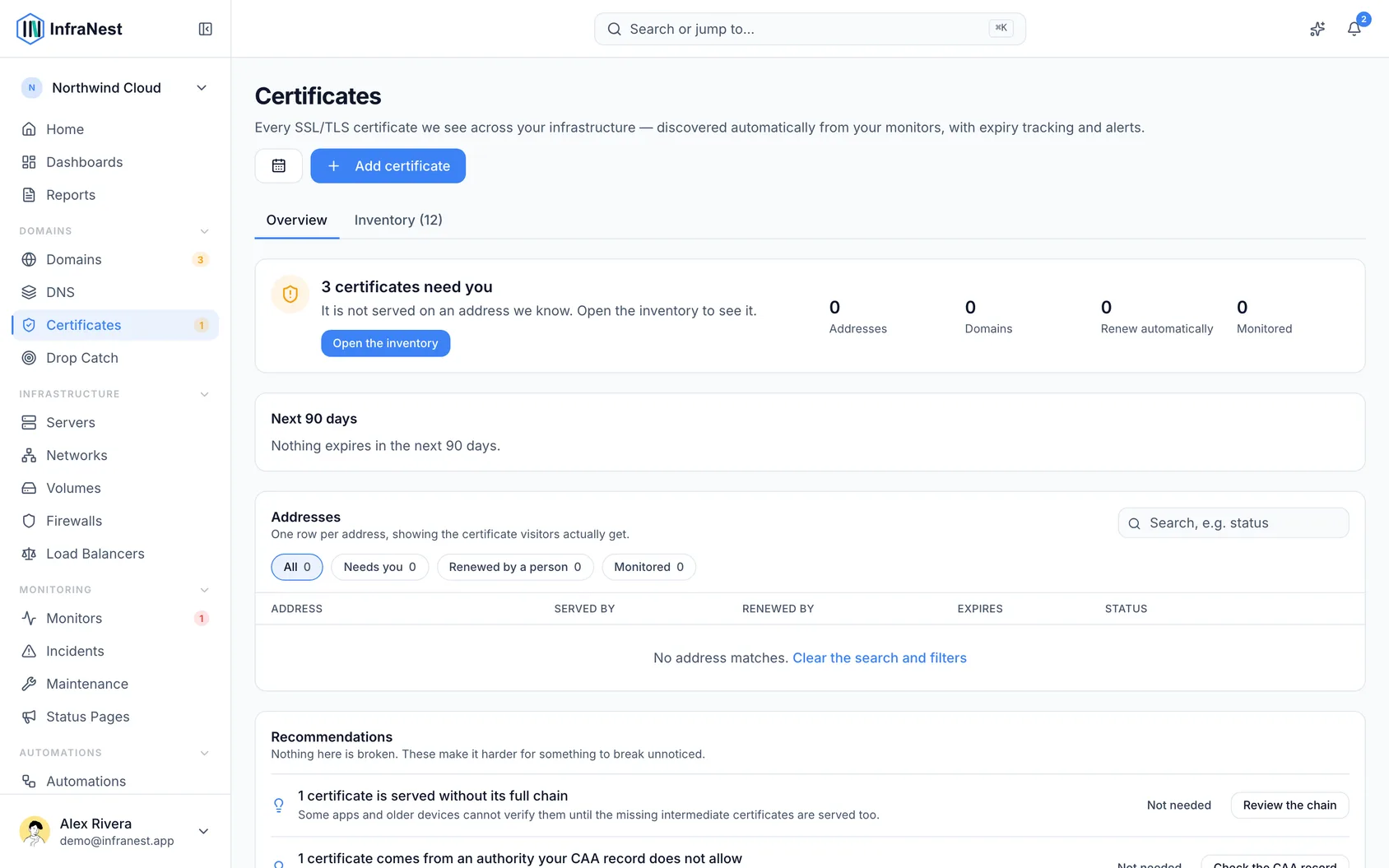
- Go to Certificates, then open the Overview tab.
- Read the summary sentence at the top — it tells you how many addresses are fine and how many need you.
- Check the Needs you section for cards describing any problems, each with what's wrong, the relevant date, and a What to do suggestion.
- Use Check now to recheck an address, or Fix CAA record to review a record before adding it.
- If an automation could catch the same issue next time, look for the Next time: note and select Set it up to turn it on as a draft.
- Review Next 90 days to see upcoming expiries and renewals on the timeline; select Add to calendar to track them in your calendar.
- Check Recommendations for suggestions like assigning an owner or adding monitoring, and use Review them to see details, or Not needed if a suggestion doesn't apply.
Browse certificates by address
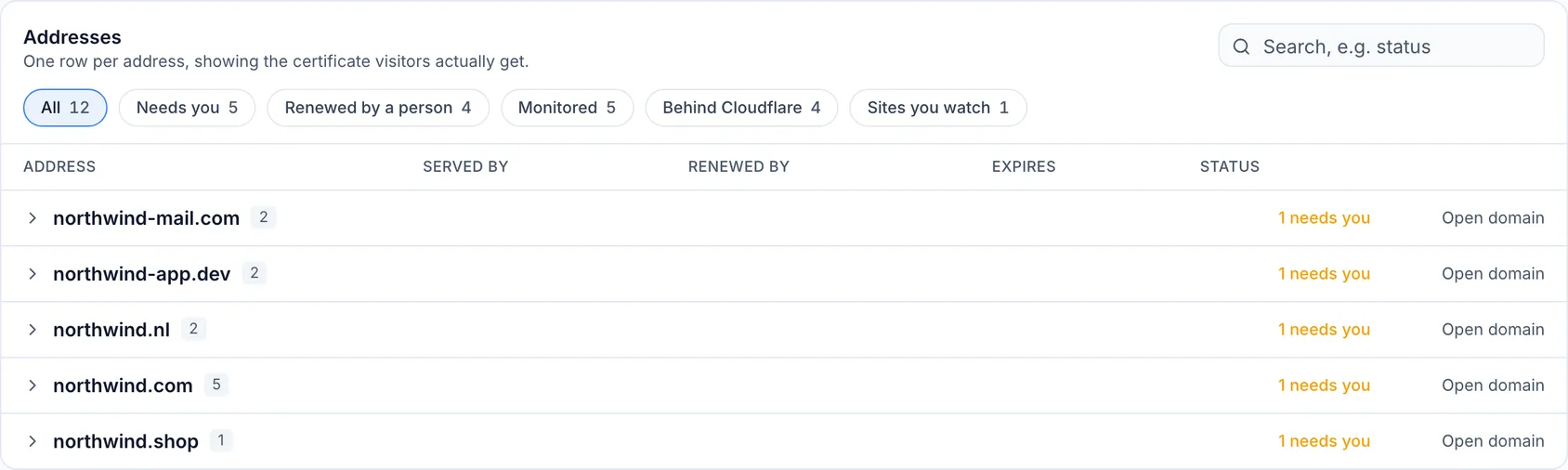
- Go to Certificates, then open the Addresses tab.
- Use Search addresses or the filter chips — Needs you, Renewed by a person, Monitored, provider-specific filters like Behind Cloudflare, and Sites you watch — to narrow the list.
- Select a domain to expand it and see its addresses.
- Select an address to open its details panel, showing how it's connected, what's being served, who renews it, and its certificate history.
- If an address isn't yours — for example, a site you're only watching — use This is ours or Not ours — only watched to correct its classification.
Browse all certificates
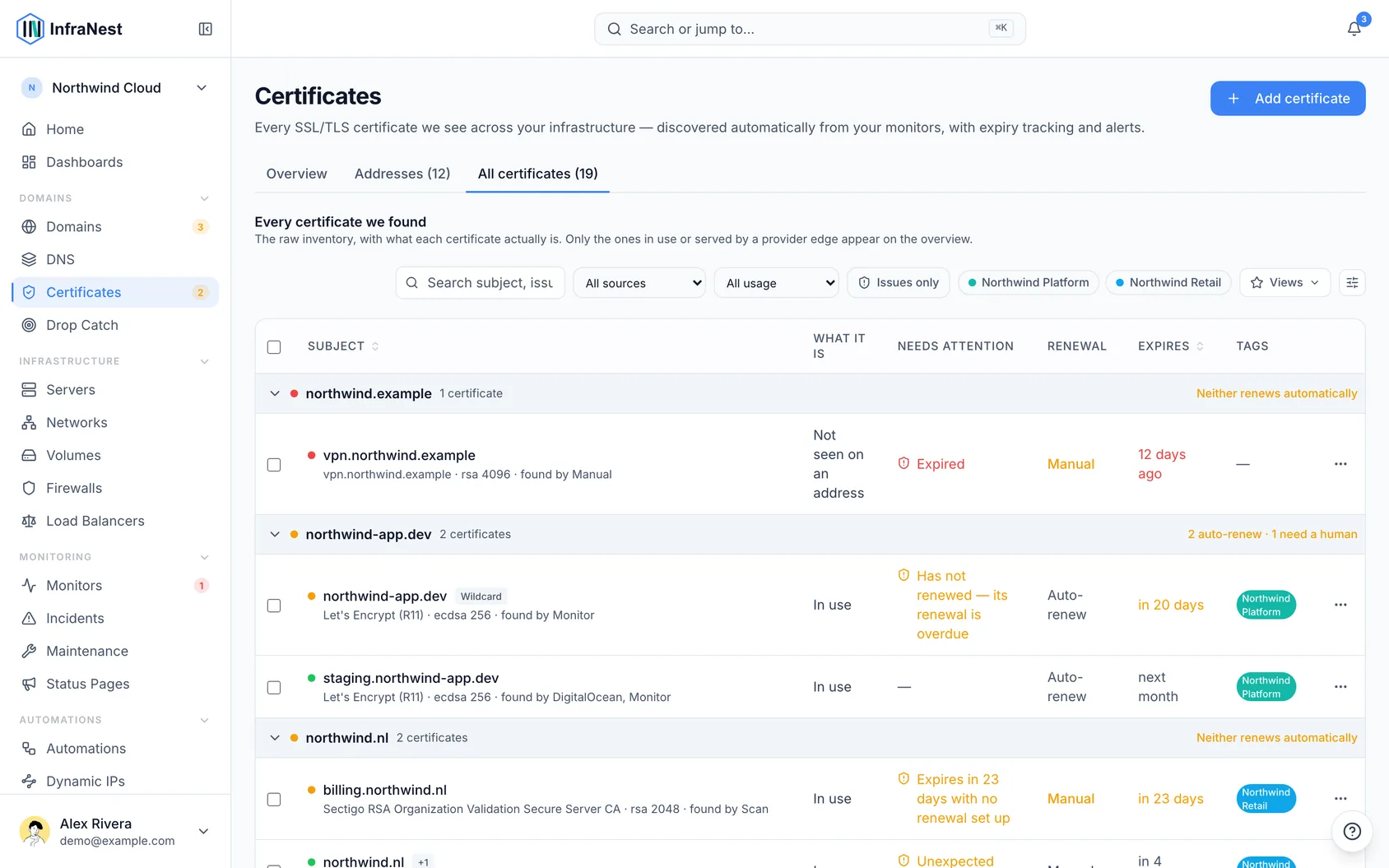
- Go to Certificates, then open the All certificates tab.
- Review each certificate's What it is status, such as In use, Provider edge, Replaced or No longer served.
- Use search, filters and Tags to narrow the list, or select certificates for bulk Actions.
- Select a certificate to view its full details, Certificate chain, and Security posture checks.
Tips
TipIf a site sits behind Cloudflare or another proxy, the proxy's edge certificate is managed and renewed automatically — you only need to watch your own origin certificate behind it.
Troubleshooting
- An address stopped responding: if it hasn't answered for a while, it will show as Not reachable for N days on Home. Select Check now to try again — the warning clears once it responds.
- A renewal didn't go live everywhere: if the old certificate is still being served somewhere, the card will name the server and explain how to reload it, or suggest connecting the provider if it's not yet connected to InfraNest.
- An address no longer exists: if its DNS record is gone and its domain is retired or no longer yours, select Stop tracking — you can always reverse this with Undo, or later from the Stopped tracking list using Track again.
Was this article helpful?
Related articles
Where certificates come fromInfraNest finds your certificates in several ways and combines them all into one deduplicated inventory. Each certificate is labelled with where it was found.Add a certificateMost certificates appear on their own from your monitors and connected providers, but you can also add one directly by scanning a server or pasting it in.Certificate coverageAn inventory entry says a certificate exists. The address overview tells you where it is actually served, which is the important question before you rely on…Certificate healthInfraNest checks every certificate it knows about and tells you, in plain words, whether anything is wrong with it — so you find out before your visitors do.