

This article explains what the DNS area of InfraNest does and how to find your way around it, for anyone who manages domains but isn't a DNS expert.
Overview
- InfraNest manages DNS for all your domains in one place, no matter which provider hosts them — Cloudflare, AWS Route 53, Hetzner, TransIP, GoDaddy, IONOS and Namecheap all work the same way here.
- Import your zones, edit records in one consistent editor, and InfraNest pushes your changes to the provider for you.
- Changes made directly at the provider are pulled back into InfraNest too — if something changes outside InfraNest, it's flagged so you can review it.
- The Security Advisor checks each zone for common email and security records (SPF, DMARC, DKIM, MX, DNSSEC and CAA) and tells you what's missing.
- Templates let you save a standard set of records and roll them out to any zone.
- InfraNest periodically checks what the internet actually sees for your records, and emails you if it differs from what's stored here — nothing is changed automatically.
Find your way around the DNS page
- Select DNS from the menu — this always opens Overview.
- Use Overview to see, at a glance, whether anything across your zones needs attention.
- Select the Zones tab to see the full list of zones you manage.
- Select Templates to view and manage your saved record templates.
- Reloading the page or going back in your browser returns you to whichever tab you were last on.
Search for a record across every zone
- On Overview, use the search box at the top of the page.
- Type part of a name (like
api), a value, an IP address, a server name, or a service name such as Cloudflare or Google Workspace. - Review the results, which are grouped by zone — each one explains why it matched, for example "Points at your server web-1".
- Select a result to open its zone with that record highlighted.
- Clear the search box to return to the full Overview.
TipYou can open this same search from anywhere in the app with ⌘K (Ctrl+K on Windows).
An IP address finds records pointing at exactly that address. An IPv6 range, such as 2a01:4f8:c0c:1::/64, finds every record inside it.
Check what needs your attention
- On Overview, look at the first line for a quick summary: how many zones are fine, how many need you, your total record count, how many zones match what the internet sees, and how many DNS hosts you use.
- Review the Needs you section, which lists only things that are broken or about to break, most urgent first. This can include:
- A record pointing at an address you no longer have.
- A dynamic IP that needs attention.
- Your changes here have no effect — shown when a domain's nameservers point elsewhere, so edits here aren't being used. InfraNest switches the zone off here after 48 hours if nothing changes.
- Stopped syncing — shown per DNS host. Select Sync now, or fix the connection directly from the card.
- The internet sees different records — open the zone to compare and keep the right version.
- Other problems flagged as errors by the zone's security check, such as two SPF records.
- When one problem affects several zones, it appears as a single card listing them all — select a zone in the list to open and fix it, or snooze the whole card at once.
- Use Snooze until tomorrow or This is intentional to set a card aside; a line beneath the cards shows how many are set aside, with Bring back to undo it.
NoteMissing extras like CAA, DMARC or DNSSEC aren't shown in Needs you — check each zone's security tab for those.
- Scroll to Changes, last 7 days to see a log of every DNS change, what changed, which zone, and who made it. Changes made directly at your provider are marked Outside InfraNest.
- Check Where your DNS lives to see each DNS host, how many zones it holds, and whether it's connected.
- Review Tidy up and complete for optional improvements, such as removing an old zone copy or lowering a TTL — nothing listed here is broken. Select Not needed to dismiss a suggestion.
Manage your zones
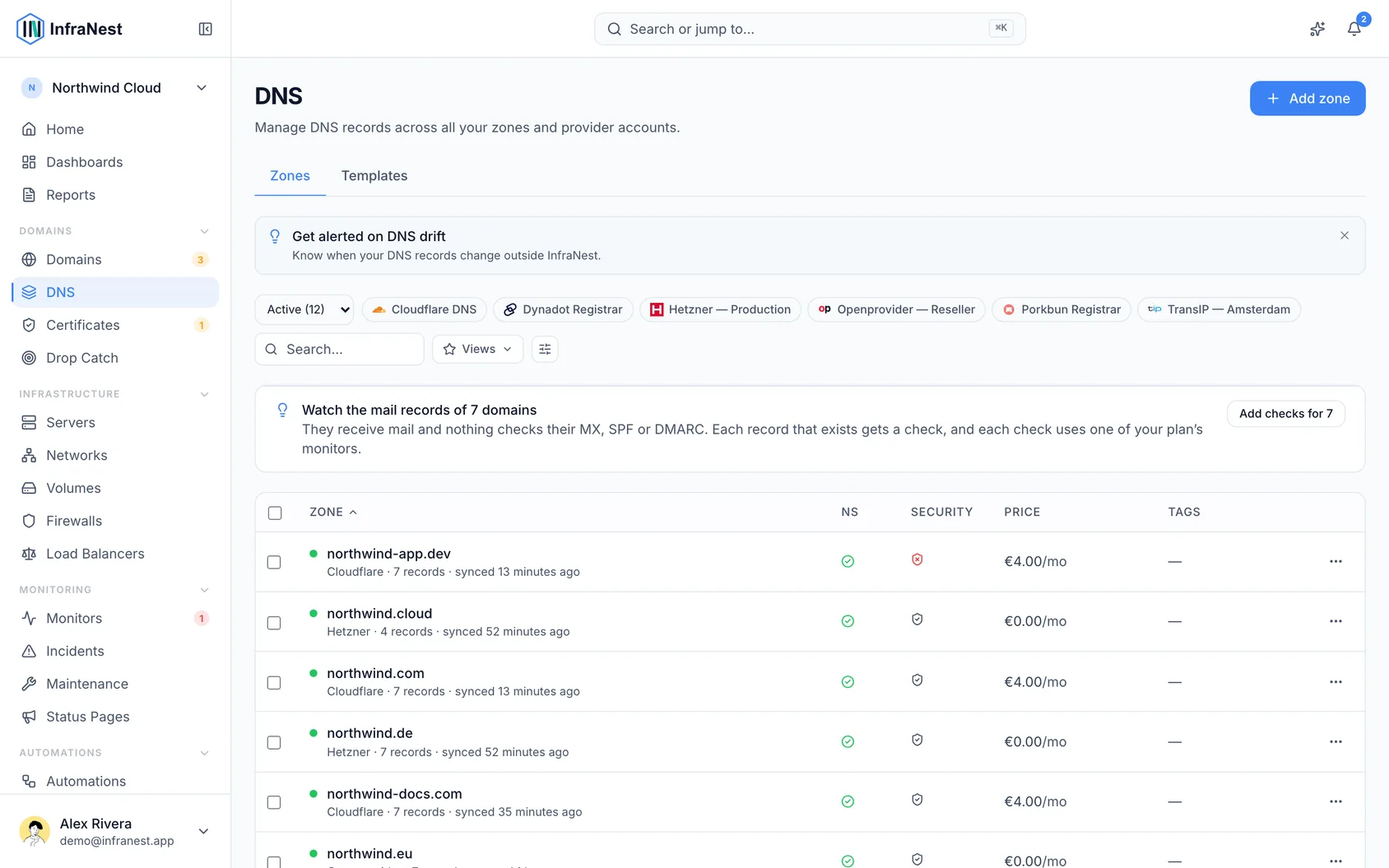
- Select the Zones tab to see every zone across all your providers, with its status, provider, record count, and last sync time.
- Use Search and Filter to narrow the list, or add Tags to organise zones.
- Use Add DNS zone to discover zones from a connected provider, or Add blank zone to create a new one.
- Select a zone from the list to open it and manage its records.
Was this article helpful?
Related articles
Add a DNS zoneCreate a DNS zone with a short wizard that does the cross-provider work for you — including pointing your domain at the new provider.Cloudflare settings the advisor checksSome of the most important security settings for a website are not DNS records at all.Check DNS and email securityEach zone has a Security Advisor that checks the DNS records that matter for email delivery and security — reading your domain's live DNS, so it's accurate…Download a zone fileYou can download any DNS zone as a zone file — a plain text file in the standard BIND format that almost every DNS provider, registrar and hosting control…