

Ready-to-copy automation recipes for InfraNest, written for anyone who wants to save time without building an automation from a blank page.
Overview
- Each example below is a real automation you can recreate in a few minutes.
- Build any of them from Automations → New automation, or open the Templates tab and look for a similar starting point.
- Use them as-is, or adjust the trigger, conditions, and actions to fit how your team works.
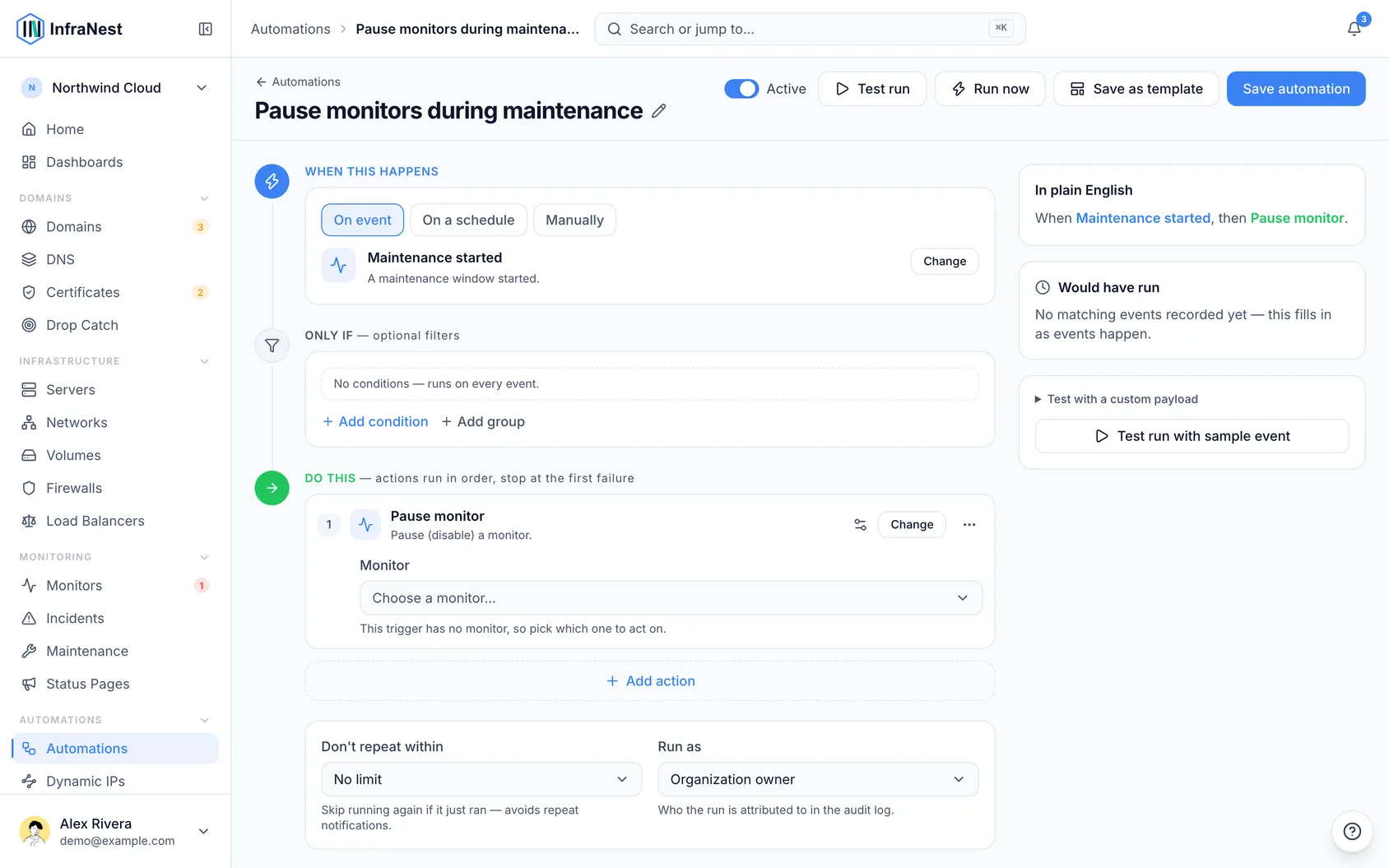
Warn the team about expiring domains
- Create a New automation and choose Domain expiring as the trigger (When this happens).
- Under Add condition, set Days until expiry less than 14.
- Add the Send notification action to alert your team.
- Add a second action, Open maintenance window, so the renewal work is tracked.
- Save automation.
Tag and announce a monitor outage
- Create a New automation with the Monitor alert trigger.
- Add the Add issue labels action — or if you're tagging the monitor itself, use the tagging action for monitors — and add a label such as "incident."
- Add the Post status-page announcement action so subscribers are notified automatically.
- Save automation.
Auto-resolve a recovered incident
- Create a New automation with the Monitor resumed trigger (a monitor comes back up).
- Add the Resolve incident action.
- Save automation.
Keep new domains protected
- Create a New automation with the Domain added trigger.
- Add the Set auto-renew action and turn it On.
- Save automation.
Push events to your own tools
- Create a New automation and pick any trigger you want to react to — for example Server removed or Certificate expiring.
- Add the Call webhook action.
- Fill in the URL your system should receive the event at, and optionally a Payload (JSON, optional) and Custom headers.
- Save automation.
Harden every new server
- Create a New automation with the Server added trigger.
- Add the Enable delete protection action.
- Add a second action to enable backups.
- Save automation.
Reboot a server when its monitor goes down
- Create a New automation with the Monitor alert trigger.
- Add a condition: Status equals "down."
- Add the Reboot server action.
- Add the Send notification action so your team knows a reboot happened.
- Save automation.
NoteThis one has more moving parts than the others. See Control servers from automations for the full walkthrough.
Tips
TipAdd conditions to keep rules focused — for example, only domains with a certain tag, or only certificates flagged as weak.
Was this article helpful?
Related articles
About automationsAutomations let InfraNest react to things happening across your infrastructure on its own.Automation conditionsConditions decide when a rule actually runs. Without them, a rule runs on every matching event; with them, it runs only when the event's details match.Why an automation was switched offInfraNest switches a rule off when running it again would only fail again. The rule tells you which of the two reasons applied, and both are fixable.Control servers from automationsAutomations can act on your cloud servers — so a rule can power a server on, reboot it, or turn on backups without you lifting a finger.