

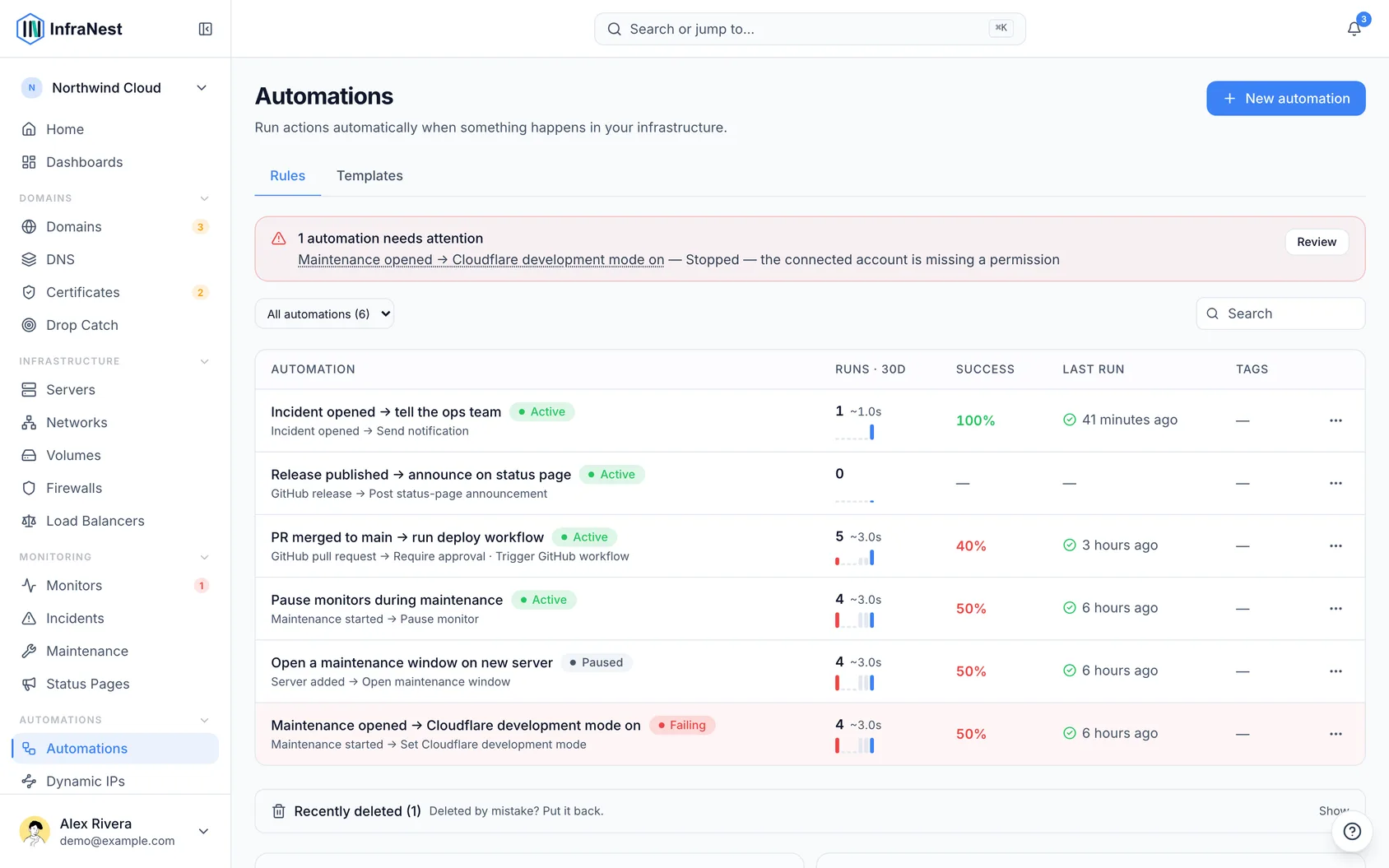
Automations let InfraNest react to things happening across your infrastructure on its own, so you don't have to watch everything manually. This article is for anyone who wants to understand how automations work before building one.
Overview
- You set up a rule once — "when this happens, do that" — and InfraNest runs it hands-free every time it applies.
- Rules can watch anything from domains and DNS to servers, monitoring, incidents, certificates, maintenance, drop-catch, dynamic IPs and status pages.
- Once saved, a rule keeps running in the background with no extra effort from you.
How a rule works
Every automation is made of three parts:
- Trigger — the event that starts the rule. Triggers cover the whole platform: domains, DNS, servers, monitoring and incidents, certificates, maintenance, drop-catch, dynamic IP and status pages.
- Conditions (optional) — filters that must match, so a rule only runs when you want it to. For example, only when a domain has fewer than 7 days left, only when a monitor goes down (not up), or only for a certain tag.
- Actions — what InfraNest should do. These range from Send notification or Call webhook to Open maintenance window, Apply DNS template, Resolve incident, or Set auto-renew.
For the complete list of options, see Automation triggers and actions. For ready-to-copy rules, see Automation examples.
Use a template
- Go to Automations in the sidebar.
- Open the Templates tab.
- Browse the ready-made recipes, or use Browse all templates to see the full Template library.
- Pick one with Start from a template, or choose Start from scratch if you'd rather build your own with Custom.
- Adjust the trigger, conditions and actions to fit your setup, then select Save automation.
NoteRules only act on future events — creating a rule doesn't apply to things that already happened.
TipA rule can run several actions at once — for example, sending a notification and opening a maintenance window in the same run.
Tips
- Automations are shared across your organisation, and how many you can create may depend on your plan.
- Every time a rule runs, it's recorded in your Audit Log, so you can see exactly what it did.
Troubleshooting
- If a rule doesn't seem to have fired, check the Audit Log to confirm whether it ran and what it matched.
- If an automation keeps failing, InfraNest may show it as Auto-disabled after repeated failures — open the automation and review its Last run failed details before turning it back on.
Was this article helpful?
Related articles
Automation conditionsConditions decide when a rule actually runs. Without them, a rule runs on every matching event; with them, it runs only when the event's details match.Automation examplesA few ready-to-copy automations to show what's possible. Build any of these under Automations → New automation, or start from the Templates tab.Why an automation was switched offInfraNest switches a rule off when running it again would only fail again. The rule tells you which of the two reasons applied, and both are fixable.Control servers from automationsAutomations can act on your cloud servers — so a rule can power a server on, reboot it, or turn on backups without you lifting a finger.