

A Dynamic IP keeps your DNS records and firewall rules pointed at your home or office connection, even when your internet provider changes your address. This article is for anyone setting one up for the first time.
Overview
- Creates a Dynamic IP that your router (or the InfraNest agent) reports to automatically.
- Lets you choose which DNS records and firewall rules should always follow that address.
- Watches for your router's first check-in so you can confirm it's working.
Create a Dynamic IP
- Go to Dynamic IPs (under Automations) and select New Dynamic IP.
- Give it a name you'll recognise later — "Home", "Office VPN".
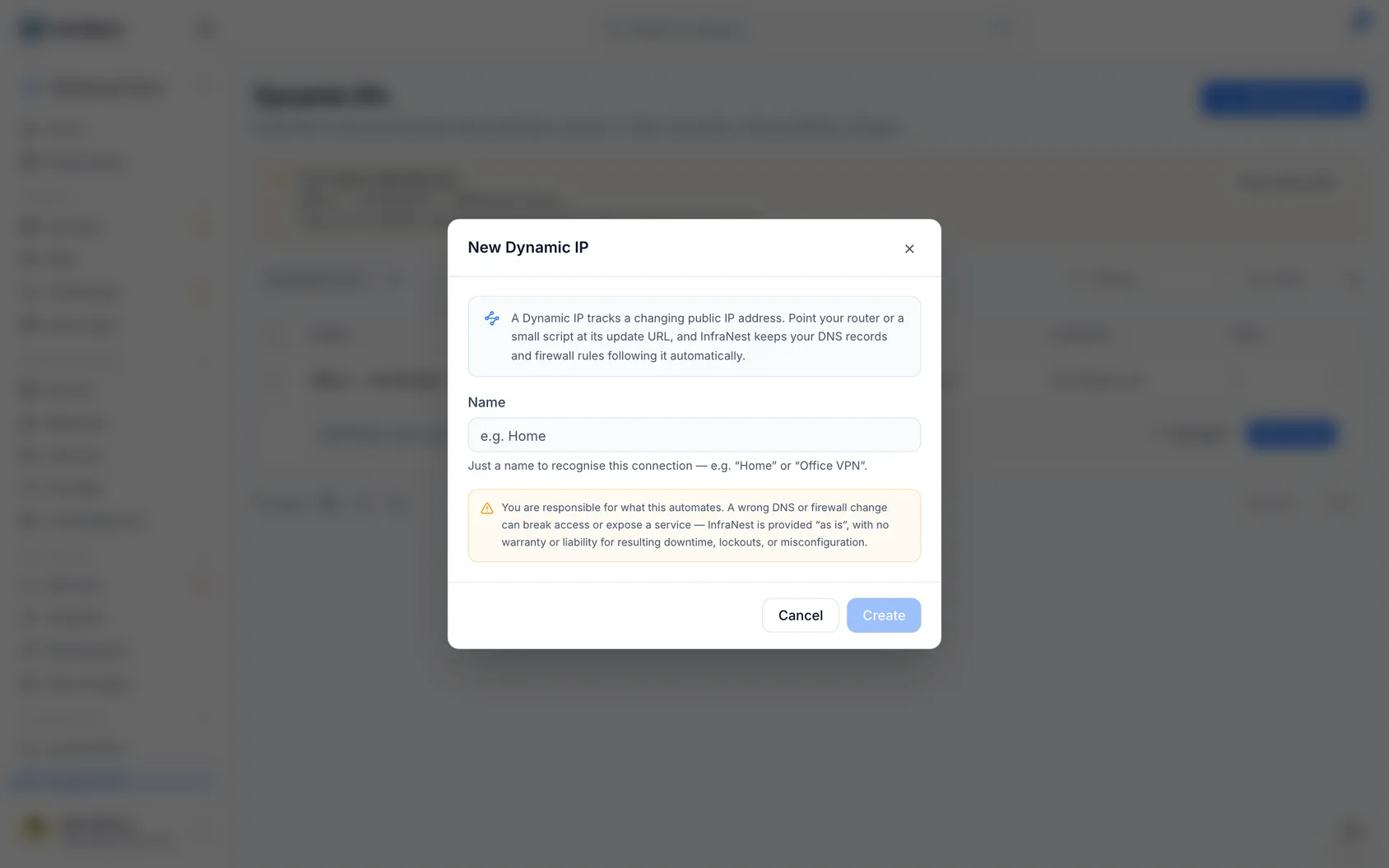
That's it. The next screen has everything your router needs.
Use the InfraNest agent instead of a router
If a computer or server on the same connection already runs the InfraNest agent, you can skip the router entirely.
- Open the Dynamic IP and go to the Setup tab.
- Choose InfraNest agent.
- Pick that machine from the list.
- Select Use this agent.
From then on, every time the agent checks in, the Dynamic IP takes the address it arrived from. The agent doesn't need any new permissions and doesn't report anything extra — we simply use the address its normal check-ins come from. If it reaches us over IPv4, your A records follow; over IPv6, your AAAA records. To go back to a router or script, choose Stop using the agent.
Tell your router where to send updates
- Open the Dynamic IP from the list — it has a page of its own.
- Go to the Setup tab.
- Pick your device from the list at the top — most routers, FRITZ!Box, UniFi, Synology, ddclient, or command line. The page shows the exact value for each box that device asks for.
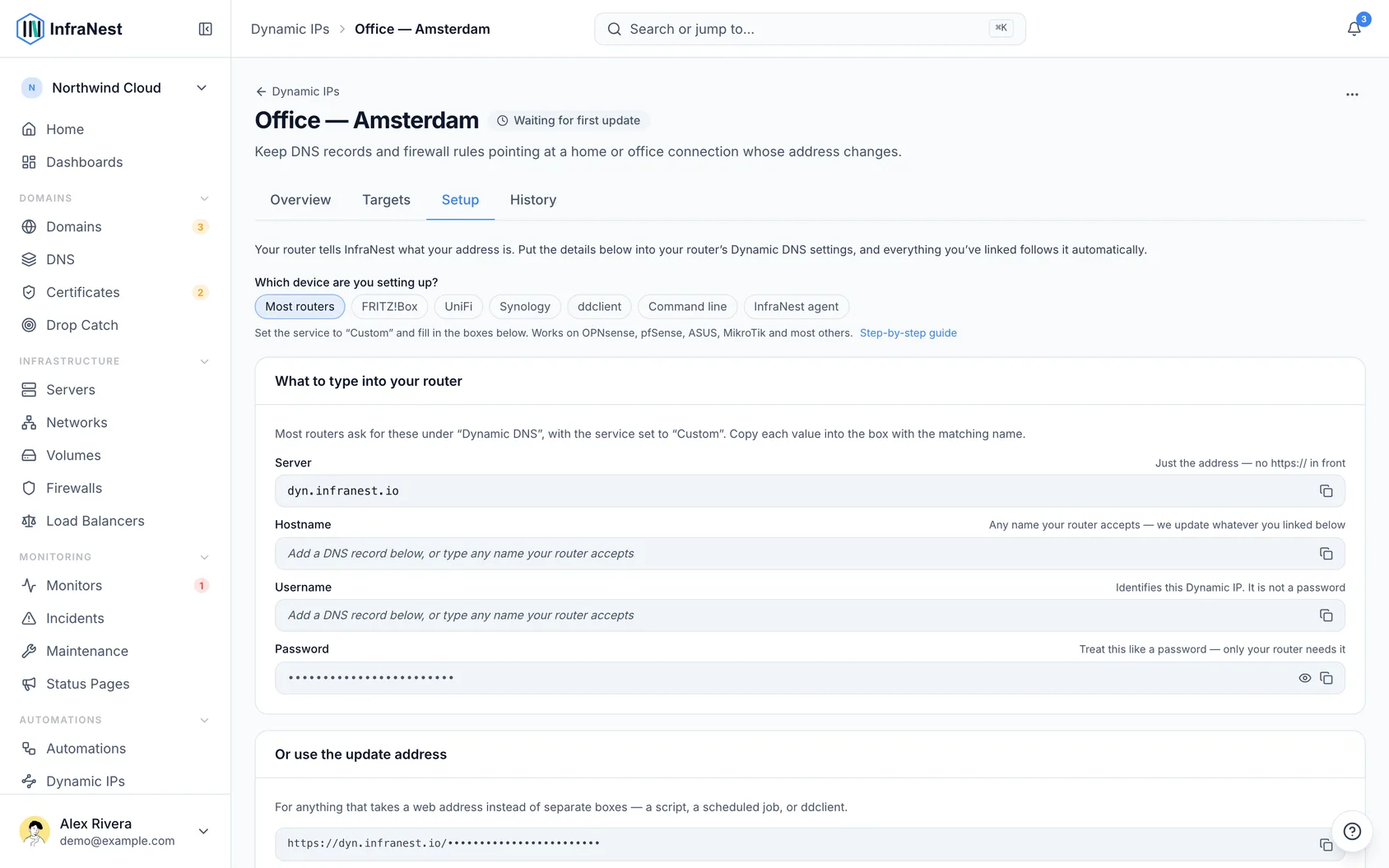
Almost every router calls these the same four things:
| Box in your router | What to enter |
|---|---|
| Service or Provider | Choose Custom (sometimes "User-defined" or "Other") |
| Server | The address shown on the Setup tab — without https:// in front |
| Hostname | Any name your router accepts. We update whatever you linked, whichever name you type |
| Username | The dyn-… value shown. It identifies this Dynamic IP and is not a password |
| Password | Select Show to reveal it, then Copy |
Some devices — FRITZ!Box and Synology among them — ask for a single web address instead of a separate Server box. The Setup tab shows that address for those, labelled the way the device labels it.
NoteLeaving
https://in the Server box is the single most common mistake. Most routers add it themselves and end up with a broken address.
Check it worked
- Save the settings in your router.
- Leave the Setup tab open. Under Has your router reached us? the page watches for about a minute and updates by itself the moment your router calls in — showing when it arrived, from which address, and whether the password was right.
If it says the password was wrong, copy it again from the Password box; that's the most common cause.
Choose what follows your address
- Go to the Targets tab.
- Add DNS records — pick existing A (IPv4) or AAAA (IPv6) records, or create one here.
- Add Firewall rules — pick inbound cloud-firewall rules, so remote access keeps working when your address changes.
One Dynamic IP can keep several records and rules up to date across different providers at once. You can also start from the other end: on an A or AAAA record, pick the connection under Points to (listed as a home or office connection), or on a firewall rule, choose Track with a Dynamic IP.
If the rule already allows an address
When you link a firewall rule that already allows one or more addresses, you'll be asked whether one of them is you.
Say so if it is. That entry then becomes the one we keep up to date, so you end up with one address in the rule instead of two. If you skip the question, your address is added as a new entry and the existing ones are left exactly as they are — which is fine when they belong to a colleague, an office, or a monitoring service.
TipIt's worth answering this question. An address that was yours under an old internet connection stays in the rule forever otherwise, and providers hand those addresses to other customers.
Options worth knowing
- Alert me when the IP changes — get a message (email, Slack, Telegram) with the old and new address.
- Only trust the address we actually see — ignore an address your router claims and use the one the request genuinely came from. Recommended for firewall rules.
- If your router goes quiet, close the firewall opening — after about a week of silence, remove the allow-list entry so an abandoned setup can't leave a port open. You're warned before this happens.
- Replace the password — issues a new one if the old might have leaked. Your router will need the new password.
Was this article helpful?