

An automation is a rule that runs actions for you whenever something happens in your infrastructure — useful if you want InfraNest to react to events without you clicking through steps by hand.
Overview
- A rule reads as When → If → Then: when an event fires, if your conditions match, then it runs your actions in order.
- You can build a rule from scratch or start from a ready-made template.
- Every rule can be paused, edited, or deleted at any time, and every run is recorded so you can check what happened.
Create a rule
- Go to Automations and select New automation.
- Under When, pick a trigger — the event that starts the rule.
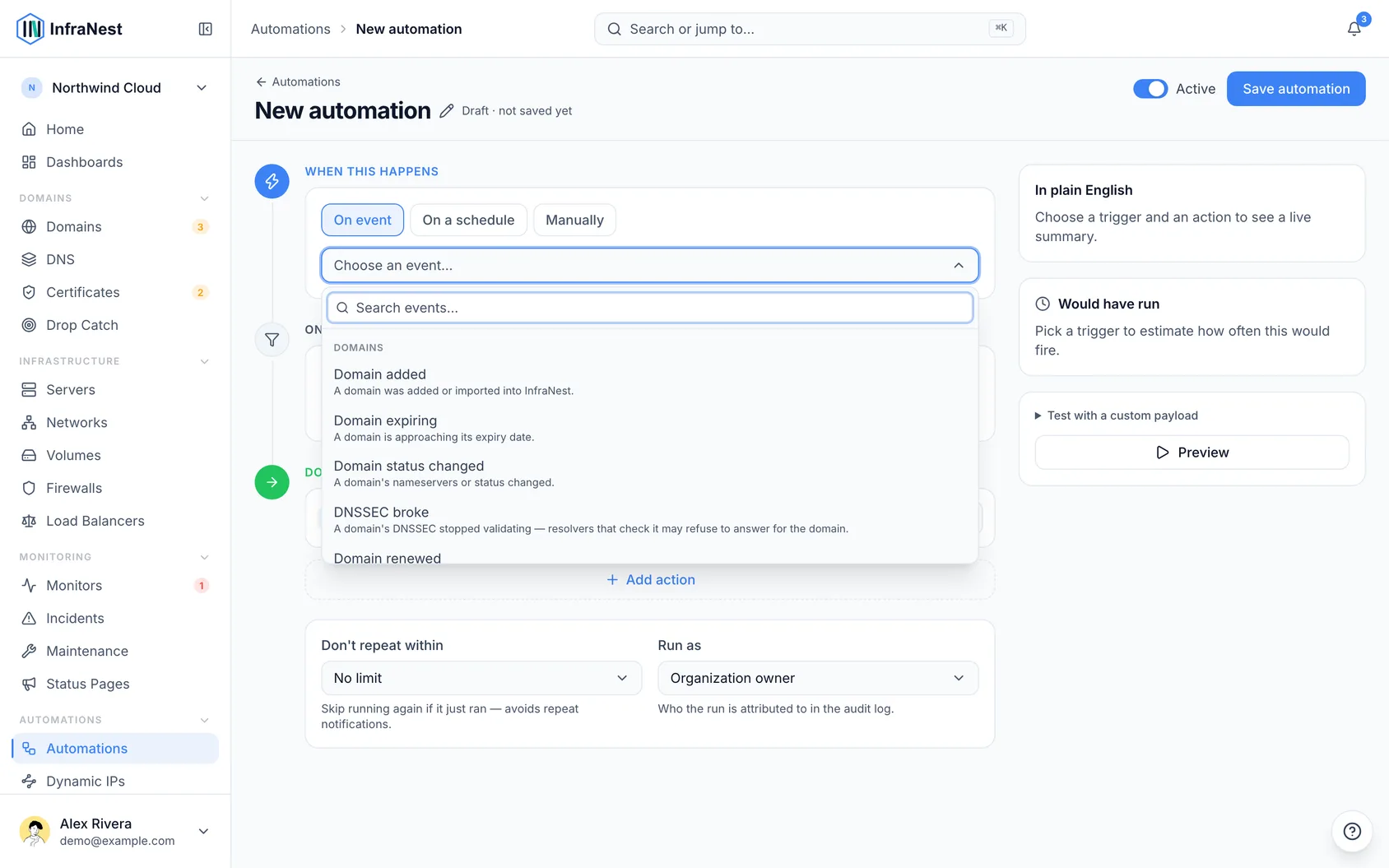
- Under If (optional), use Add condition to narrow when the rule runs. All conditions must match.
- Under Then, use Add action to add one or more actions. They run in order, top to bottom.
- Select Preview to see what the rule would do against a real example, then select Save automation.
Start from a template
- Open the Template library tab.
- Select Browse all templates to see the ready-made recipes.
- Pick one to Use as your starting point.
- Adjust its trigger, conditions and actions to fit your needs, then select Save automation.
Manage a rule
- Use Turn on or Turn off to pause a rule without deleting it.
- Select Edit to change the trigger, conditions or actions.
- Set a Cooldown so a rule doesn't fire again too soon for the same thing. A rule covering fifty domains still handles all fifty — the wait applies per domain, so one of them being dealt with never holds up the others. The same goes for Linear and Jira issues and PagerDuty incidents: the wait applies to each issue or incident on its own.
- Select Delete to remove a rule you no longer need.
NoteIf a rule keeps failing, it may show as Auto-disabled after repeated failures so it stops causing repeat problems. Check Last run failed for details, fix the issue, then turn it back on.
After it runs
- Open the automation and check its Runs tab to confirm it worked and see each step's Result.
- Runs are also listed in your Audit Log for a full history.
TipUse Test run (dry run) before saving changes to a live rule — it shows what would happen without actually running the actions.
Was this article helpful?
Related articles
About automationsAutomations let InfraNest react to things happening across your infrastructure on its own.Automation conditionsConditions decide when a rule actually runs. Without them, a rule runs on every matching event; with them, it runs only when the event's details match.Automation examplesA few ready-to-copy automations to show what's possible. Build any of these under Automations → New automation, or start from the Templates tab.Why an automation was switched offInfraNest switches a rule off when running it again would only fail again. The rule tells you which of the two reasons applied, and both are fixable.