

Escalation chains make sure a down monitor never gets ignored — this is for anyone who wants outages to reach a real person, even if the first alert goes unseen.
Overview
- When a monitor goes down, your team is alerted right away.
- If nobody acknowledges the outage, an escalation chain alerts one person, then the next, then the whole team again.
- The chain checks at every step: if someone has acknowledged the outage or the monitor has recovered, it stops and nobody else is bothered.
- It doesn't matter where someone acknowledges it — in InfraNest, from a browser notification, from an email, in Telegram, or in PagerDuty all count.
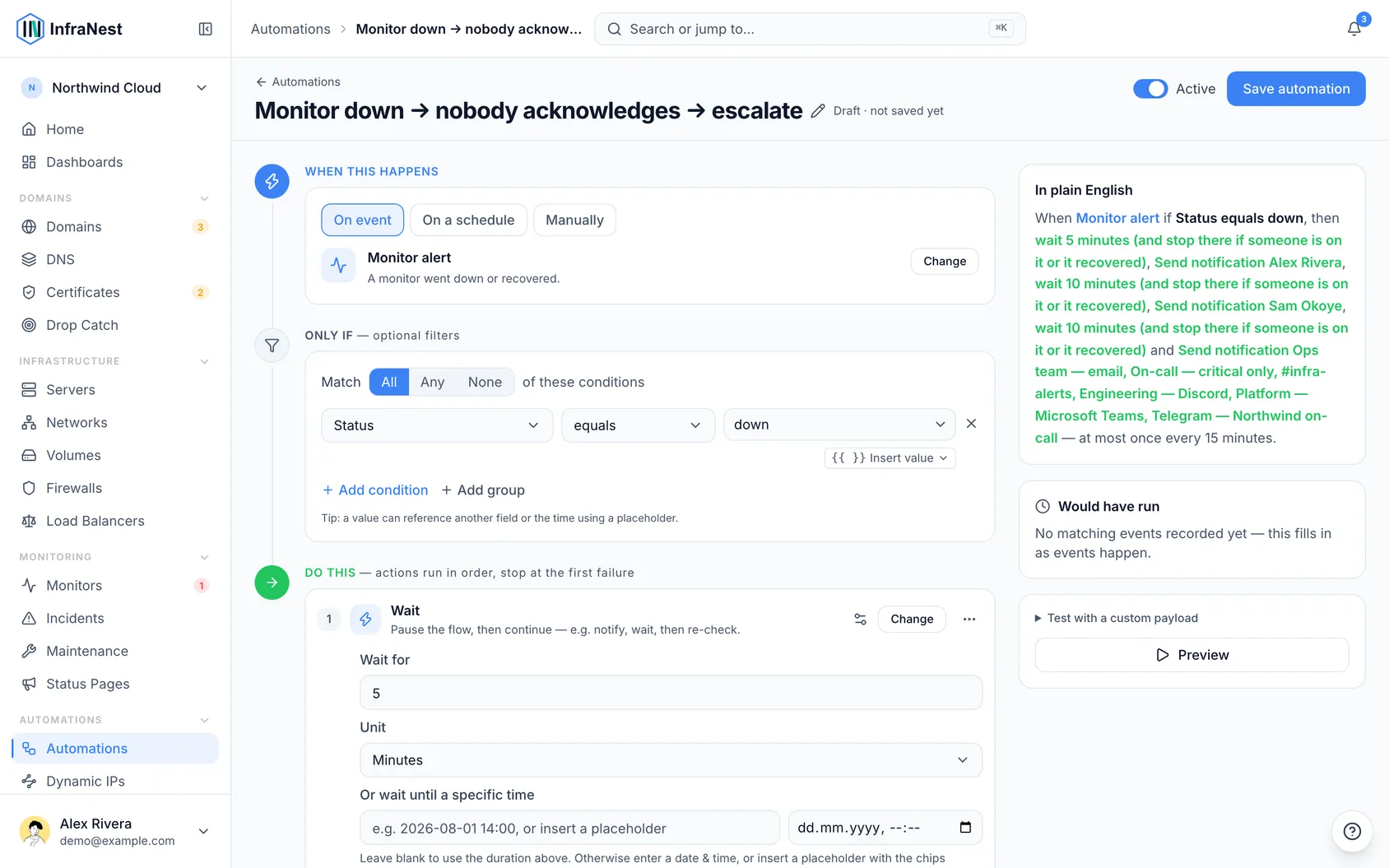
Set up an escalation chain
- Open Automations.
- Choose the recipe Monitor down → nobody acknowledges → escalate and click Use.
- Under Or alert a teammate, pick the first person and the second person in the chain.
- Under Send to, choose where the final step goes (your team's destinations, like Slack, Teams, or email).
- If the default waits of 5 and 10 minutes don't suit you, change them.
- Click Save automation.
NoteA person in the chain gets the outage as a browser notification with an Acknowledge button, even if they normally have browser notifications switched off for monitoring. If they have no browser set up for notifications, they get an email instead. If they're set as away, or the outage falls in their quiet hours, it's held back for them and the chain moves on to the next person.
Escalate only some monitors
- Open the automation built from Monitor down → nobody acknowledges → escalate.
- Click Add condition.
- Set up a condition on the monitor's Tags — for example, only production monitors should escalate.
- Click Save automation.
See whether a monitor is covered
- Open the monitor you want to check.
- Look under who hears its alerts — a line explains what happens if nobody acknowledges it: which automation escalates it, that PagerDuty does, or that nothing does.
- If nothing is set up, click Set up escalation to create a chain.
Tell the team who is on it
- Open Automations.
- Choose the recipe Outage acknowledged → tell the team who is on it and click Use.
- Click Save automation.
When someone acknowledges an outage, your destinations hear something like Anna is on API. — so nobody else starts working the same outage, and everyone knows why the chain stopped.
Check what a chain did
- Open the automation's run history.
- A chain that stopped early shows as Skipped.
- Open the wait step to see the reason, for example Stopped: Anna acknowledged it.
Tips
TipWorking solo? A chain needs a second person to make sense. Instead, turn on escalation in your own notification settings — InfraNest will push an unacknowledged outage to your browser after a delay you choose.
Troubleshooting
- Using PagerDuty already? PagerDuty's own escalation policies handle this, so InfraNest won't suggest a chain for monitors that page through PagerDuty — this avoids paging people twice.
- Outage from a provider's status page: this can't be acknowledged inside InfraNest, so a chain about it only stops once the provider's incident is resolved.
- Non-monitor triggers: the stop-on-acknowledge check works for monitor and incident triggers. On other triggers, a wait step always carries on regardless.
Was this article helpful?