

Learn how to check whether your automations are working, preview them safely before saving, and read through their run history when something doesn't go as expected. This is for anyone using InfraNest automations who wants to confirm a rule is doing what it should.
Overview
- Every time a rule runs, InfraNest records it so you can confirm it worked and see exactly what each step did.
- You can test a rule safely before it's even saved, run it on demand once it's saved, and review a full history of past runs.
- This is also where you'll spot rules that keep failing, so you can fix or turn them off.
Preview a rule before saving
- While building a rule, select Preview.
- InfraNest runs a safe dry run against a real, recent example from your account — no actions are actually performed.
- For any step that uses a connected service such as GitHub or PagerDuty, the preview names the connection it would use.
- For Create GitHub issue, the preview goes further — it shows the repository and the title with your placeholders filled in, and checks that the connection can actually open an issue there.
- If the connection can't create the issue (for example, the repository wasn't given access to the GitHub app, or issues are turned off in it), the step shows as failed and explains why. Nothing is created.
- If a placeholder comes out empty for the example, it's listed under that step. A blank usually means the real title or message would be missing that part — check it before you save.
NotePlaceholders that only the real event can fill in, such as the number of days before a domain expires, won't appear in the preview, because the example doesn't have that data yet.
Test a saved rule
- Open the rule you want to check.
- Select Test.
- InfraNest runs the rule on demand and shows the outcome, without waiting for the real event to happen.
- Each step shows what it would have done, with the same details and empty-placeholder warnings you'd see in Preview.
Check run history
- Open the rule you want to review.
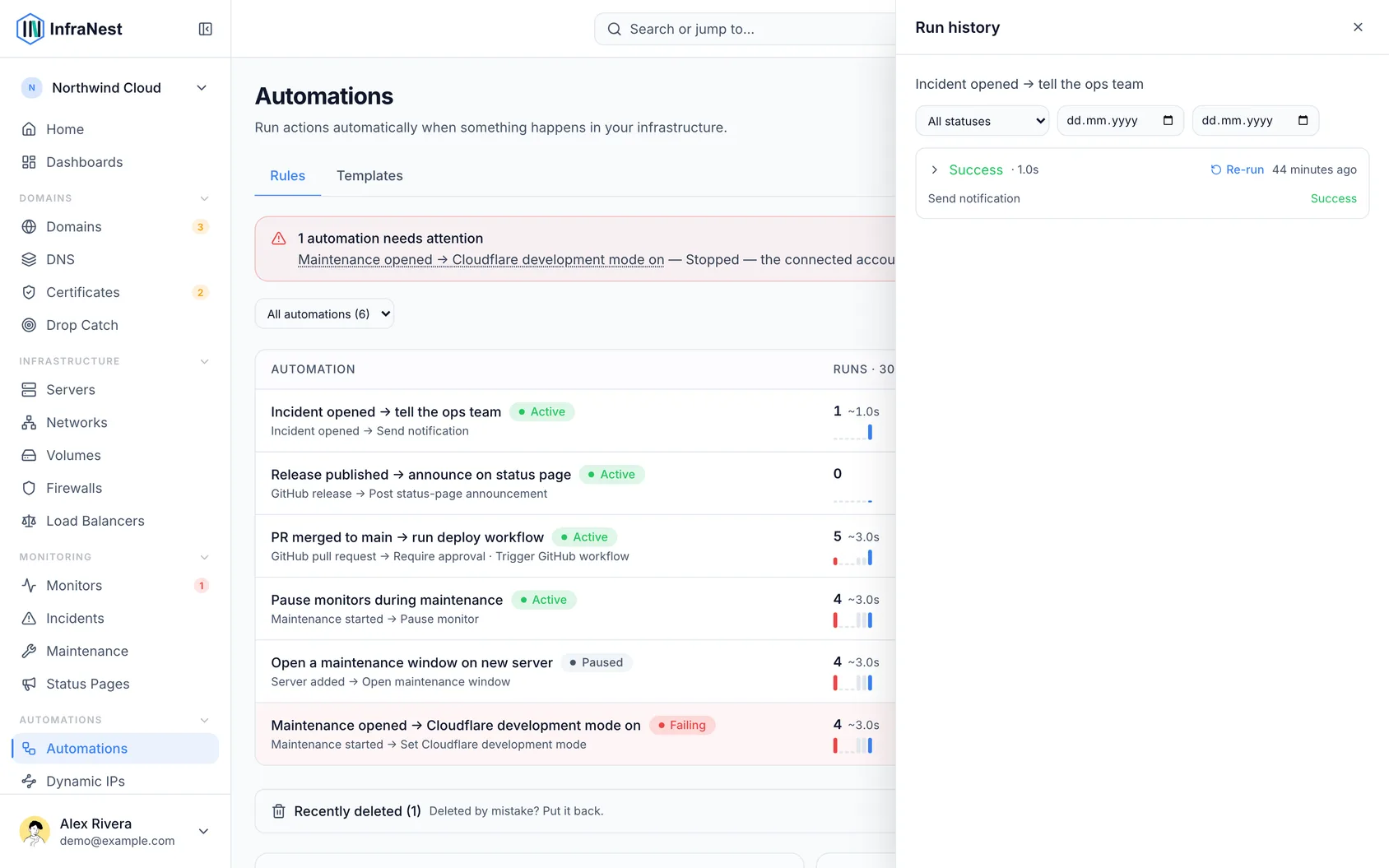
- Look at its recent Runs.
- Each run lists its actions as steps, in order, along with whether each one succeeded, failed, or was skipped — with the output or the error message shown.
- This is the best place to look when a rule didn't do what you expected.
For a rule that uses Wait before alerting again (for example, "Monitor down → wait, then escalate"), the run can stop early if someone has already acknowledged the outage or it has recovered. In that case the run shows as Skipped, and the wait step explains why — such as Stopped: Anna acknowledged it. Nothing after the wait step was sent.
The automations list also shows how many times each rule has run.
NoteRun history is kept for 90 days. The full details of a run — including the event that started it and what each step sent — are only visible to members whose role can edit automations, since they may contain text from other tools, like a GitHub comment. Everyone else can still see whether a run happened, whether it worked, and any error.
Guardrails
- Cooldown — if a rule has a cooldown set, it won't run again for the same thing until the wait time passes, so a burst of events about one domain or monitor can't spam it. Other domains and monitors aren't affected.
- Rules that keep failing are flagged automatically, so you can fix or disable them.
Every run is also recorded in your Audit Log.
Was this article helpful?