

Set up rules that automatically power on, reboot, shut down, or protect your cloud servers — no manual intervention needed. This is for anyone who wants their infrastructure to respond to events on its own.
Overview
- Automations can act on your servers, so a rule can power a server on, reboot it, or turn on backups without you lifting a finger.
- Every server action is reversible — there is no rebuild, restore or delete, so a rule can never wipe a server.
- Actions a rule can take: Power on server, Reboot server, Shut down server, Disable delete protection, Enable delete protection, and turning backups on or off.
NoteServer actions are part of a paid plan. On a free plan they appear in the builder but are greyed out until you upgrade.
Add a server action
- Open Automations, then New automation (or edit an existing rule).
- Pick a trigger — what should set this off (for example a monitor alert, or Server added).
- Under Do this, choose a server action — they're grouped under Infrastructure.
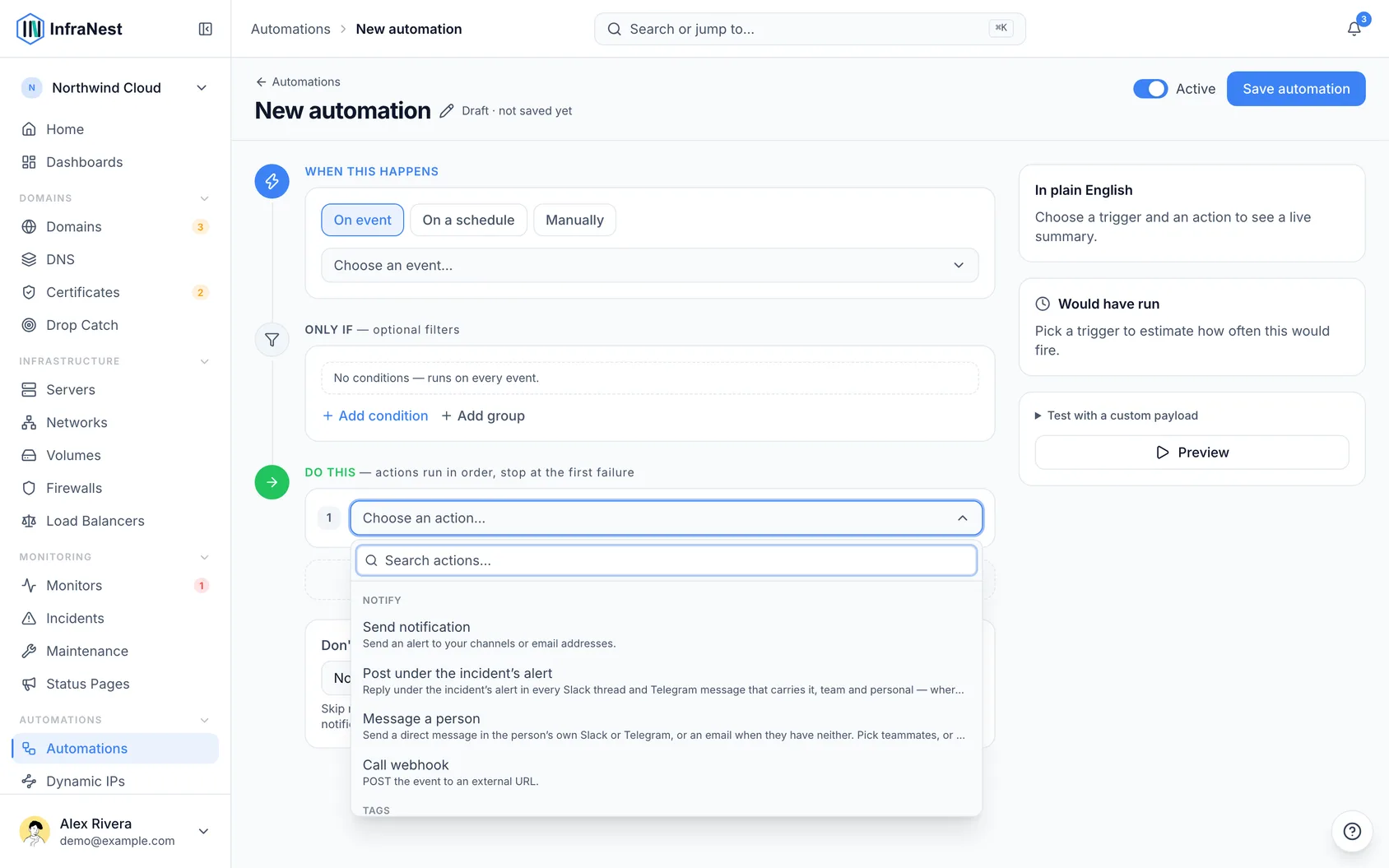
- Choose which server to act on:
- Leave it set to use the value from the trigger when the trigger already involves a server (like Server added) — the action uses that server automatically.
- Otherwise, search and pick a specific server using Choose a server….
- Click Save.
Start from a template
- Go to the Template library.
- Pick one of the ready-made recipes, such as New server → monitor it style rules for backups and protection, or Monitor down → reboot the server for self-healing servers.
- Click Use.
- Adjust anything you like — for the reboot recipe, pick which server with Choose a server….
- Click Save automation.
TipFor a "reboot when down" rule, keep the built-in cooldown (Don't repeat within) so a flapping monitor can't reboot the server over and over. Add conditions, like a tag match, to keep the rule pointed at the right servers.
Troubleshooting
- Server actions greyed out in the builder? You're likely on a free plan — upgrading unlocks them.
- Want to confirm what a rule actually did? Every server action is written to your Audit Log and also shows up in the automation's Run history, so you can always see what ran and when.
Was this article helpful?
Related articles
About automationsAutomations let InfraNest react to things happening across your infrastructure on its own.Automation conditionsConditions decide when a rule actually runs. Without them, a rule runs on every matching event; with them, it runs only when the event's details match.Automation examplesA few ready-to-copy automations to show what's possible. Build any of these under Automations → New automation, or start from the Templates tab.Why an automation was switched offInfraNest switches a rule off when running it again would only fail again. The rule tells you which of the two reasons applied, and both are fixable.