

Templates are ready-made automations you can adopt in a couple of clicks, built for anyone who wants to see what automations can do before designing one from scratch.
Overview
- Templates come filled in with what InfraNest already knows about your organization, so most can be saved as they are.
- InfraNest suggests templates that fit what you've already connected, and even notices tasks you keep doing by hand.
- You can test any rule before it runs for real, and save your own rules as templates for later.
Use a template
- Go to Automations.
- Open the Templates gallery.
- Pick a template to see what it does — its trigger, its conditions and the actions it will run, written in plain language.
- Select it to create a rule from it.
- Adjust anything you want, then save.
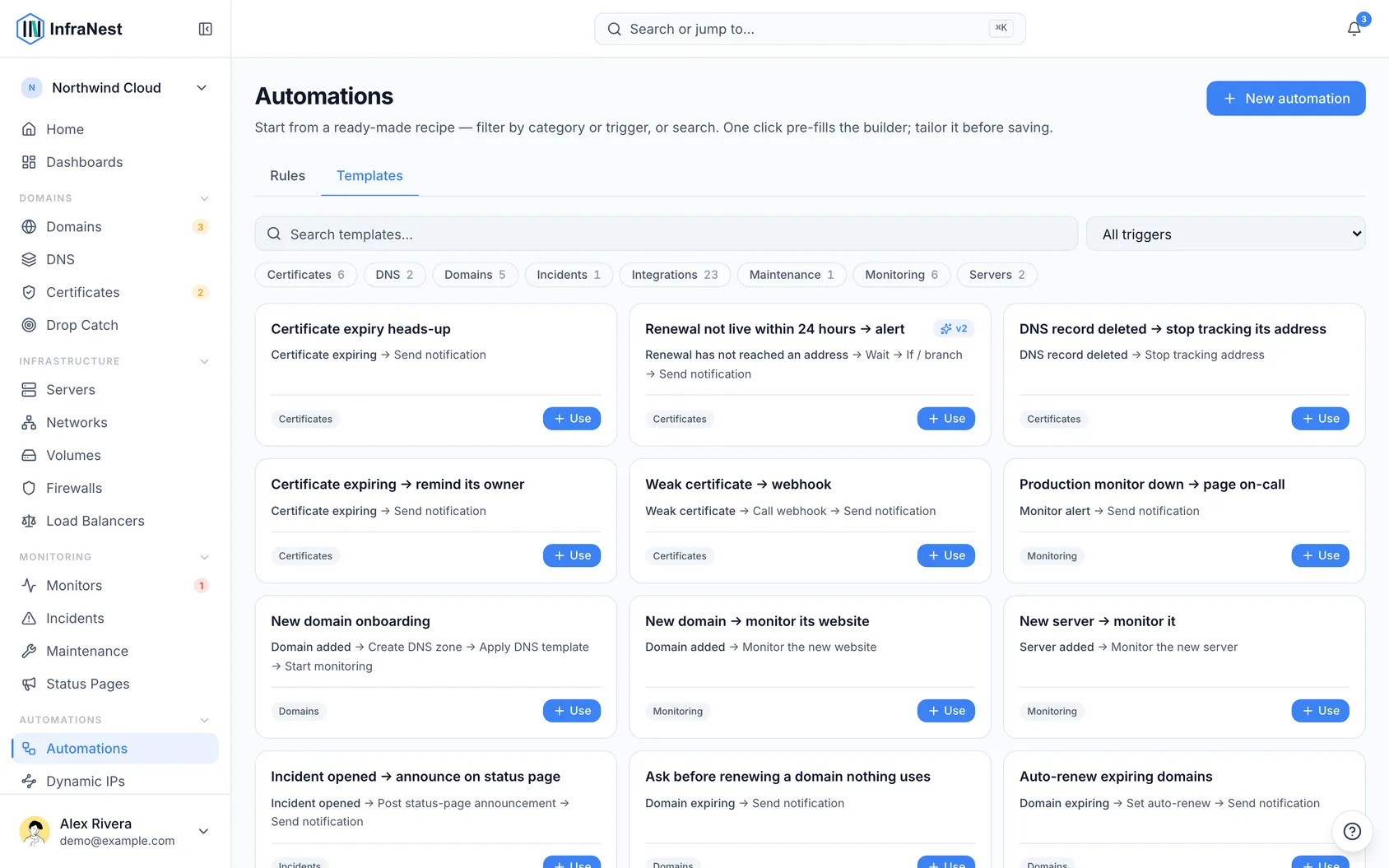
A template opens filled in with what InfraNest already knows about your organization, so most can be saved as they are:
- a step that tells your team goes to your alert destinations (or to you, if you have none yet);
- in an escalation chain, the people come first who acknowledge outages most often, then the next person;
- a step that posts to a status page or sends to an endpoint uses your only one. With more than one, you choose.
The summary next to the editor says when each step happens, for example wait 5 minutes (and stop there if someone is on it or it recovered), and who each notification goes to.
The rule is yours from that moment. Editing it later doesn't affect the template, and the template never changes your rule.
Recommended for you
Above your automations, InfraNest suggests a few templates that fit what you have already connected. You see the same suggestions on an integration's page, and right after you connect one.
They're chosen from what InfraNest can see in your organization:
- What a template needs. Each template needs certain things before it can do anything, like GitHub and a status page to post your releases. A template only shows up when you have them.
- One thing short. A template that needs one more thing still shows up, with what's missing and a link to set it up. For example: Needs Cloudflare first.
- What you already run. A template you've already made an automation from isn't suggested again.
- What you said no to. Select Not for us and that template isn't suggested again to anyone in your organization.
With PagerDuty connected, its page suggests templates such as opening a PagerDuty incident a few days before a certificate or domain expires, paging on-call when a GitHub workflow fails on main, and telling your team when an incident is resolved in PagerDuty. Monitor alerts already reach PagerDuty without an automation, so there is no template for those.
Selecting Review opens the template in the editor, filled in. Nothing is created until you save it, so you can check and change everything first.
On Home, you see at most one suggestion, and only when nothing needs your attention.
Things you keep doing by hand
When you've done the same follow-up by hand at least three times in the last 45 days, InfraNest suggests the template that would do it for you. Today it looks for:
- adding a monitor to a new server → New server → monitor it;
- switching on auto-renew for a domain about to expire → Auto-renew expiring domains;
- posting a status page announcement after an outage → Incident → status announcement.
It suggests this on Home when nothing needs your attention. It also asks right after you do it again, at most once a week: That's 3 times you added a monitor to a new server. Let an automation do it from now on?
Draft it creates the automation switched off and opens it in the editor. Nothing runs until you've read it and switched it on. It isn't suggested if you already have an automation that does it, or if you chose Not for us for that template.
Check it before you trust it
Every rule — from a template or not — can be tried before it runs for real:
- Test run shows exactly what would happen, without doing any of it.
- Would have run replays the rule against events that already happened, so you can see how often it would have fired.
TipBoth are worth a minute, especially for a rule that changes something at a provider.
Save your own template
Built a rule you'll want again — for another organization, or as a starting point for similar rules? Save it as a template from the rule itself, and it appears in the gallery alongside the built-in ones.
Good to know
- A template only fills in the rule. Anything it needs — a connected integration, a destination for notifications — still has to exist for the rule to work.
- Templates you save belong to your organization; nobody outside it sees them.
- New domain → monitor its website and New server → monitor it keep your monitoring complete as you grow. They add one monitor for each new website or server and change nothing at your registrar or provider.
NoteWhen your plan has no room left, these templates add nothing rather than adding a monitor that would be paused, and the run history says so.
Was this article helpful?