

Placeholders let you pull live details from an event into your automation's messages, titles or webhook data — so instead of a generic alert, you can send something like "example.com expires on Jan 15 (7 days left)". This is for anyone building or editing an automation who wants messages that feel specific, not canned.
Overview
- Placeholders are written as
{{name}}and get swapped out for real values when the automation runs. - Click Insert value anywhere you're writing a message, title or webhook body to see every placeholder available for the trigger you picked, along with an example of what it will contain.
- Sensitive fields like passwords, tokens and secrets are never offered as placeholders — they can't be inserted or resolved, by design.
Browse the available placeholders
- Open the step where you want to add a placeholder — this could be a message, a title field, or a Payload (JSON, optional) field.
- Click Insert value.
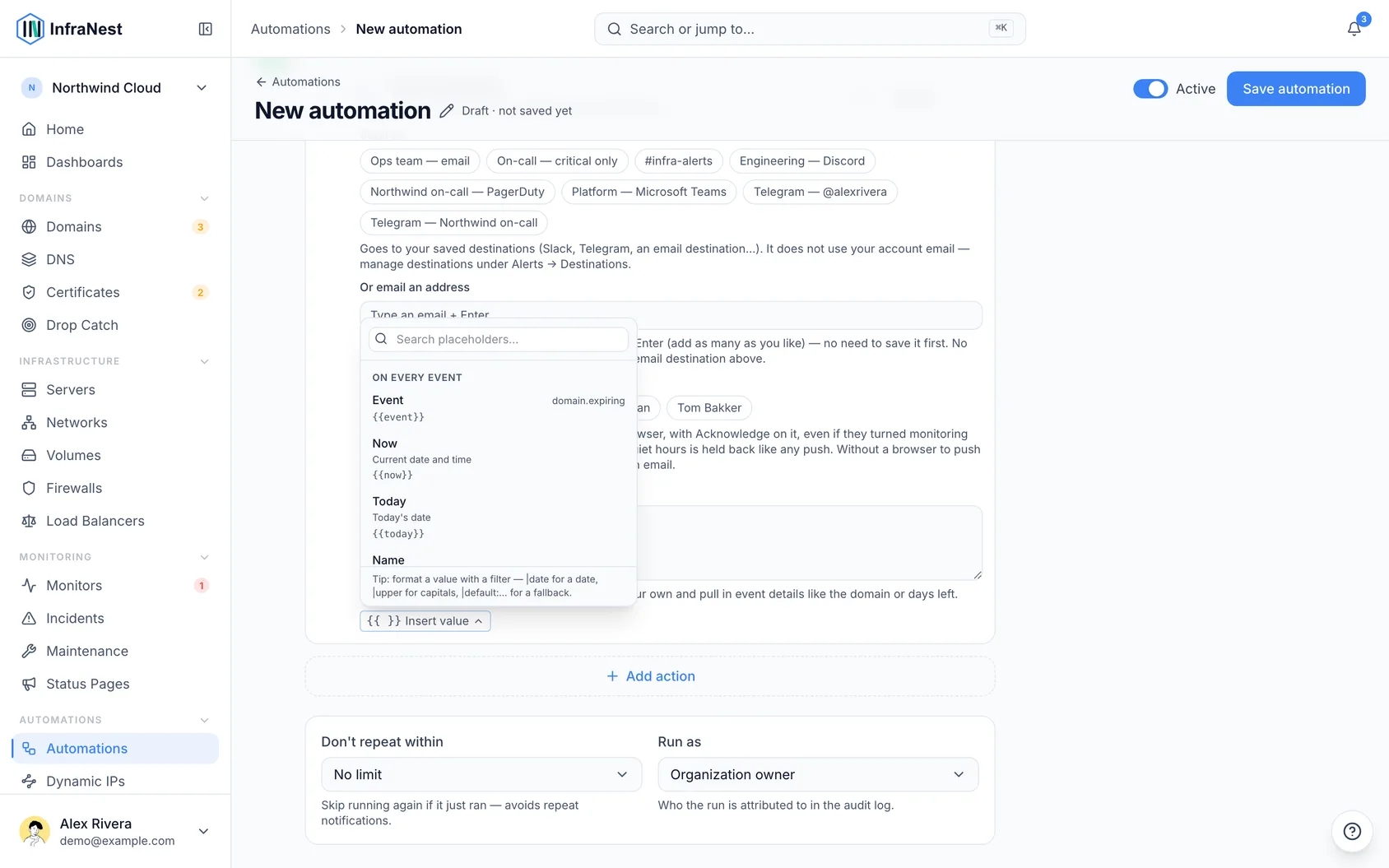
- Look through the groups to find what you need:
- Trigger data — details the event itself carries, like
{{domain}},{{tld}},{{registrar}}, or{{days_left}}for a Domain expiring trigger. - The subject group, labeled with the item's type (for example Server, Certificate, Monitor) — every field of the thing the event is about, such as
{{server.status}}or{{certificate.not_after}}. - Organization —
{{org.name}},{{org.slug}}. - User — the rule owner's details, like
{{user.name}}and{{user.email}}. - Date & time —
{{now}}for the current date and time,{{today}}for today's date. - Earlier values — anything saved by a previous Set a value step in the same automation, written as
{{vars.yourname}}.
- Trigger data — details the event itself carries, like
- Click the placeholder you want to insert it at your cursor.
Format a placeholder's value
- After the placeholder name, add a pipe (
|) followed by a filter to change how the value is displayed. - Chain filters if you need more than one change. A few examples:
{{expires_at|date}}→ Jan 15, 2026{{expires_at|date:Y-m-d}}→ 2026-01-15{{domain|upper}}or{{domain|lower}}— change the case{{note|default:—}}— show a fallback when the value is empty{{days_left|number}}— format a number{{message|truncate:80}}— shorten long text{{tags|json}}— show the raw list
NoteUnknown filters are simply ignored, so a typo in a filter name won't break your message.
Use placeholders in JSON fields
- Open a JSON field, such as a webhook body or a workflow's Inputs (JSON, optional).
- For text values, put the placeholder inside quotes, like
"title": "{{title}}". - For numbers or lists, leave out the quotes, like
"number": {{number}}. - InfraNest automatically escapes each value, so a quote mark or line break inside something like an issue title or comment can't break the JSON or change what else it says.
WarningIf the JSON itself has a mistake, the step fails and tells you — it will never send malformed or unexpected data instead.
Use placeholders in conditions
- Open Only if on the step you want to gate.
- Reference the same placeholder names to build a condition — for example, checking that the subject's tags contains a certain value, that the rule owner's email is a certain address, or comparing against today's date.
- Leave a message blank if you'd rather InfraNest write a sensible default — add placeholders only when you want to phrase it yourself.
Was this article helpful?
Related articles
About automationsAutomations let InfraNest react to things happening across your infrastructure on its own.Automation conditionsConditions decide when a rule actually runs. Without them, a rule runs on every matching event; with them, it runs only when the event's details match.Automation examplesA few ready-to-copy automations to show what's possible. Build any of these under Automations → New automation, or start from the Templates tab.Why an automation was switched offInfraNest switches a rule off when running it again would only fail again. The rule tells you which of the two reasons applied, and both are fixable.