

If your Dynamic IP isn't updating your address or your firewall rules the way you expect, this guide walks through the most common causes and how to fix them. It's for anyone using InfraNest to keep a DNS record or firewall rule pointed at a home or office connection with a changing address.
Overview
- Most problems can be diagnosed from one place: the Dynamic IP's Setup tab, under Has your router reached us? It tells you whether anything has arrived, from where, and whether the password was right.
- The History tab shows each address change and which records and rules took it, or didn't.
- The sections below are organised by what you're actually seeing, so find the one that matches your situation.
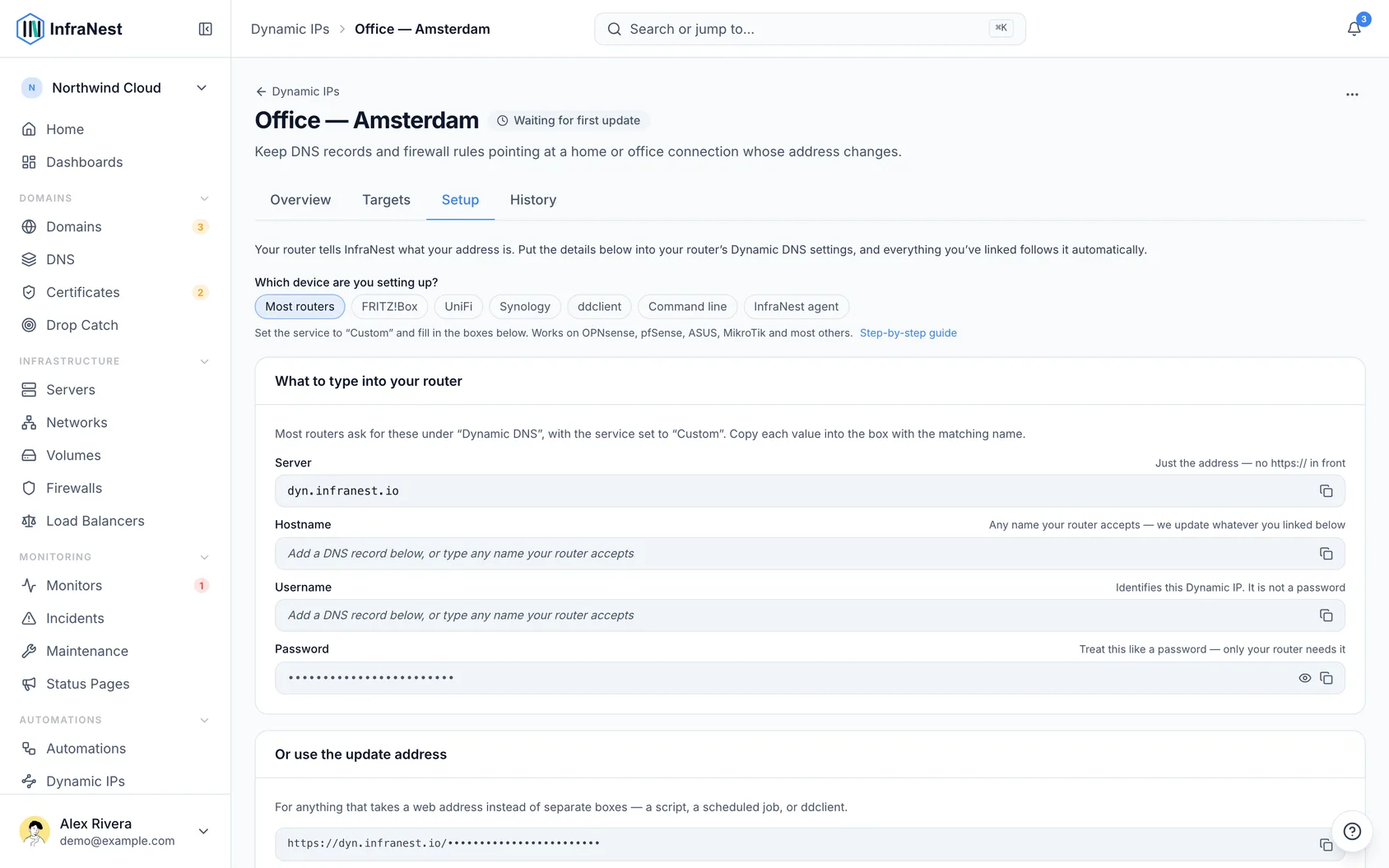
Fix "Waiting for your router" when nothing ever arrives
This means your router isn't reaching InfraNest at all.
- Check the Server box has no
https://in it. Routers often add this themselves, which breaks the address — this is by far the most common cause. - Save the settings again in your router. Many routers only send an update when you save, or when your address changes. Some have a "force update" button.
- Look for a "last result" or "status" line in your router's DDNS screen. If it mentions a name resolution or connection error, the address in the Server box is wrong.
Fix a wrong password
The Setup tab will tell you directly if your router reached InfraNest but the password was wrong.
- Select Show next to Password.
- Copy the password again.
- Paste it into your router, replacing what's there rather than editing it — passwords are long and easy to truncate when copying by hand.
NoteIf you recently chose Replace the password, the old one stopped working immediately. Your router needs the new one before it can check in again.
Fix "address can't be reached from the internet"
You'll see this on a linked DNS record: your router reported an address the internet can't reach, so nothing was published.
This almost always means your connection is behind carrier-grade NAT — your provider shares one public address between many customers, and the address your router sees isn't really yours.
- Contact your internet provider and ask for a public IP address. Many offer this free or for a small fee, sometimes called a "static IP" or "public IP" option.
- If your provider offers IPv6, try that instead — it usually isn't affected by carrier-grade NAT.
Dynamic DNS can't work around this, and no setting in InfraNest will fix it.
Understand why an old address still resolves
If the record shows a new address but the old one still seems to work, there are two likely explanations:
- Your DNS provider hasn't accepted the change yet. The record will say so, and InfraNest retries every time your router checks in. Home and the DNS overview will show it as urgent, because your old address may get handed to someone else by your internet provider. If this persists for more than an hour, check that the integration for that provider is still connected.
- It's cached. DNS answers linger for as long as the record's TTL. Records created in InfraNest use five minutes, but a record created elsewhere may be much longer, and some networks cache beyond what they're told.
Fix a firewall rule that stopped following your address
You'll get an alert, and the rule will show as no longer connected. What to do depends on the exact message, since the two mean opposite things.
"This firewall rule has changed or no longer exists."
- Check your firewall at your provider — the rule's port or protocol was likely edited, either in InfraNest or directly with your provider.
- Either remove the old entry or re-attach the Dynamic IP to the rule as it now exists.
"This firewall rule was deleted."
- Nothing was left behind, so there's nothing to clean up.
- If you still want the address kept up to date, add the rule again and re-attach the Dynamic IP.
Decide what happens to an address when you stop tracking a firewall rule
When you remove a Dynamic IP's tracking of a firewall rule — by deleting the Dynamic IP, removing one target, or deleting the whole firewall — InfraNest asks what to do with the address already in that rule.
- Choose take it back out of the rule to stop allowing that address. Everything else the rule allows stays as it was, and you can re-attach the Dynamic IP later to add it again. This is the reversible choice.
- Choose leave it in the rule if the address should stay allowed. InfraNest will list it on the firewall as an address nobody is keeping up to date, so it doesn't quietly disappear from view. That listing clears itself once the address is no longer in the rule.
NoteWhich option is pre-selected comes from the Dynamic IP's own "Remove firewall access if this stops checking in" setting. If InfraNest can't reach your provider at that moment, the address stays in the rule and you're told so rather than being shown a clean delete — it'll be listed on the firewall so you can remove it yourself.
Know that deleting a firewall here doesn't delete it at your provider
Deleting a firewall in InfraNest only removes InfraNest's copy of it. The firewall itself stays at your provider, with all its rules still filtering — including any address a Dynamic IP put there. That's why the delete confirmation asks about those addresses first: it's the last moment InfraNest can take them out for you.
Recover from deleting something a Dynamic IP depended on
Whatever you removed, the Dynamic IP will tell you rather than quietly carrying on, and it keeps the target so you can see what it was.
- Go to the Dynamic IPs page.
- Either remove the broken target with the bin icon next to it, or restore whatever was deleted — it starts working again on the next check-in, with no need to set it up a second time.
What this means depends on what was deleted:
- A DNS record — nothing is published anywhere any more. Restoring the record from the recycle bin picks up where it left off.
- A DNS zone — the records went with it, so there's nothing left to publish to.
- A firewall — the rule went with it, so nothing was left behind at your provider.
- The connection to your provider — the firewall rule is untouched and still allows the address written last. Re-connect the provider to resume updates, or remove the entry if you no longer want it.
Understand warnings when removing something a Dynamic IP uses
When you remove a firewall rule or delete a DNS record that a Dynamic IP follows, InfraNest warns you before you confirm and names the Dynamic IP involved.
- For firewall rules, look for the warning on the Apply changes dialog — it includes an option to remove the tracking at the same time.
- Note that editing a rule's port also detaches the Dynamic IP, just like deleting the rule.
- Leave the option unticked if you want the tracking to stay (shown as stopped), so you can re-attach it to another rule instead of setting it up again.
Fix a firewall rule that says "Not in effect"
This means the address is being kept up to date, but the firewall it's in isn't attached to any server — so none of its rules are filtering anything.
- Open the firewall.
- Attach it to the server you meant to protect.
Until you do this, treat the rule as if it weren't there — a port you think is closed is still open. If it says InfraNest can't see the firewall any more, it was deleted from InfraNest; see "Recover from deleting something a Dynamic IP depended on" above.
Fix a record stuck on 192.0.2.1
This address is a placeholder put in when you create a record before your router has ever checked in. It's replaced the moment the first update arrives, so seeing it means no update has arrived yet.
- Work through "Fix 'Waiting for your router' when nothing ever arrives" above.
Turn on alerts for IP changes
Alerts on change are off by default.
- Open the Dynamic IP's options.
- Turn on Alert me when the IP changes.
TipFirewall changes are always alerted regardless of this setting.
Fix a Dynamic IP that stopped reporting
- Check the Last contact line on the Setup tab.
- If it's days old, something likely changed at your end — a router replaced or reset, a firmware update that cleared the DDNS settings, or an ISP change.
- Look under Needs you on Home (and on the DNS overview, if it keeps records there) — InfraNest sends a message when a Dynamic IP goes quiet, and it stays listed until it reports again.
WarningIf a firewall opening was involved, it's removed after about a week of silence to stop an abandoned setup leaving a port open. You're warned before that happens, and re-connecting your router restores it.
Resolve a Dynamic IP reporting from a datacenter
This means its last check-in came from a hosting or VPN network, not a home or office connection.
- If you or a colleague switched on a VPN on that network, select This is intentional on the card — it won't be raised again for that network. A different network turning up later will still be raised.
- If nobody did, rotate the token on the Dynamic IPs page, then give the new one to your router — someone else may have had the update link.
Fix only some records updating
- Check the record types involved. A router that reaches InfraNest over IPv6 can only update AAAA records; one on IPv4 can only update A records.
- If you have both kinds linked and only one is moving, your router is only reporting one address.
- Check your router's DDNS settings — most let you enable IPv4 and IPv6 updates separately.
Was this article helpful?