

Maintenance windows let you schedule planned work on your infrastructure without triggering unwanted alerts. This is for anyone who needs to take servers or services offline temporarily for updates, migrations, or other planned tasks.
Overview
- Schedule a maintenance window so planned work doesn't page you.
- During the window, alerts are held back and affected checks show an "under maintenance" state instead of "down."
- Windows can be one-time events or set to repeat on a schedule.
- Planned maintenance is shown on your status page so your users know what to expect.
Schedule maintenance
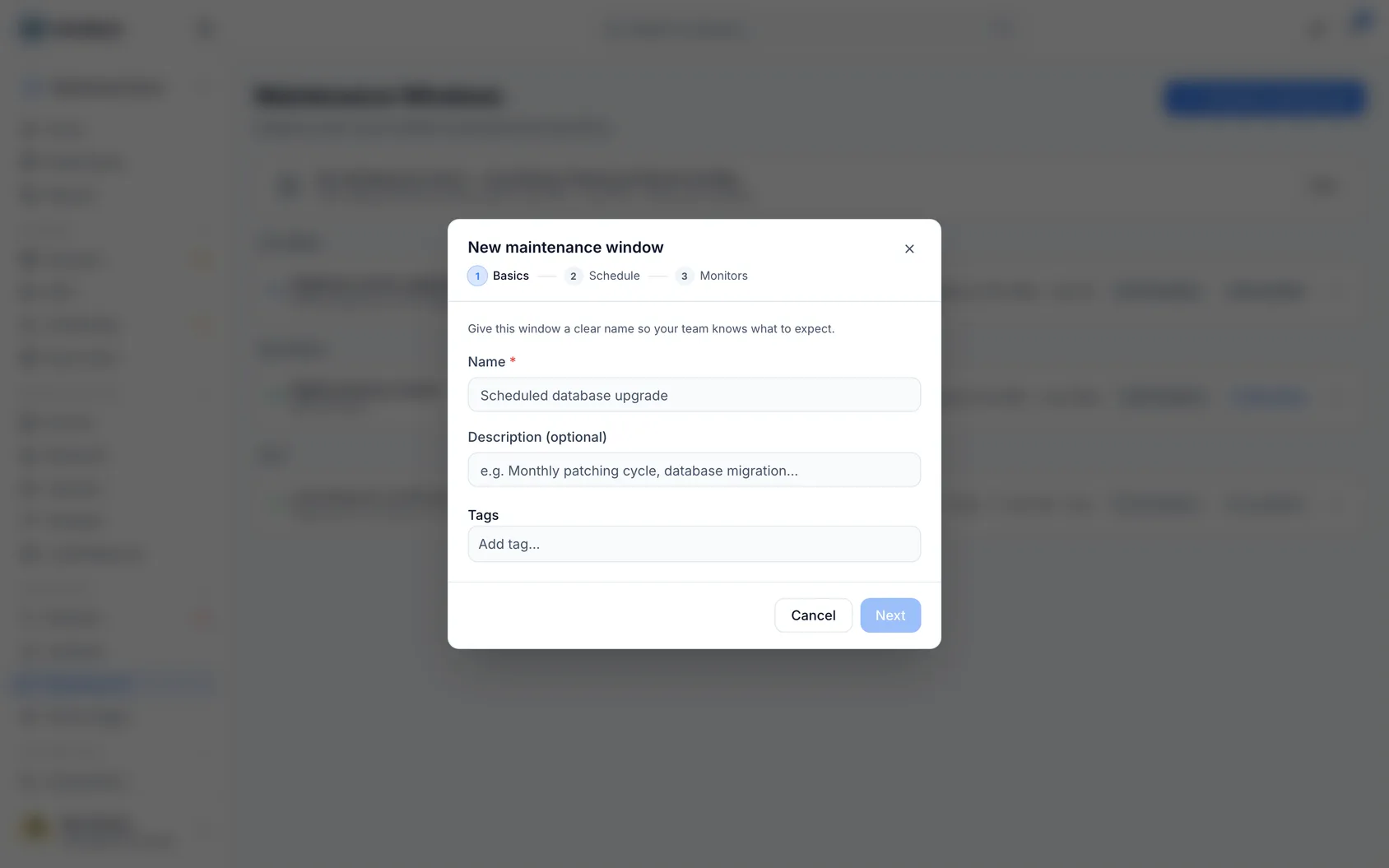
- Go to Maintenance and select New maintenance window.
- On the Basics tab, choose the monitors it covers under Affected monitors.
- Go to the Schedule tab and set the time:
- For a one-time window, set the Starts at and Ends at times.
- For a repeating window, choose Repeat, then pick Daily at {time} or Chosen weekdays at a set time, and select your Days of the week and Start time.
- Under Behavior, decide whether alerts should stay on or be silenced — choose Alerts silenced during the window to suppress alerts, or Alerts stay on if you still want to be notified.
- Add an optional note in Description (optional) if you want to explain the reason for the window.
- Select Save (or Create if this is a new window).
While the window is active, alerts for those monitors are suppressed if you chose Suppress alerts, and the window shows a countdown such as Ends in {time}. It also appears on your status page as planned maintenance.
Manage an existing window
- Go to Maintenance to see all your windows, grouped as Upcoming, Active maintenance, Past, or Recurring.
- Select a window to Open it, or use Edit maintenance window to change its details.
- To end a window early, select Mark as complete.
- To remove a window you no longer need, select Delete.
NoteA window moves through Upcoming → Active maintenance → Completed on its own — you don't need to update the status manually.
Tips
- Incidents that happen during a window are marked as planned, so they don't count as unexpected downtime in your reports.
- If a window covers many monitors, the list may show +{n} more — select it to see the full list under Affected monitors.
TipUse a recurring window (Chosen weekdays at a set time) for routine maintenance, like a weekly backup or patch cycle, instead of creating a new one-off window each time.
Troubleshooting
- A monitor still alerted during a window — check the Behavior setting on that window; it may be set to Alerts stay on instead of Alerts silenced during the window.
- The schedule looks wrong or won't save — make sure you've selected at least one day under Days of the week for recurring windows; a window with No days selected yet or No schedule set yet can't be saved.
- You have unsaved changes — if you see this message, select Save changes before leaving the page, or Discard if you want to drop your edits.
Was this article helpful?