

This guide is for anyone who wants to know if a backup script, cron job or scheduled task silently stops running — instead of a monitor that checks something of yours, this one waits for your job to check in.
Overview
- A heartbeat monitor works in reverse: your script calls InfraNest when it finishes, instead of InfraNest calling it.
- If the check-in doesn't arrive on time, InfraNest alerts you.
- It's the best way to catch a job that stops running without throwing an error anywhere you'd notice.
Set one up
- Go to Monitoring and select add a monitor.
- Choose Heartbeat / Cron monitor as the type.
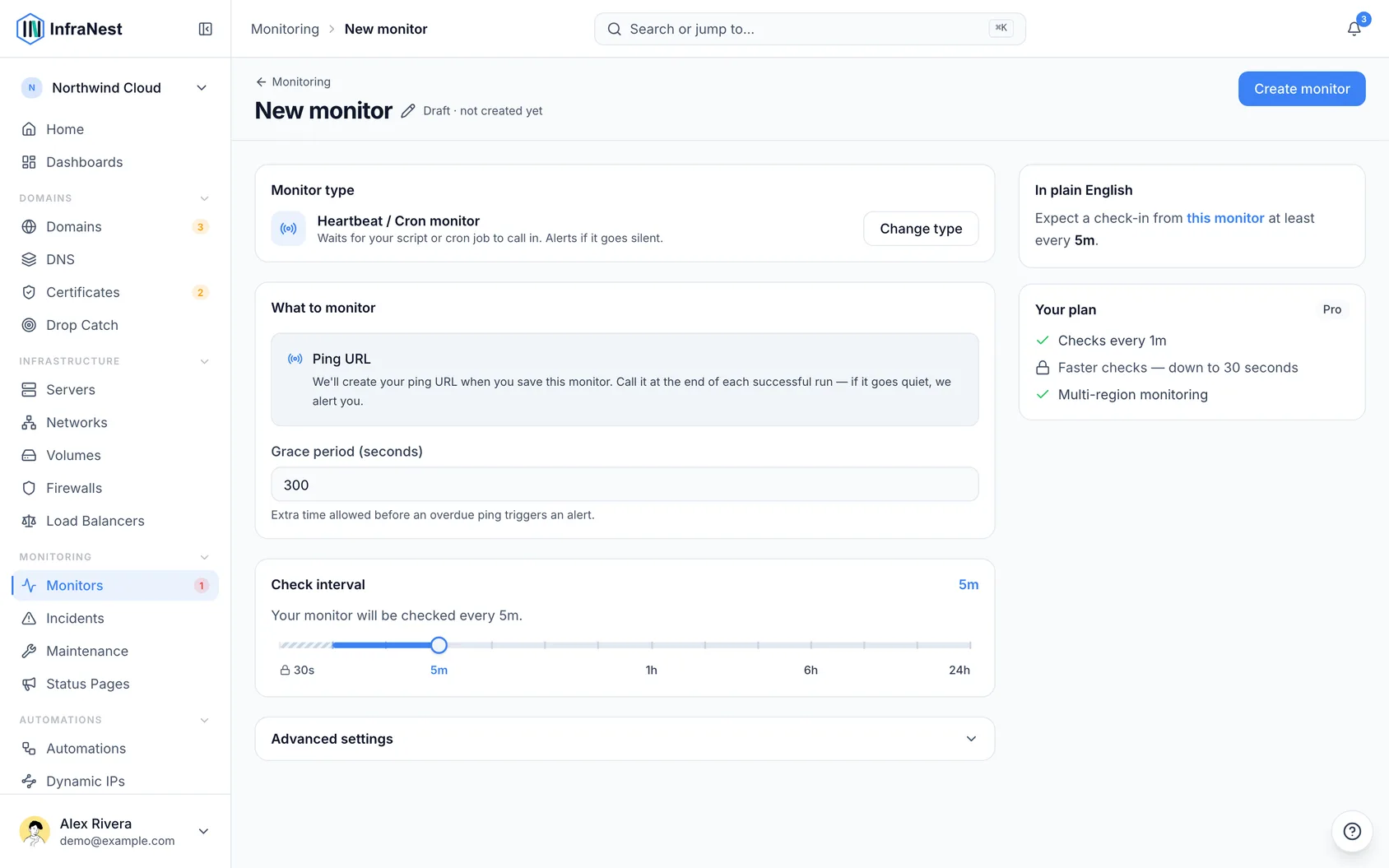
- Give it a name you'll recognise in an alert — "Nightly database backup" beats "job 1".
- Set the check interval to how often the job is supposed to run.
- Set a grace period — extra time allowed before the job is called late. A backup that usually takes four minutes but occasionally takes eight needs a grace period comfortably longer than that overrun.
- Select create monitor.
You don't enter a URL for this type — InfraNest creates one for you when you save.
Make your job check in
- Open the monitor to see its ping URL, plus a ready-to-paste one-liner.
- Add that line to the end of your script or cron job, so it only runs when the job actually succeeded:
0 3 * * * /usr/local/bin/backup.sh && curl -fsS -m 10 --retry 3 https://your-infranest-url/api/heartbeat/your-uuid
The && matters: it means the check-in happens only if the backup itself exited successfully. A failed job then stays silent, and silence is what raises the alert.
TipUse the copy button rather than retyping the URL — the identifier in it is unique to this monitor.
From a GitHub Actions workflow
If your backup, renewal or nightly sync runs as a scheduled GitHub Actions workflow, the same monitor works — the workflow calls in as its last step.
- In your repository on GitHub, open Settings → Secrets and variables → Actions and add a repository secret named
HEARTBEAT_URL, with the ping URL as its value. - Add this step to the end of the job:
      - name: Check in with InfraNest
        run: curl -fsS -m 10 --retry 3 "$HEARTBEAT_URL"
        env:
          HEARTBEAT_URL: ${{ secrets.HEARTBEAT_URL }}
GitHub skips the remaining steps once one fails, so the check-in only happens when everything before it succeeded — the same effect as the && above.
This also catches something GitHub doesn't tell you about loudly: in a public repository, GitHub switches scheduled workflows off after 60 days without any activity in the repository. The workflow stops running, nothing fails, and the missing check-in is what raises the alert.
What happens next
- Every check-in marks the monitor Active and records the time as its last ping.
- A brand-new monitor stays pending until its first window has passed, so you have time to wire the check-in up without being alerted about it.
- If nothing arrives within the interval plus the grace period, the monitor goes down and opens an incident, so your usual alert destinations fire.
- The next check-in resolves the incident and alerts you that it's back — you don't have to close it by hand.
NotePausing a heartbeat monitor is safe: the ping URL keeps answering normally, so a job that's still calling it won't start reporting failures. InfraNest simply stops watching until you resume.
Tips
- GitHub can start scheduled workflows several minutes late when it's busy. Give the monitor a grace period that allows for that on top of the job's own runtime.
- Treat the ping URL as a secret. Anyone who has it can report your job as healthy — which would hide a real failure.
Troubleshooting
- No ping received yet on the monitor means InfraNest hasn't heard from the job at all. Run the curl line by hand from the same machine: if that turns the monitor green, the problem is in your script, not here.
- If the machine can't reach the internet outbound, the check-in can't arrive — allow outbound HTTPS to InfraNest.
- A monitor that alerts every night at the same time usually has a grace period shorter than the job's real worst-case runtime.
Was this article helpful?