

Incidents are InfraNest's record of real outages — created automatically for you, and for anyone on your team who needs to know what broke, when, and for how long.
Overview
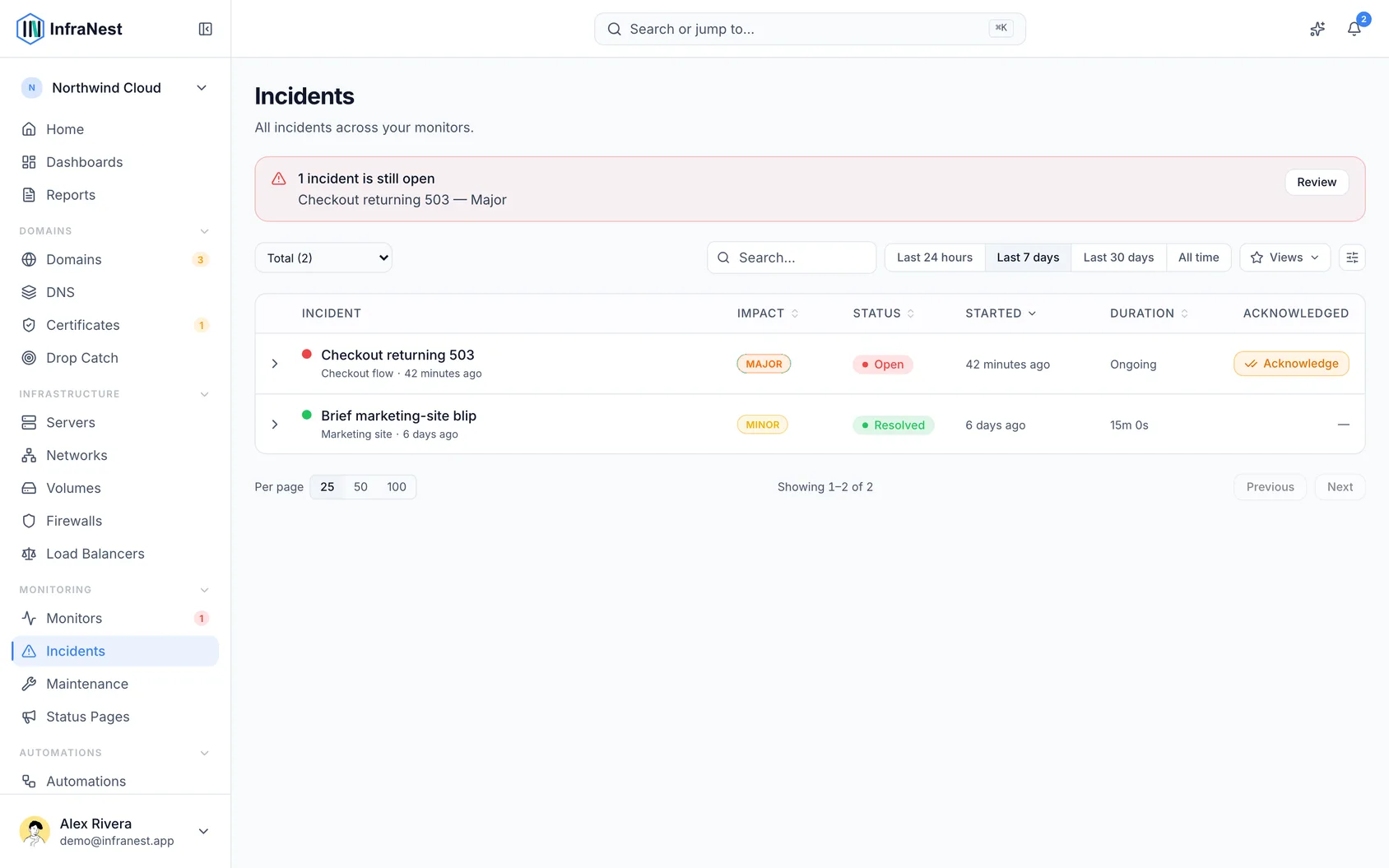
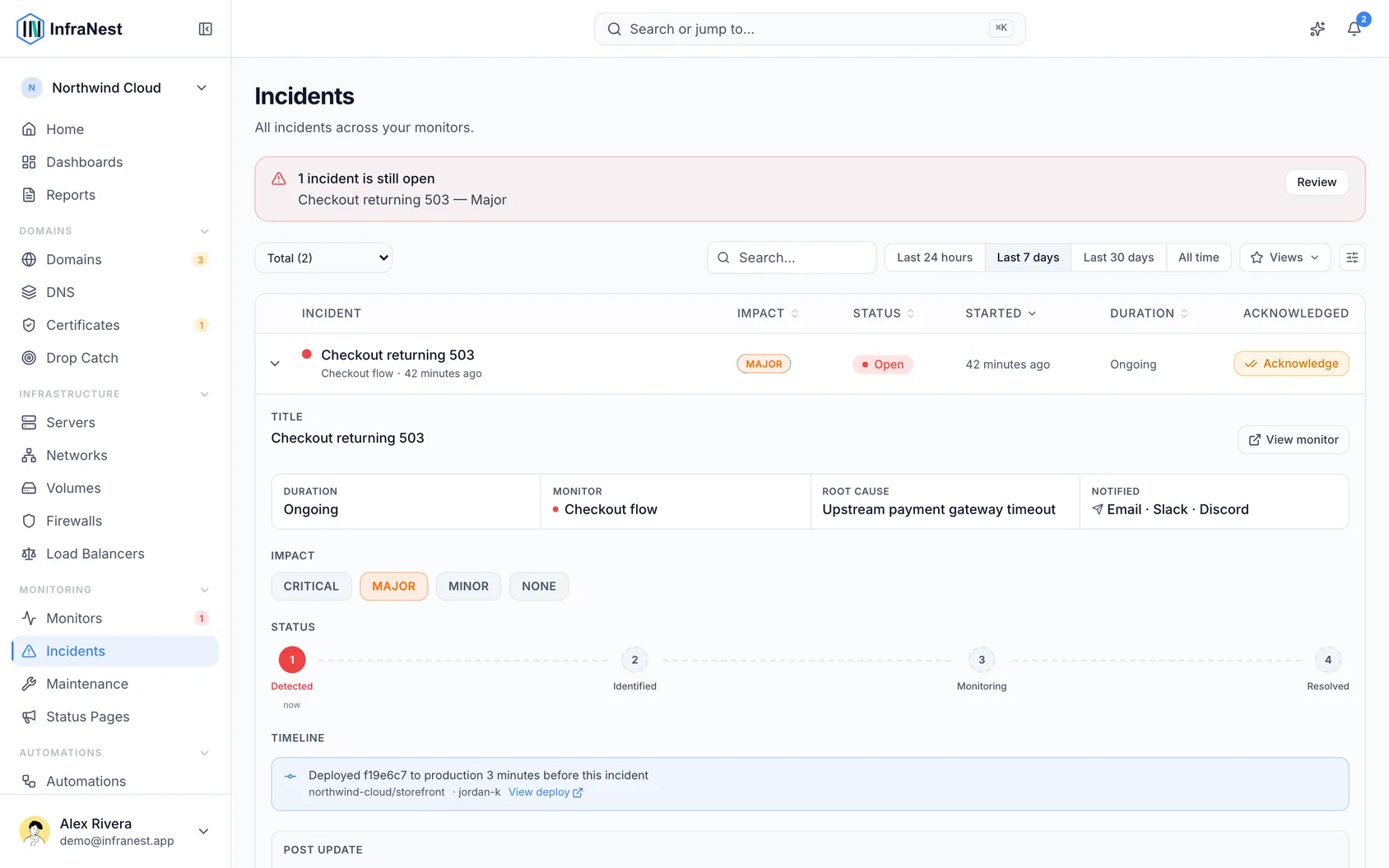
- When a check fails for real, InfraNest opens an incident with its impact and cause, and tracks how long it lasts.
- Incidents close themselves automatically as soon as the service recovers.
- You can acknowledge an incident, leave notes for your team, and post status updates for your customers — all from the same place.
How incidents work
- A confirmed failure opens an incident, recording its impact, cause, and duration.
- You can press Acknowledge on the incident so your team knows someone's on it — this stops the repeat alerts. Acknowledging works on every plan.
- Post updates to the incident's timeline as things develop; posting updates is part of incident management.
- Add a note for the team — for example, "restarting the database, back in 5". Notes are for your team only: they show on the incident, in the bell, and in PagerDuty, but never on your status page. You can add a note:
- On the incident itself
- From the bell, once the incident is acknowledged
- Straight after pressing Acknowledge in an alert email
- In Telegram, by pressing Add a note under the alert, or just replying to the alert
- To tell your customers what's happening, post a status update instead of a note. After acknowledging from an email, Post a status update takes you straight to the box for it, when the monitor is on one of your status pages.
- When the check recovers, the incident resolves on its own — no action needed.
- Incidents caused by planned maintenance are marked as planned, so they don't count as unexpected downtime.
Avoid alert storms with dependencies
- If one failure would cause several checks to fail at once, set the affected check to depend on the one that's actually failing.
- When the parent check is down, its children's alerts are suppressed.
- This turns what would be ten separate incidents into one.
What you'll be told
- You get an email when something goes down, and another when it comes back up. The second one tells you how long it was out and how fast it's responding now.
- For a monitor that keeps going down and coming back, these are called "unstable" and "stable again" (see below).
- The "back up" message is always sent — even to destinations set to critical alerts only, and even outside their quiet hours. If a destination was told about the outage, it's told when the outage is over.
- Both emails include a View incident link that opens that exact incident, with its timeline and comment box, no matter how old it is.
Understand a monitor that keeps going down and coming back
Some things don't fail cleanly — a flaky upstream service or an overloaded server can drop out, come back, and drop out again repeatedly. Instead of sending a "down" and "back up" message for every blip, InfraNest treats it as one ongoing problem:
- The first two outages are alerted as usual. The second message notes it: "That is 2 outages in the last 15 minutes."
- The third outage within an hour sends one combined message — for example, "Review endpoint keeps going down and coming back — 3 outages in 40 minutes" — listing each outage. It goes to every destination, and one PagerDuty incident stays open.
- After that, InfraNest stays quiet while the monitor keeps flipping. Every blip is still recorded on the same incident's timeline, so nothing is lost.
- Once the monitor has been up for an hour, you get one "stable again" message with the totals: number of outages, total downtime, and the longest outage. The PagerDuty incident resolves.
- If it stays down for more than 10 minutes while unstable, you're told straight away, as a normal outage — being unstable never hides a real failure.
The "keeps going down" and "stable again" messages may also suggest a fix, when the outages point to one:
- It goes down at about the same time every day: a button opens a daily maintenance window, already filled in.
- The outages are shorter than a few checks: it suggests a number for Failed checks before alerting — for example, "Requiring 3 failed checks instead of 2 would have ignored 20 of these 22 outages" — and explains the cost: a real outage would then be reported a minute or two later. The button opens the monitor's settings with that number filled in and highlighted.
NoteNothing changes until you save. If neither suggestion fits, none is shown.
View and filter incidents
- Open Incidents from the sidebar.
- Use Filter to narrow the list to open, acknowledged, or resolved incidents.
- Select any incident to open its full timeline.
TipArriving from an alert email's View incident link shows just that one incident, with a notice at the top. Press Show all incidents to return to the full list.
Was this article helpful?