

A quick reference for anyone setting up monitoring in InfraNest, to help you pick the right type of check for what you want to watch.
Overview
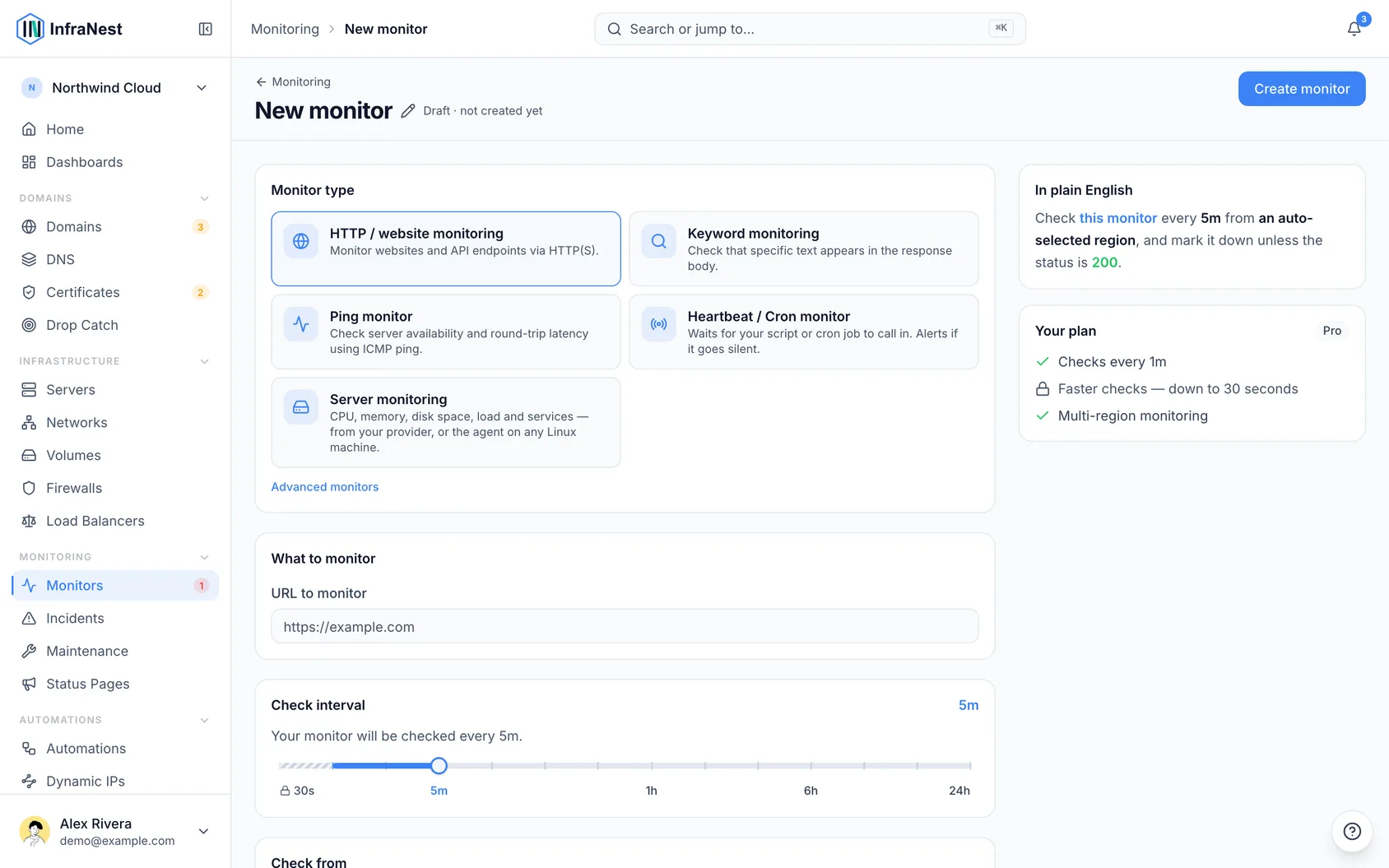
- InfraNest can watch ten different kinds of target. Pick the one that matches what you want to check.
- Each monitor type looks for something different, from a website loading to a certificate nearing expiry.
| Type | What it checks |
|---|---|
| HTTP | A website or URL is reachable and healthy (with slow-response detection). |
| API | A JSON or multi-step API endpoint behaves as expected. |
| Port (TCP) | A TCP port is open and accepting connections. |
| SSL | A certificate is valid and not near expiry — this also adds it to your certificate list. |
| DNS | A DNS record resolves, and optionally matches an expected value. |
| Keyword | A page contains (or doesn't contain) some expected text. |
| Redirect | A URL redirects to the address you expect. |
| Ping (ICMP) | A host answers a ping. |
| Heartbeat | A "dead man's switch" for cron jobs — your job must check in each interval, or you're alerted. |
| Third-party | Mirrors another company's public status page, so their outages show up in yours. |
TipFor an HTTP check you can also turn on an SSL sub-check to watch the certificate's expiry, without creating a separate SSL monitor.
Ask a specific nameserver for a DNS monitor
- A DNS monitor normally looks the record up the way any visitor would.
- To ask a particular server instead, fill in Custom nameserver — this can be a public resolver such as
8.8.8.8or1.1.1.1, or your DNS host's own nameserver, by address or by name. - Use this when you want to check what one particular server is handing out, for example right after you change a record.
The nameserver has to be on the public internet. An address on a private network, such as 10.0.0.53, 192.168.1.1 or 127.0.0.1, is refused when you save the monitor, and a name that points to one is refused when the monitor runs.
When the monitor goes down, it says which of these happened:
- didn't respond — the server did not answer within five seconds;
- doesn't exist (NXDOMAIN) — the server answered that there is no such name;
- returned an error — the server answered with an error, such as REFUSED when it will not answer questions about that domain;
- no records found — the name exists, but has no records of the type you chose.
Set when an SSL monitor warns you
- Open your SSL monitor and find the Warn when expiring within (days) setting.
- Enter how many days before expiry you want to hear about it — 30 is a sensible default.
- Save your changes.
Two things are worth knowing about how the warning behaves.
A certificate that is expiring soon does not turn the monitor red. The certificate still works, so the monitor stays up and no incident is opened — you get the expiry warning by email or your chosen destination, and the monitor's detail page explains what it found. Only a certificate that has actually expired counts as an outage. This matters most if the monitor is a service on a public status page: an upcoming renewal is not something your customers need to see as a problem.
Certificates that renew themselves are judged differently. Most certificates today come from Let's Encrypt or a similar service, are issued for 90 days, and are renewed automatically at 30 days remaining — which means a perfectly healthy certificate briefly shows fewer than 30 days left on every single renewal. Warning you there would mean warning you every time the renewal worked.
So for those certificates we watch the renewal instead of the expiry date. You hear from us when the renewal should have happened and didn't — which is the thing you'd actually want to fix, and still leaves around 25 days to fix it.
NoteYou can see whether a certificate is treated this way on the monitor's detail page, under Renewal. If we've got it wrong, you can correct it on the certificate itself in your certificate list.
Was this article helpful?