

If a destination suddenly stops passing alerts along, InfraNest will flag it so you know what's happening — this article explains what that flag means and how to clear it. It's for anyone who manages where alerts get sent, like Slack, Discord, email, or PagerDuty.
Overview
- Not delivering means InfraNest tried to send alerts to that destination and the service turned them away.
- Nothing is lost while this is happening: every alert is emailed to you right away, and also saved so you can catch up once the destination is fixed.
- InfraNest never switches the destination off on its own — it keeps trying, so things start flowing again automatically once the problem is resolved.
- The warning only shows up after more than one failed attempt, so a single hiccup at Slack or Discord won't trigger it.
Understand the warning colour
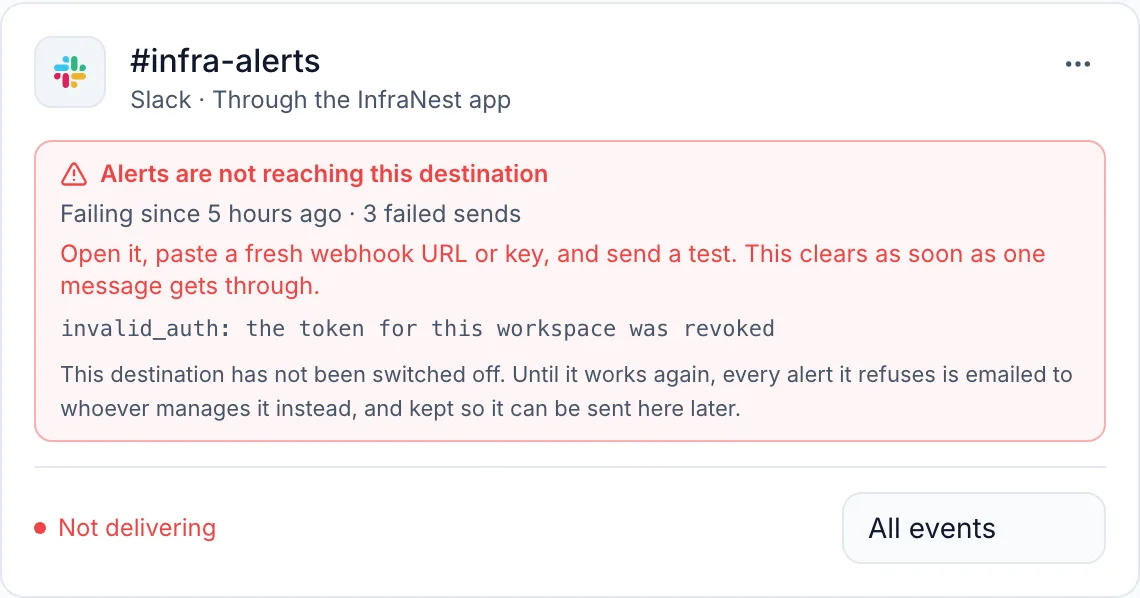
- Red means something needs your attention — usually the destination's credentials (a webhook URL or key) were revoked, regenerated elsewhere, or pasted incorrectly. This will not fix itself.
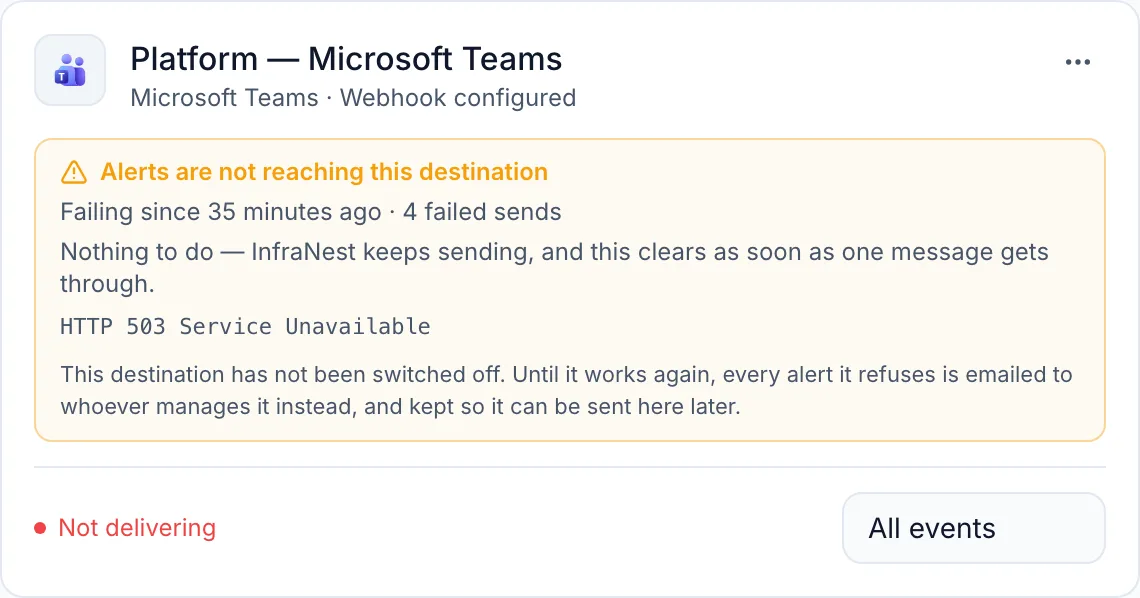
- Amber means there's nothing to do — the service is having temporary trouble or asking InfraNest to slow down. It clears itself once a message gets through.
Fix a red warning
- Go to Alerts → Destinations and open the destination showing the red warning.
- Paste in a fresh webhook URL or key. Check the setup guide for your specific service if you're not sure where to find a new one.
- Select Send test.
The warning clears the moment a message gets through, so a successful test confirms it's fixed. If the test fails again, the message underneath will tell you what the service said.
Catch up on missed alerts
Once the destination is working again, its card on Alerts → Destinations shows how many alerts it missed, with two options:
- Select Send them here now to deliver everything it missed as a single message listing each alert and when it happened.
- Select Discard missed alerts to drop them without sending — safe to do, since they were already emailed to you.
NoteMissed alerts are kept for 7 days. PagerDuty is the exception: its missed alerts are emailed but never sent later, since paging someone now about last night's issue wouldn't help anyone.
Who gets notified
- A personal destination (one you added for yourself) notifies you.
- A shared destination notifies the organisation's owners and admins.
These same people receive the destination's alerts by email while it isn't delivering, plus an in-app notification and email about the problem itself. If it stays broken, you'll hear again on a widening schedule — at most once a day, never once per failed alert. Once it's fixed, you get a single message confirming it.
TipThe notification about a broken destination never goes through that same destination — so a dead Slack webhook is never announced to you via Slack.
Troubleshooting
- A disabled destination is different from Not delivering — nothing is being sent to it, so it can't fail.
- The warning also shows on the destination's own page and on the Integrations hub, in the same colour.
- Check the Activity tab for a full list of delivery attempts and what came back. An alert that was emailed instead shows an amber envelope next to the destination — hover over it to see who received it.
- If you already get an alert by email (through an email destination, or because you receive monitor emails), you won't get a second copy just because another destination rejected it.
Was this article helpful?