

Customise how your status page looks and feels — colours, layout, spacing and which sections show — all without needing a designer.
Overview
- Every appearance setting shows you a live preview of your real page before you save
- Choose a layout, a colour scheme and a header style that match your brand
- Turn optional sections on or off so visitors only see what matters
- Changes apply everywhere your page is seen, including during an outage
Open the Appearance settings
- Go to Status pages.
- Open the page you want to change.
- Press Settings at the top.
- Pick Appearance from the list on the left.
Beside the settings you'll see your page, and it updates as you change things — before you save. You can try a layout, a colour or a header and keep the one you meant, instead of saving to find out. It shows the top of your page with your real services in it, not a stand-in.
Appearance is the only place with the whole page beside it, because it's the only place where seeing the page is how you decide. Everywhere else, the link at the top opens the real thing.
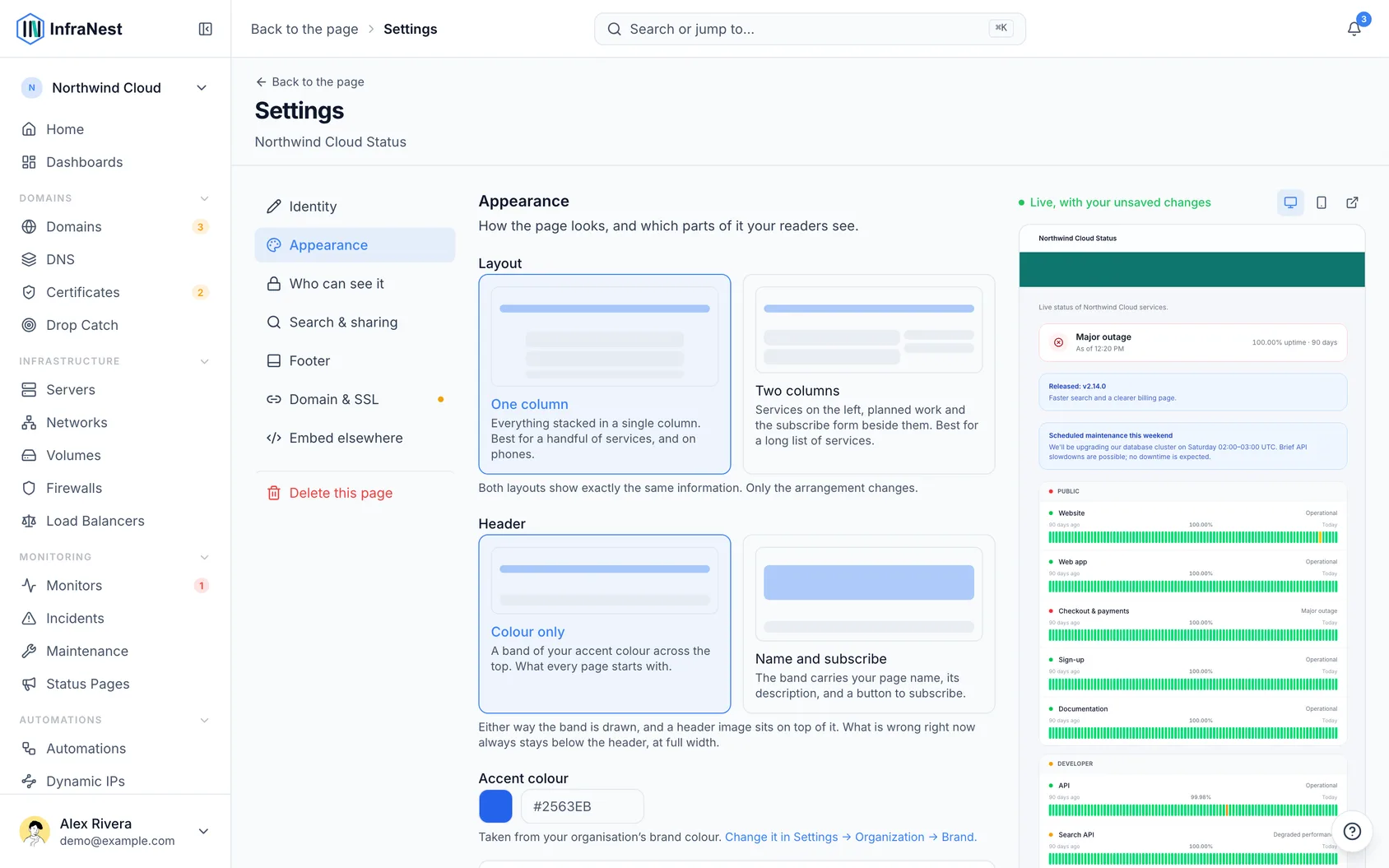
Choose a layout
- In Layout, pick One column or Two columns. Each option shows a small drawing of itself so you can see the difference before you pick.
- One column puts everything in a single column, top to bottom. It's the right choice for most pages, and it's what your page uses unless you change it.
- Two columns puts your services on the left, with planned maintenance and the subscribe form in a narrower column beside them. Worth switching to when you list a lot of services and the single column has become a long scroll.
Both layouts show exactly the same information — nothing is added, hidden or reworded, only moved. Anything that's wrong right now always stays across the full width at the top, never in the side column.
NoteOn a phone there isn't room for two columns, so a two-column page folds back into one. Nothing is lost; the side column simply lands underneath the services.
Set the colour scheme
- In Colour scheme, choose Light, Dark, or Auto.
- Auto follows each visitor's own device, and keeps following it if their device switches later while the page is open.
- Choose Light or Dark instead if your page should always look the same to everyone.
Choose a header style
- In Header, choose Colour only or Name and subscribe.
- Colour only is a band of your accent colour — what every page starts with.
- Name and subscribe puts your page name and description in the band, with a button that takes a visitor straight to the subscribe form. Worth switching on if people arrive wanting to be told when things change.
- If you chose Name and subscribe, you can also turn the header's fade off for a flat band instead of a gradient.
Either way, anything that's wrong right now stays below the band, full width — a header never reports the outage.
Set the page colour
- In Colour, click the swatch to pick a colour, or type a hex code into the box.
- Leave it empty to use your organisation's brand colour, set at Settings → Organization → Brand.
- Set a colour here when this page belongs to a different brand — a second product, or a customer you publish on behalf of.
NoteAn organisation-wide brand colour — shared by all your pages and your emails — is part of white-label branding. Without it, a page you leave empty uses the InfraNest colour, and the box says so.
Add a header image
- In Header image, click to upload or drag and drop a PNG, JPG, WebP or SVG up to 5 MB.
- Very large images are refused, because every visitor's browser has to load it, and a status page is exactly the page everyone opens at once.
- If you don't add one, the page simply starts with your logo and name, as it does today.
Adjust spacing
- In Spacing, choose Roomy or Compact.
- Roomy is the normal look.
- Compact tightens the rows so more services fit on screen at once — useful if you list a lot of them. It only changes spacing; it never hides a service or removes a section.
Set how much history shows
- In History shown, choose 30, 60 or 90 days.
- This sets how far back the uptime bars beside each service go, and how far back the incident history reaches.
- A shorter range also makes the page a little faster, because there's less to work out.
Turn sections on or off
- In Sections, turn off anything your page doesn't need:
- Uptime bars beside each service
- Planned maintenance
- Third-party services you watch
- Incident history
- Group headings above each set of services
- Tags on a service
- Visitors never see an empty section — anything switched off is simply not there.
TipTwo switches used to live here but moved: the overall uptime strip is now in Settings → Embed elsewhere (it only ever showed on the embeddable badge, never on the page), and email subscriptions now live on the Subscribers tab — turning that off also removes the subscribe box from your page.
What visitors always see
Some things aren't configurable, on purpose:
- Status colours. A major outage is red on every page, whatever your accent is, so people recognise trouble at a glance.
- The order of the sections. What's wrong now comes before what's planned, which comes before what's already fixed. Choosing a layout moves sections around the page, but never past that line.
Does this apply everywhere?
Yes. These settings apply to your page on our domain, on your own custom domain, and to the copy served from our edge network during an outage — the version people see when the rest of our system is unreachable, so it's the one that matters most.
Was this article helpful?