

This guide is for anyone who wants InfraNest to watch a website, API, certificate, DNS record, or other service and let them know when something goes wrong.
Overview
- Monitors are automated checks that run on a schedule and alert you when something's down, slow, or misconfigured.
- You can monitor many different things — websites, APIs, certificates, DNS records, servers, and more.
- Each monitor can be fine-tuned with its own thresholds, regions, and alert settings.
Add a monitor
- Go to Monitors and select Add monitor.
- Choose the type of check you want (for example HTTP / website monitoring, Keyword monitoring, SSL, DNS monitoring, Ping monitor, Port monitoring, API monitor, or Heartbeat / Cron monitor) and enter the URL to monitor or other target for that type.
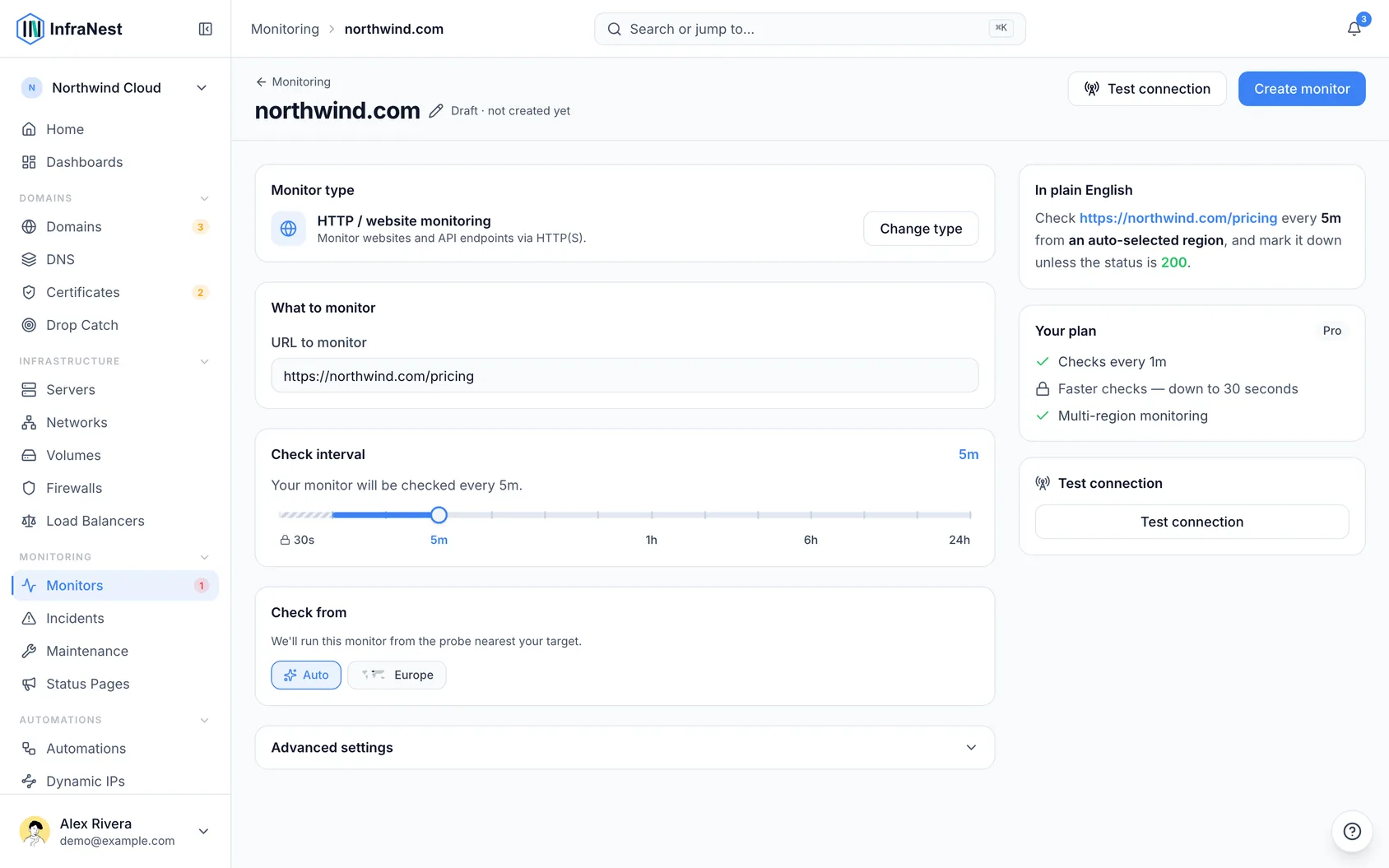
- Set the Check interval (how often it runs) and fill in any settings specific to that type, such as a Keyword to find in response or an Expected value (optional).
- Fine-tune the monitor if you want:
- Slow response time alert — mark the check as degraded when it's up but slower than your Slow response threshold (ms).
- Failed checks before alerting — how many checks in a row must fail before you get an alert. Higher values ignore brief blips.
- Probe regions and your preferred IP version (Prefer IPv4 (recommended), Prefer IPv6, IPv4 only, or IPv6 only).
- Alerting — choose where alerts for this monitor are sent, under Choose destinations.
- Select Test connection to confirm your settings work, then select Save.
TipThe Create monitor form suggests a Monitor name based on the URL as you type it. You can change it any time — once you edit it, it stops following the URL automatically.
Manage a check
- Open the monitor from Monitors to see Latest checks, Latest incidents, and How this monitor runs.
- Use Edit monitor to change its settings, or Switch monitoring off / Switch monitoring on (shown as Turn off / Turn on) to pause or resume checks.
- Select Silence alerts and choose Silence for a set duration if you expect downtime and don't want to be alerted.
- Use Add parent or Add child under Dependencies to link this monitor to another, so related alerts can be grouped sensibly.
- Select Delete monitor if you no longer need the check.
Troubleshooting
- If a monitor shows a connection error such as Couldn't reach the target or Connection refused, double-check the target address and port, then select Test connection again.
- If you're not getting alerted, check Alerting and Choose destinations to make sure a destination is attached.
- If checks are failing only briefly, raise Failed checks before alerting so single blips don't trigger an alert.
Was this article helpful?
Related articles
Monitor a cron job or scriptMost checks reach out to something of yours. A heartbeat monitor works the other way around: your backup script, cron job or scheduled task calls in to…About monitoringMonitoring watches your websites, APIs, servers, DNS and certificates from several regions, confirms real outages before it alerts you, tracks incidents, and…Monitor typesInfraNest can watch ten different kinds of target. Pick the one that matches what you want to check.Monthly uptime reportGet uptime per monitor for a single calendar month — the figure you can send a client, because it stops changing once the month is over.