

A status page shows your customers whether your services are up, using the monitoring you've already set up — there's no data to update by hand.
Overview
- Built from your existing monitors, so live status and uptime show up automatically.
- You control branding, what's visible, and who can see the page.
- Incidents and maintenance windows from your monitoring appear on the page on their own.
Create a page
- Go to Status pages and select Create status page. It gets a hosted URL straight away.
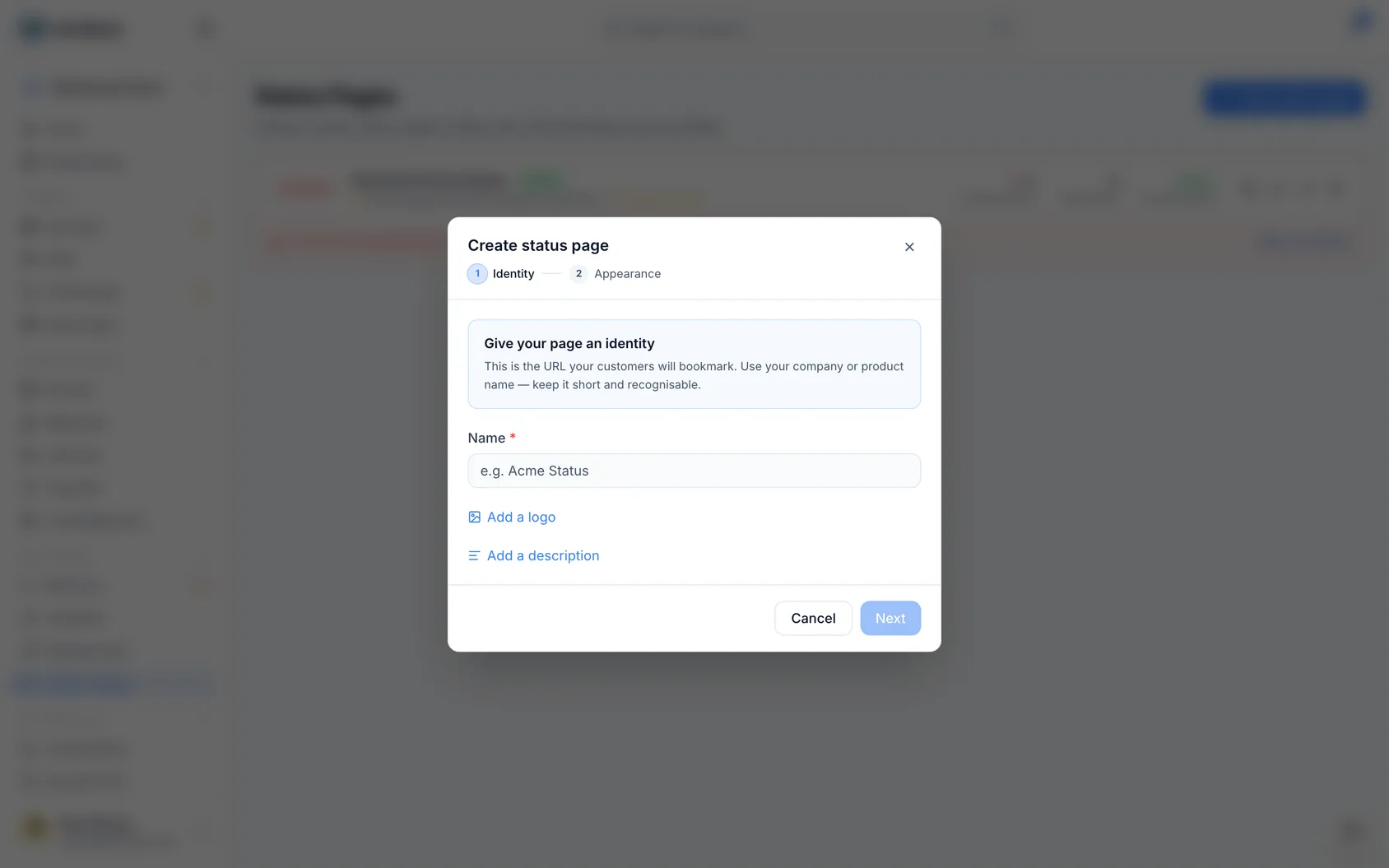
Open the page and, on the Services tab, choose Add services. Tick the monitors this page should show — as many as you like — and add them in one go. Each becomes a service named after its monitor, showing that monitor's live status and uptime.
Give the batch a group (like "Website", "API", "Email") if you want them arranged, or leave it blank and sort them out later.
Groups are the headings your customers see on the page. On the Services tab each one is a box you can drag services into and out of, drag up or down to change the order they appear in, and rename in place — renaming it changes the heading for everything inside it at once. Services you haven't put in a group sit together at the bottom under "Ungrouped", which is a perfectly good place to leave them. Removing a group never removes its services; they just move to that bottom group.
Brand it — upload a logo, pick a theme, choose the page's colour, and set your footer text and link.
Add header links so the page isn't a dead end — your homepage, your support desk, your docs. Up to four, shown at the top of the page for anyone reading it.
Choose what to show with the content toggles: overall status, uptime, incident history, announcements, maintenance and third-party services.
If your logo already has your name in it
Most logos are just the company name written nicely. When that's yours, the top of your status page ends up saying the name twice — once in the logo, once as text beside it.
- Open your page and press Settings, then Identity.
- Under the logo, turn off Show the name next to the logo.
The text goes, the logo stays, and nothing else about the page changes.
NoteThe option only appears once you've actually added a logo, and if you remove the logo later the name comes back on its own — otherwise the top of the page would be empty. Screen readers are unaffected either way: the logo carries your page's name whether or not it's also written out.
Decide what counts towards the page's overall status
The big line at the top of your page — "All systems operational" — is worked out from the services on it. By default every service counts towards it.
That isn't always what you want. If you show a service somebody else runs — your mail provider, your registrar, a CDN — then their bad afternoon makes your whole page say "Degraded performance", even though your product is fine and there's nothing you can do about theirs.
- Open a service on the Services tab.
- Turn off Count this service in the page's overall status.
The service still appears, still shows its own status, and still draws its own uptime bar. The only thing that changes is that it no longer speaks for your product as a whole, and it's left out of the page's uptime percentage.
Services you add from a third-party status page start with this switched off, because that's almost always right. Turn it on if the service really is one your product can't work without.
NoteIf you switch it off for every service, the page has nothing left to judge itself by, so it says "Not monitored" rather than claiming everything is fine.
Choose where the monitoring section goes
Some pages show a Monitoring section — whether scheduled checks are running, and how many locations are watching. By default it sits at the bottom, under your services.
- On the Services tab, open a section's menu.
- Choose Show platform monitoring here.
The section can be an empty one you made for the purpose, or one that already holds services — the monitoring rows go after them either way. Only one section can show it, so turning it on somewhere else moves it rather than duplicating it.
Renaming that section renames the heading. Deleting it doesn't lose the monitoring rows; they go back to the bottom of the page.
Control who can see it
- Make the page public, or password-protect it for internal or customer-only audiences using Visibility.
- Use the Allow search engine indexing toggle to let it appear in search results or keep it out.
Incidents and maintenance windows from your monitoring appear on the page automatically.
Tips
TipLeave services in "Ungrouped" until you're ready to organise them — nothing about how they display is lost, and you can group them later without losing any settings.
Was this article helpful?