

The monthly uptime report gives you one fixed, final uptime figure per monitor for a calendar month — the number you can actually send to a client.
Overview
- Covers a single calendar month, not a rolling window, so the figure stops changing once the month ends.
- Shows uptime, downtime, incident count, longest outage, and how much of the month was actually measured.
- Excludes planned maintenance and unconfirmed blips, so what's left is defensible.
Why a month, and not "the last 30 days"
The uptime column on the Monitoring page, and the bars on your status page, both cover a rolling window. That's right for a status page and wrong for a promise: "99.94% over the last 30 days" is a different number tomorrow, so it isn't something anyone can hold you to — or that you can point at.
An SLA is stated per calendar month. Once July ends, July's figure is final.
Pick a month
- Use the month picker in the top right, or click any row in the Last 12 months table.
- The page opens on the most recently finished month by default, since that's the newest one whose numbers are settled.
- If you pick a month that hasn't ended yet, the page tells you so — those figures can still move. They're still real, covering the days so far: the Measured column shows how much of the month they stand on, and today only counts up to the hour you're viewing it.
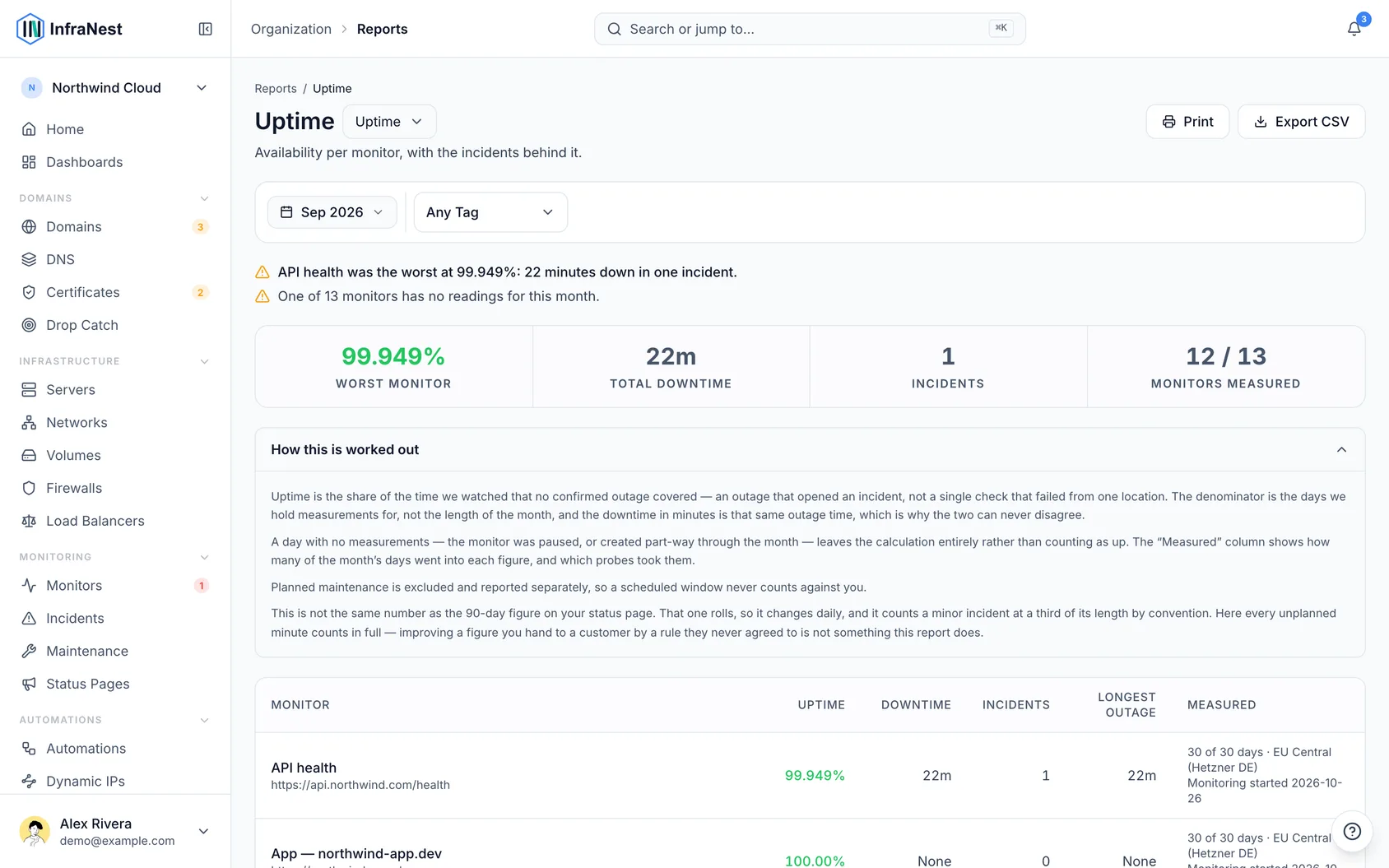
Read what each row tells you
- Uptime — the share of the month the monitor was not down, to three decimals. 99.9% and 99.94% are different promises, so the report doesn't round the difference away.
- Downtime — how long the monitor was down, in hours and minutes. Only confirmed outages count — the ones that opened an incident. A single failed check from one location, without the others agreeing, isn't downtime.
- Incidents — how many separate unplanned outages there were.
- Longest outage — the single worst stretch. One long outage is a very different month from twenty short ones adding up the same.
- Measured — how many of the month's days went into the figure, and which probes took the readings.
Understand how the figure is worked out
- The denominator is the time actually watched, not the length of the month.
- A day with no measurements — the monitor was paused, or created part-way through the month — drops out of the calculation completely. It's never counted as "up". The Measured column shows this as, for example, "12 of 31 days", and a monitor created mid-month says when it started.
- A monitor with no measurements at all shows "—", not 100%.
- Planned maintenance is excluded and reported separately on the row, so a scheduled window never counts against you.
NoteStatus pages conventionally count a minor incident at about a third of its length. This report counts every unplanned minute in full, so the monthly figure is usually the lower — and safer — one to put in writing.
Export the report for a client
- Pick the month you want, as above.
- Click Download to get the CSV for that month.
- The file includes one row per monitor, with uptime, downtime, incident count, longest outage, and the days-measured basis — all together, so the percentage never arrives without the context needed to defend it.
TipThere's no PDF. If you need one, open the CSV in any spreadsheet and print from there.
Every export is recorded in your Audit Log.
Troubleshooting
- The month I want shows figures that keep changing. You've selected a month that hasn't finished yet — the page will say so. Numbers settle once the month ends.
- A monitor shows "—" instead of a percentage. There were no measurements at all for that monitor in that month, so no figure can be claimed.
- This doesn't match my status page. That's expected — the status page uses a rolling 90-day window and softens minor incidents. This report uses a fixed month and counts every unplanned minute in full.
Was this article helpful?