

Connect Claude or ChatGPT to InfraNest so you can ask it questions about your servers, monitors, domains and DNS — right from the assistant you already use, no token to create or copy.
Overview
- Claude or ChatGPT connects to InfraNest as a read-only helper: it can answer questions about your infrastructure, but it can never change, add or delete anything.
- It works on every plan, including Free.
- It only sees the one organization you choose when you connect it, and only what your role in that organization allows.
- It never sees secrets such as domain transfer codes, certificate files or tokens.
Set up Claude
- In Claude, open Settings → Connectors and select Add custom connector.
- Name it InfraNest and enter this address as the URL:
https://api.infranest.io/mcp - Leave Authentication on Sign in now. For OAuth client, pick Use Claude's published identity if Claude has not already chosen it. This lets InfraNest confirm the connection really is Claude and show it as verified.
- Select Add, then Connect. Claude opens InfraNest.
Once added on claude.ai, InfraNest is also available in the Claude desktop and phone apps.
Set up ChatGPT
- In ChatGPT's settings, add a custom connector (also called an MCP server).
- Enter this address as its URL:
https://api.infranest.io/mcp - Connect it. ChatGPT opens InfraNest.
Where custom connectors live in ChatGPT depends on your ChatGPT plan; ChatGPT's own help explains where to find them.
Allow it in InfraNest
InfraNest will ask whether Claude or ChatGPT may use your account. Sign in first if you are not already signed in.
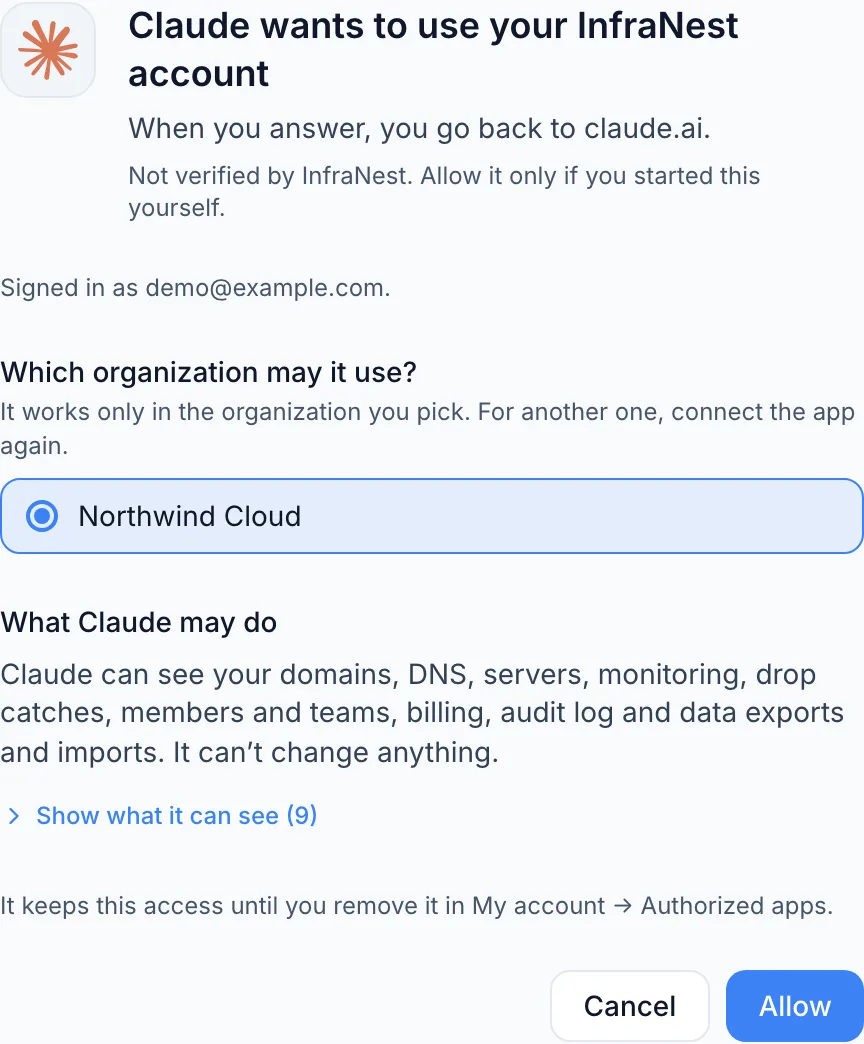
- Pick the organization it may use. It works only there. Your Sandbox, with sample data, is a safe place to try it first.
- Check what it may see. An assistant asks to see your domains, DNS, servers, monitoring and audit log — what its tools read — and it can't change anything. A struck-out line is something your role in that organization can't give, so it won't get it.
- Select Allow. You're sent back to Claude or ChatGPT, ready to ask questions.
NoteInfraNest shows Claude and ChatGPT as Not verified by InfraNest because they register themselves the moment you add the connector. Only select Allow if you started the connection yourself.
What you can ask
- "Is anything down right now?"
- "Which monitors were down last night?"
- "Where does
mail.example.compoint?" - "Which domains expire this quarter?"
- "Which servers are running out of disk space?"
What it can and can't do
- It only reads. It can never change, add or delete anything in InfraNest.
- It works on every plan, including Free.
- It sees only the organization you picked, and only what your role there allows.
- It never sees secrets such as domain transfer codes, certificate files or tokens.
Stop it, or switch organization
- Remove it — open My account, go to Authorized apps, and select Remove next to Claude or ChatGPT. It loses access straight away.
- Use another organization — remove it, then connect it again from Claude or ChatGPT and pick the other organization.
Troubleshooting
- "This request has expired" — the permission page lasts only a few minutes and works once. Start again from Claude or ChatGPT.
- It stopped working after a while — if it hasn't been used for 30 days, you'll need to connect it again.
TipUsing Claude Code, Cursor or VS Code instead of Claude or ChatGPT? Those connect with an API token rather than this sign-in flow.
Text in your data (a DNS record, an incident note) can be written by someone else. Read what the assistant suggests before you act on it.
Was this article helpful?