

The monthly recap is a short email InfraNest sends your workspace each billing period, summing up what happened — useful for anyone who wants a quick check-in without digging through every page.
Overview
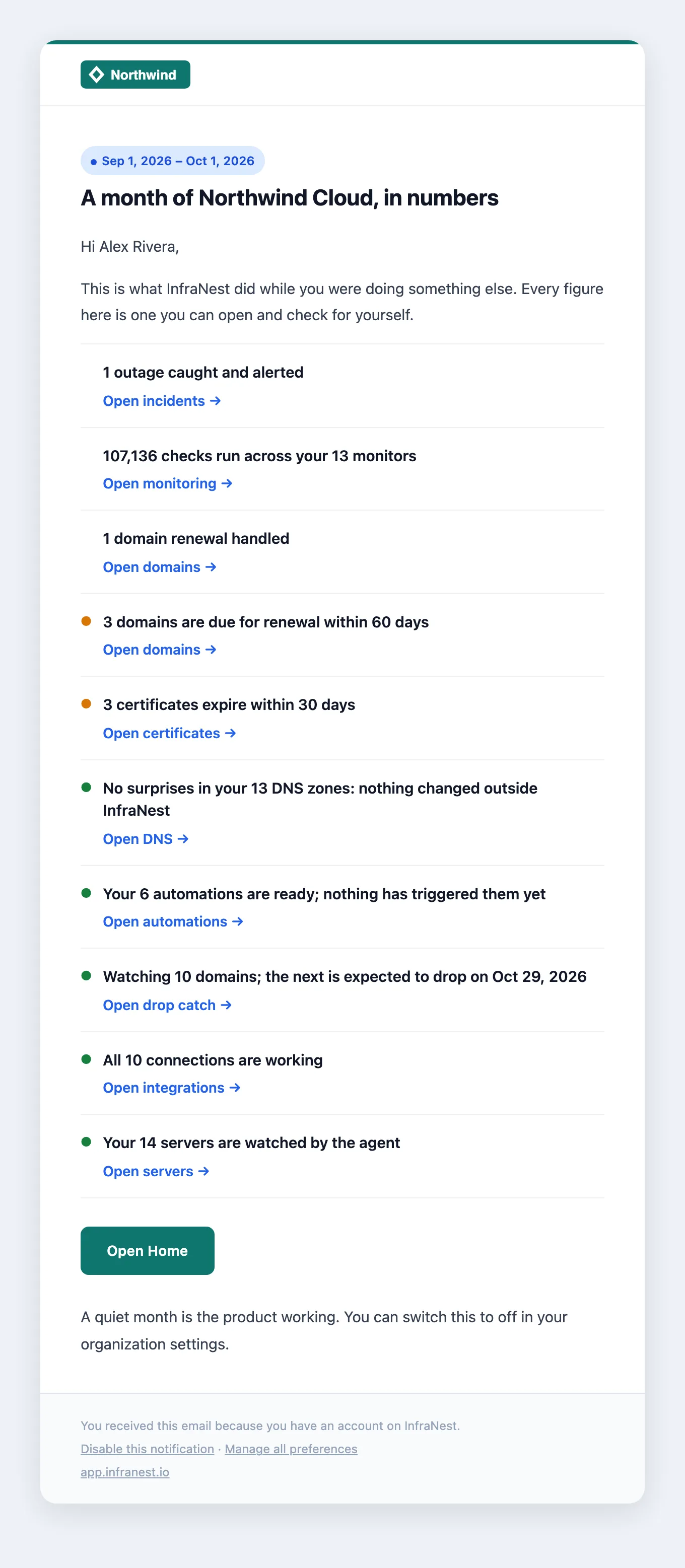
- It's a few short lines about your workspace, not a newsletter — every line links to the page it's about.
- It covers what happened, good news (when nothing went wrong), what's coming up, and at most two next steps if something isn't set up yet.
- You'll never see a list of zeros — a zero figure is either reported as good news, turned into a next step, or left out entirely.
- Every figure links to somewhere you can check it yourself.

What's in it
- What happened — checks run, outages caught, domain renewals handled, DNS changes spotted at a provider, automations that ran, and domains Drop Catch caught for you.
- Good news — for example, "No outages: all 7 monitors stayed up" or "No surprises in your DNS."
- What's coming up — domains or certificates due for renewal soon, and when the next watched domain is expected to drop.
- A next step (at most two) — shown when part of InfraNest isn't set up yet, such as your first monitor.
Know when it arrives
- It arrives just after your billing period starts, not on the 1st of the month — so if your billing month starts on the 14th, your recap arrives just after the 14th.
- It's sent to workspace owners by default.
- Anyone else who wants it can turn it on for themselves. Go to My account → Notifications, find the Workspace digests group, and switch on Monthly recap.
NoteA quiet month still gets a recap. If nothing broke, that's the news — InfraNest won't skip the email just because the numbers look unremarkable.
Turn off the recap
There are two separate switches, depending on who you want to stop it for:
- For the whole workspace — go to Settings → Cost & tax → Monthly recap and turn it off. This stops the recap for everyone, and you need to be an owner or admin to do it.
- Just for yourself — go to My account → Notifications, find Workspace digests, and turn off Monthly recap. Everyone else keeps getting theirs.
- You can also use the unsubscribe link at the foot of the email — it does the same thing as switching it off for yourself, and it covers the in-app notification too.
Tips
- The recap is available on paid plans.
- If you're on an annual plan, you'll get a different email instead: a summary of the whole year, sent 30 days before your renewal, with the renewal date and a link to your billing page for the exact amount.
TipChanging the setting takes effect from your next billing period — it won't resend a recap you've already received.
Was this article helpful?
Related articles
Put your own brand on what we sendAlerts, domain notices and status-page updates can carry your logo, your colour and your name instead of ours — so the people you look after see your…Manage your organizationEverything in InfraNest — domains, servers, members, billing — belongs to an organisation. You can belong to more than one and switch between them.Invite your teamInvite teammates to your organisation and give each the right level of access.Check who has access, and who actually signs inTwo reports answer the access questions an audit, an offboarding or a quiet Friday afternoon will ask.