

Connect an app like Claude or Power Automate to InfraNest so it can act on your behalf — no API token to create or copy. This is for anyone who wants to use InfraNest through another app, and for owners and admins who manage what members have connected.
Overview
- Some apps show a Connect with InfraNest button. Pressing it sends you to InfraNest to approve the connection.
- You pick one organization the app may use, see exactly what it's allowed to do, then press Allow or Cancel.
- Nothing is shared until you press Allow, and you never handle a token yourself.
- Every app you allow appears under My account → Authorized apps, where you can remove it at any time. Owners and admins can also see every app members have connected, under Settings → Authorized apps.
Allow an app
- Start in the app itself — for example, choose "Add connector" in Claude, or start a new connection in Power Automate.
- On the InfraNest page that opens, check the app's name and the address it sends you back to. Verified by InfraNest means we registered the app ourselves. If it's not verified, only continue if you started the connection yourself.
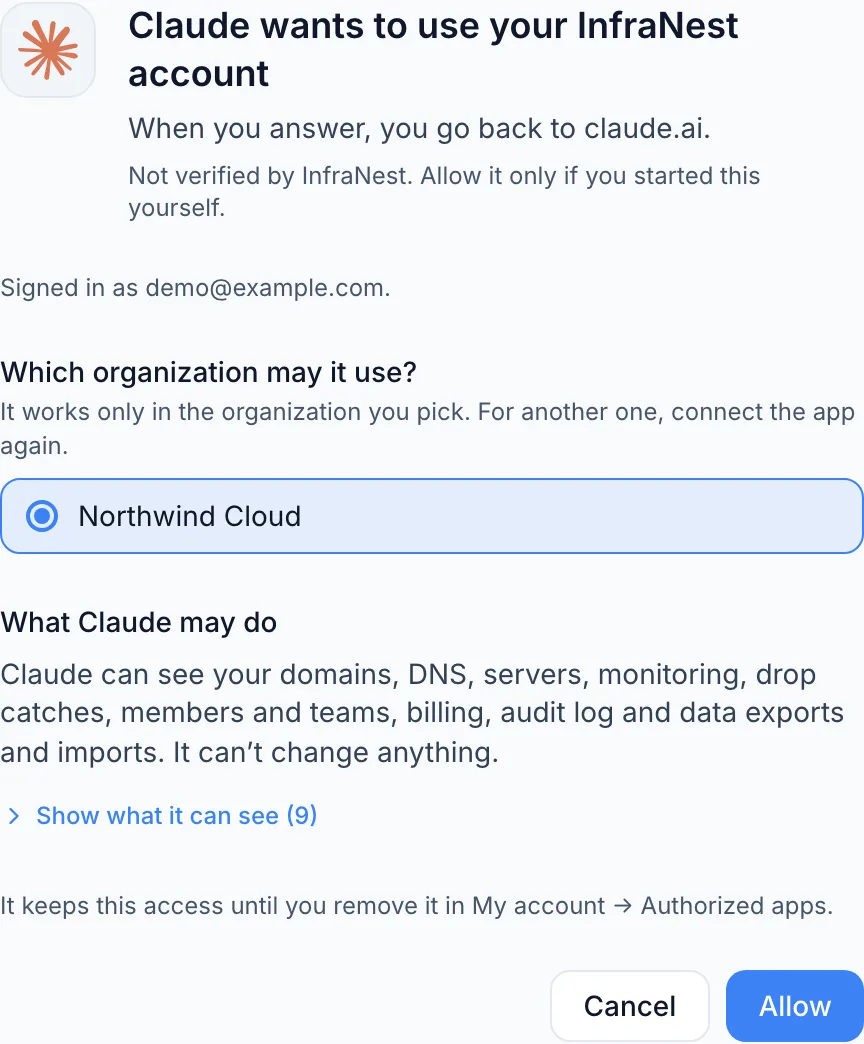
- Pick the organization the app may use. It will only work in that one organization. A Sandbox organization holds sample data, so it's a safe place to try an app first.
- Read the list under What the app may do. See means it can only look at data; See and change means it can also make changes. Anything shown struck through is something your role can't grant, so the app won't get it either.
- Press Allow. You'll be sent straight back to the app.
NoteIf an app asks for Everything, you'll get one extra confirmation step before you can allow it. Most apps need far less access than this — if you didn't expect that request, press Cancel.
Remove an app
- Go to My account → Authorized apps.
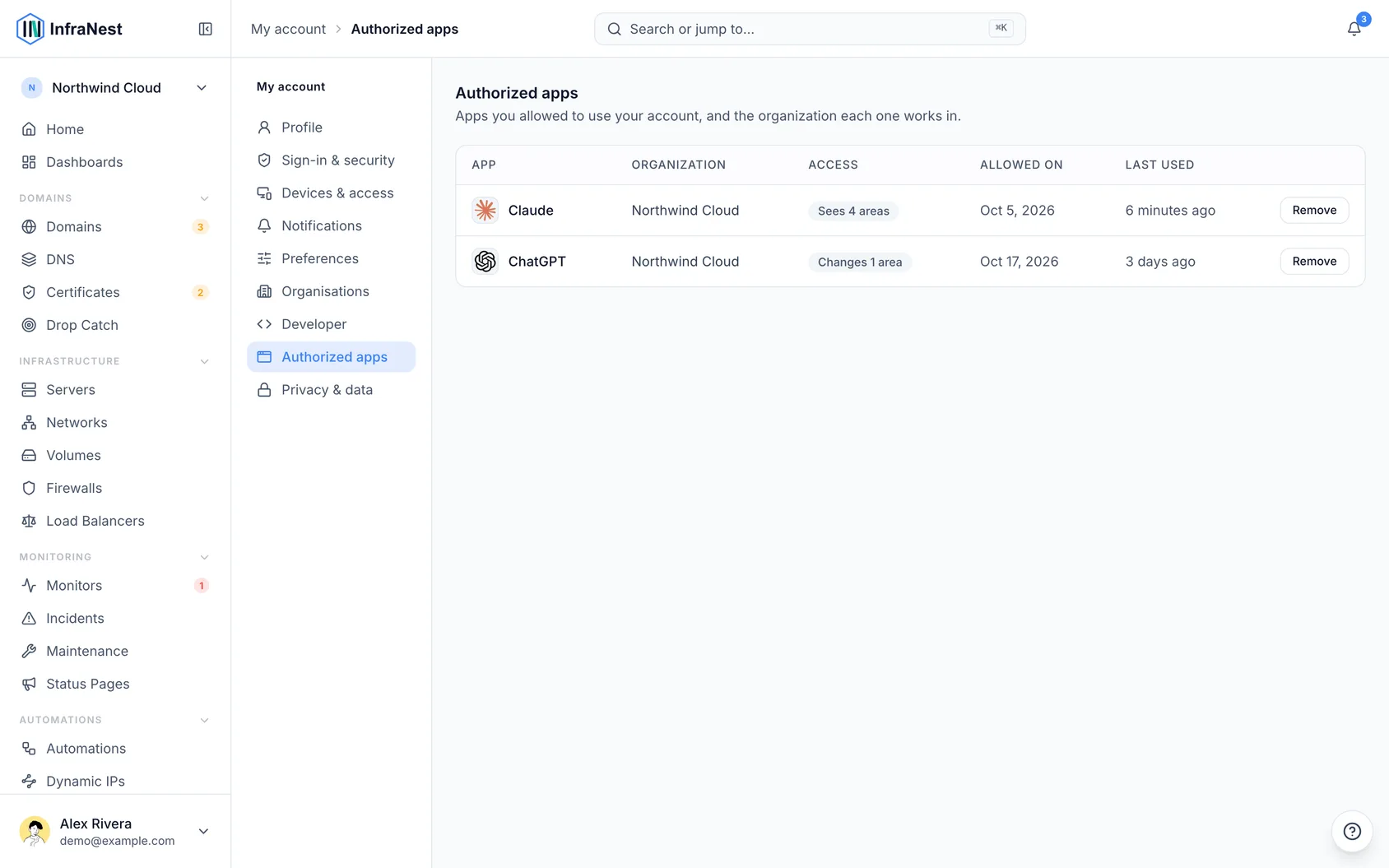
- Find the app in the list.
- Press Remove. It loses access immediately.
- To use the app again later, connect it again from within the app.
Remove an app a member connected (owners and admins)
- Go to Settings → Authorized apps.
- Find the app — each row shows which member allowed it.
- Press Remove to stop its access in this organization right away.
Tips
TipWant to use an app in a second organization? Connect it again and pick the other organization when asked.
Troubleshooting
- "This request has expired" — the permission page is only valid for a few minutes and works once. Go back to the app and start the connection again.
- An app keeps its access until someone removes it, but if nobody uses it for 30 days, it needs to be connected again.
- An app can only do what your role in that organization allows. If your role changes, or you leave the organization, the app's access shrinks or ends along with it.
- Any changes an app makes will show up in the audit log under the app's name.
Was this article helpful?
Related articles
Use InfraNest from an AI assistantAsk an AI assistant such as Claude, Cursor or VS Code about your infrastructure, and it looks the answer up in InfraNest for you.API tokensInfraNest has a full REST API, so you can automate anything you can do in the app. You access it with an API token.Connect Claude or ChatGPT to InfraNestAdd InfraNest to Claude or ChatGPT in a minute, then ask it about your servers, monitors, domains and DNS. No token to create or copy.Try things safely in your sandboxA sandbox is a free practice organization with sample data. Try the API, an AI assistant or a script there first: nothing you do in it reaches the outside…