

If alerts, invoices or invitations have stopped arriving, this article explains why and walks you through fixing it. It's for anyone who manages their own account, or who manages an organisation and needs to help a teammate.
Overview
- We stop sending to an address that permanently rejects our mail, to protect our ability to deliver everyone's alerts.
- A red bar at the top of the app tells you if this has happened to you.
- If there's no red bar, the issue is usually filtering, preferences, or alert routing on your side.
Check whether it's us or your inbox
- Sign in and look at the top of any page.
- If you see a red bar saying we can't reach your email address, go to the We can't reach your email address section below.
- If there's no red bar, we are still sending successfully — skip to Nothing is wrong on our side.
Fix "We can't reach your email address"
This means the mail server that receives your address rejected our messages permanently, and we stopped sending. This is usually caused by one of:
- the mailbox no longer existing — often after someone leaves a company, or a domain changes hands;
- a typo in the address, so nothing was ever going to arrive;
- someone marking one of our emails as spam (this is handled differently — see Understand a spam report below).
We stop on purpose. Repeatedly sending to a dead address damages our reputation with the big mail providers, which would start pushing everyone's alerts into spam folders.
- Go to My account → Sign-in & security.
- Change your email address to one that works.
- Check that new address for a confirmation link — this is always sent, even to an address we've stopped using.
- Open the confirmation link. Everything resumes automatically; there is nothing else to switch back on.
NoteIf we've already had mail rejected at the address you type in, we'll tell you right away and ask for a different one, rather than sending a confirmation that would never arrive. This happens more often than you'd think — for example, two addresses at the same employer, or a second attempt at the same mistyped mailbox.
If the address is fine and you want it re-enabled
If you know the mailbox works again — it was full and has been cleared, or a domain misconfiguration has been fixed — contact support and ask us to resume sending to it. We can do that, but only when you're confident the mailbox is genuinely receiving mail, because another rejection puts it straight back.
Understand a spam report
When somebody marks one of our emails as spam, their mail provider tells ours to stop delivering to that address — we treat it as the request it is, rather than as a delivery failure.
Two separate things happen, and it's worth knowing which is which:
- Delivery stops. This isn't really our choice: the mail provider has blocked the address at its end, so nothing we send arrives, invoices included. The only exception is mail that lets you get back into your account, such as password resets and confirming a new address.
- We switch off the emails we send you without being asked — monitoring and domain alerts, status page updates, and anything promotional — so the request is on record and not just enforced by the block. Your invoices are not switched off; they resume as soon as delivery does. Support replies come through the chat in the app, which this does not affect.
Usually there's nothing to do. If it was a mistake — a shared mailbox where a colleague pressed the button, or an attempt to unsubscribe that became a spam report instead — contact support and ask us to lift the block. Lifting it restores your invoices and account emails.
It does not switch your alerts back on. Those are your preferences now, and only you can change them:
- for your own emails, under My account → Notifications;
- for your organisation's alerts, under Alerts → Destinations.
A destination we switched off says so in that list.
Help a colleague who isn't getting alerts
If you own or administer the organisation, we tell you in the app the first time this happens to one of your people — look for it in the bell. Note that this notice doesn't come by email, because for a small team the broken address and yours are often at the same domain.
- Open Settings → Members.
- Look for anyone with a Not reachable label next to their address.
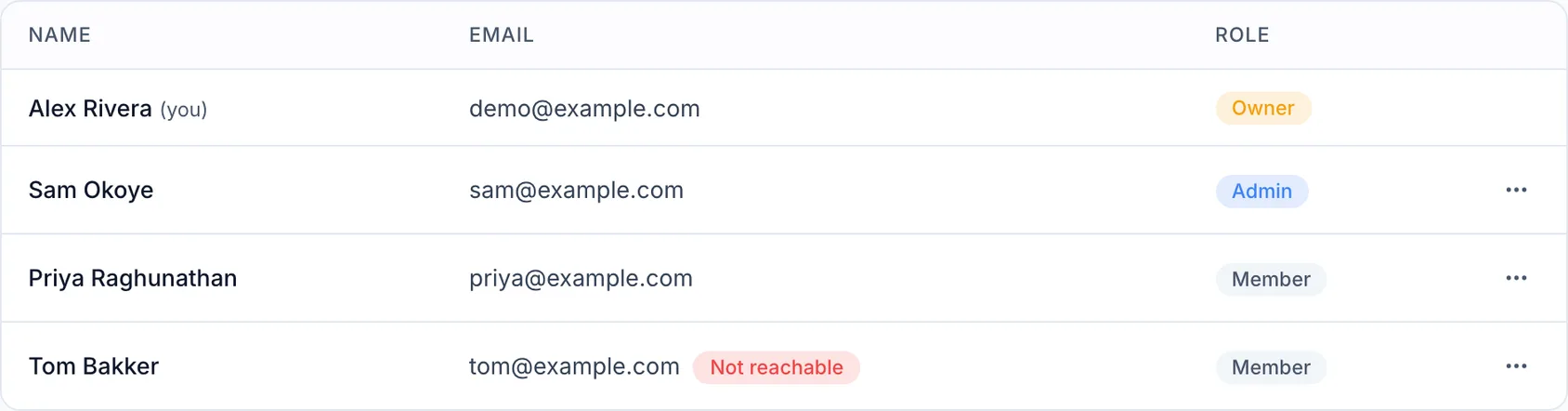
- Reach that person another way (not email) and let them know.
- Ask them to change their own address under My account → Sign-in & security — you can't do this for them, because the confirmation goes to them.
TipCheck this whenever on-call alerts seem to have gone quiet for one person and not the rest of the team.
Fix an invitation that never arrived
If we've had mail rejected at the address before, we refuse the invitation as you send it and tell you why — this is better than an invitation that silently goes nowhere, since nothing would ever prompt you to check.
- Ask your colleague for an address that works, or have them tell you which mailbox they actually read.
- Send the invitation again to that address.
Troubleshooting: nothing is wrong on our side
If there's no red bar, we're sending and your mail server is accepting. Try these in order:
- Check your spam or junk folder, and mark anything from us as "not spam" so future messages land normally.
- Check your notification preferences under My account → Notifications — a category may have been switched off, or someone may have used the one-click unsubscribe link in an email footer.
- Check your alert destinations under Alerts → Destinations. Organisation alerts go where the destination says, which may not be your personal address.
- Ask your IT team about filtering. Corporate mail systems sometimes quarantine automated mail silently — ask them to allow mail from our sending domain.
NotePersonal emails and organisation alerts are two different things. If you're getting invoices but not monitoring alerts, the problem is almost certainly alert routing rather than your address.
Was this article helpful?