

This article is for anyone who needs to answer "who can get into our organization" or "who is actually using their access" — for a security review, an offboarding check, or general housekeeping.
Overview
- Two separate reports answer two separate questions: who has access right now, and who actually signed in over a period of time.
- They're kept apart on purpose, because mixing "right now" with "over time" makes both harder to read.
- Both are built for audits: they export cleanly and every export is logged.
Check who has access right now
- Open Access.
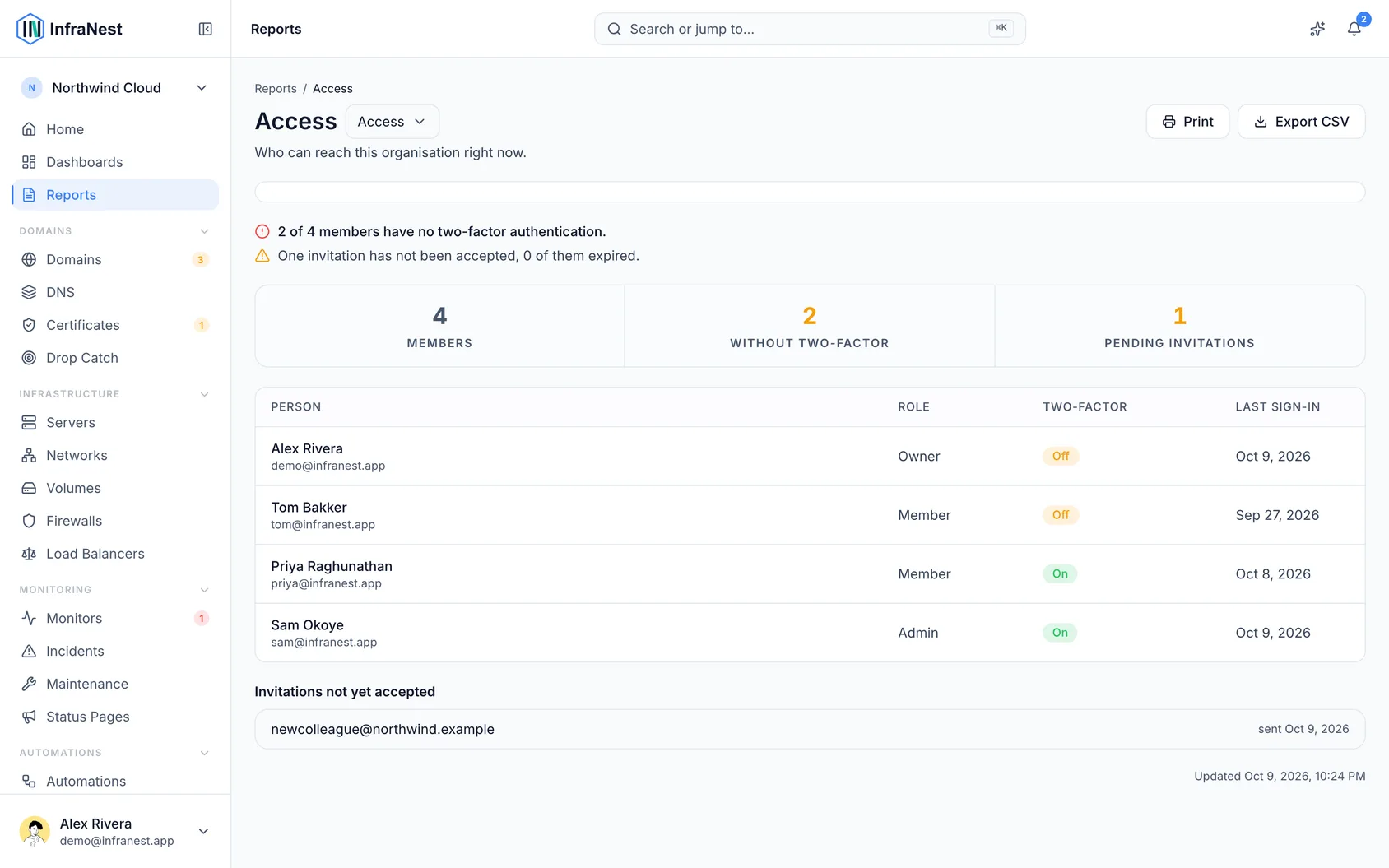
- Review the list of everyone who can reach this organization today, along with their role, whether they have two-factor turned on, and when they last signed in.
- Look at the top of the list first — people without two-factor are shown first, since that's usually what a review is looking for.
- If your organization uses an identity provider (like Okta, Microsoft Entra ID or Google Workspace), check the Status shown for affected people — they'll show Signs in with and the provider's name instead of Off. This only appears when the provider is genuinely their only way in; anyone who can still use a password keeps the two-factor warning, with the provider named beside it.
- Scroll down to see pending invitations nobody has accepted yet — expired ones are marked. This is where you'd notice if someone left before accepting an invitation.
- Note that "Last signed in: never" means exactly that — there's no record of this person ever signing in.
Check who signed in over a period
- Open Sign-ins.
- Choose a period — a month, a quarter or a year.
- Review the list: for each person, you'll see how many times they signed in, how many separate days they were active, and the first and last of those days.
- Start at the top — people with no sign-ins at all are listed first with a zero. This is usually the most useful line in the report, since it flags accounts nobody has used.
- Use "Days active" rather than total sign-in count as your main measure — someone signing in eight times in one morning is really just one day of work.
NoteIf you pick a period from before InfraNest started keeping sign-in summaries, the report will tell you the earliest date it can report from, rather than showing a month of zeroes.
Export a report for an audit
- Open either Access or Sign-ins.
- Select Export CSV to download the rows exactly as shown — this is typically what an ISO 27001 or SOC 2 access review wants attached to a ticket.
- Alternatively, select Print to save the report as a PDF, with the period and any filters restated on the page.
- To share the same view with a colleague, copy the address bar link — it opens the same report with the same period.
TipEvery export is recorded in your audit log, so there's always a trail of who pulled the evidence and when.
Good to know
- Roles are per organization. Someone who belongs to two of your organizations can be an owner in one and a viewer in the other — each report only shows their role for the organization you're currently in.
- Removing someone from the organization removes them from Access immediately, but they'll still appear in Sign-ins for periods when they were actually signed in. That's historical record, and it doesn't get rewritten after the fact.
Was this article helpful?
Related articles
Put your own brand on what we sendAlerts, domain notices and status-page updates can carry your logo, your colour and your name instead of ours — so the people you look after see your…Manage your organizationEverything in InfraNest — domains, servers, members, billing — belongs to an organisation. You can belong to more than one and switch between them.Invite your teamInvite teammates to your organisation and give each the right level of access.The monthly recap emailOnce a month InfraNest emails your workspace a short summary of what it did for you — and it sends whether the month was busy or quiet.